> ## Documentation Index
> Fetch the complete documentation index at: https://docs.flowpayroll.ai/llms.txt
> Use this file to discover all available pages before exploring further.
# Court orders and attachment of earnings
> Create and manage court orders (CMS DEO, AEO, DEA, CTAEO, EA, MCAEO) — Flow Payroll applies the correct deduction, respects protected earnings, and tracks the outstanding balance each pay run.
A court order (or attachment of earnings order) is a legal instruction to deduct money from an employee's pay and remit it to a third party. Flow Payroll supports all the main order types used in England, Wales, and Scotland, applying the correct calculation method, respecting protected earnings floors, and tracking what has been paid against each order.
 ## Supported order types
| Order | Acronym | Issued by | Priority | Protected earnings |
| ------------------------------------------------------- | ------------------ | -------------------------------- | ------------ | ------------------- |
| Child Maintenance Service Deduction from Earnings Order | CMS DEO | Child Maintenance Service | Highest | 60% of net |
| Attachment of Earnings Order – Priority | AEO (priority) | Magistrates' Court / Civil Court | Priority | Court-specified PER |
| Attachment of Earnings Order – Non-Priority | AEO (non-priority) | Civil Court | Non-priority | 60% of net |
| Direct Earnings Attachment | DEA | Department for Work & Pensions | Non-priority | 60% of net |
| Council Tax Attachment of Earnings Order | CTAEO | Local Authority | Priority | Table-implied |
| Earnings Arrestment (Scotland) | EA | Scottish Court | Priority | Table-implied |
| Magistrates Court Attachment of Earnings Order | MCAEO | Magistrates' Court | Priority | Court-specified PER |
Priority orders are deducted before student loans. Non-priority orders are deducted after student loans. CMS DEO has the highest priority of all, above other priority orders.
## How deductions apply during a pay run
Each pay run, Flow Payroll:
1. Identifies all active court orders for employees in the run.
2. Applies orders in priority order (CMS DEO first, then priority orders, then non-priority orders).
3. Calculates the deduction amount using the method specified for each order — statutory table, percentage of net, or fixed amount.
4. Checks that the deduction does not reduce the employee's net pay below the protected earnings floor.
5. If the employee's earnings are insufficient, the shortfall is carried forward where the order type supports it (CMS DEO does; AEO and DEA do not).
6. Updates the remaining balance for orders where a total amount owed was recorded.
7. An employer admin fee of £1 per pay period can be applied to each order.
Orders that suppress student loans (CMS DEO, AEO priority, CTAEO, EA, MCAEO) will prevent student loan deductions from being applied while the order is active.
## Creating a court order
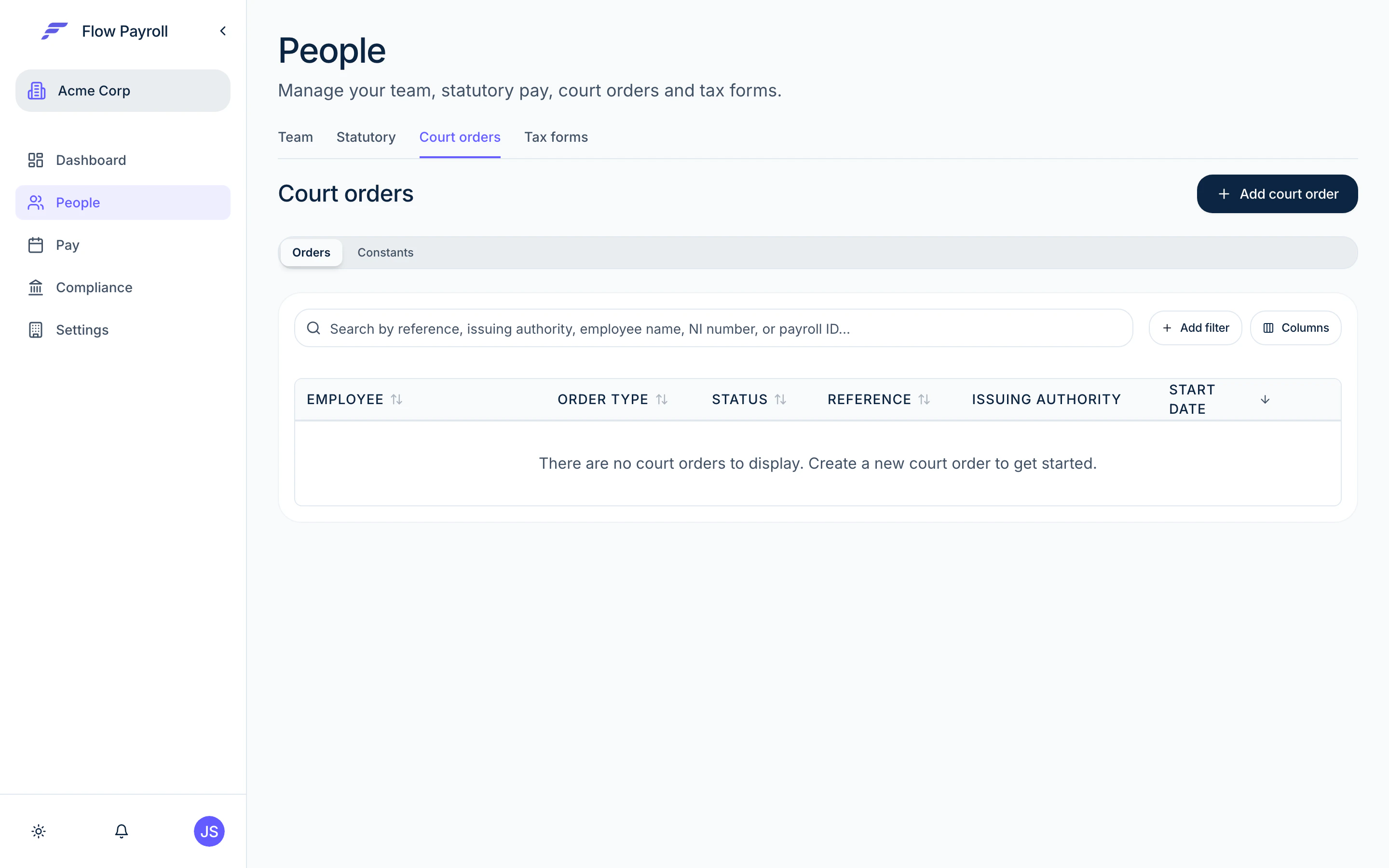
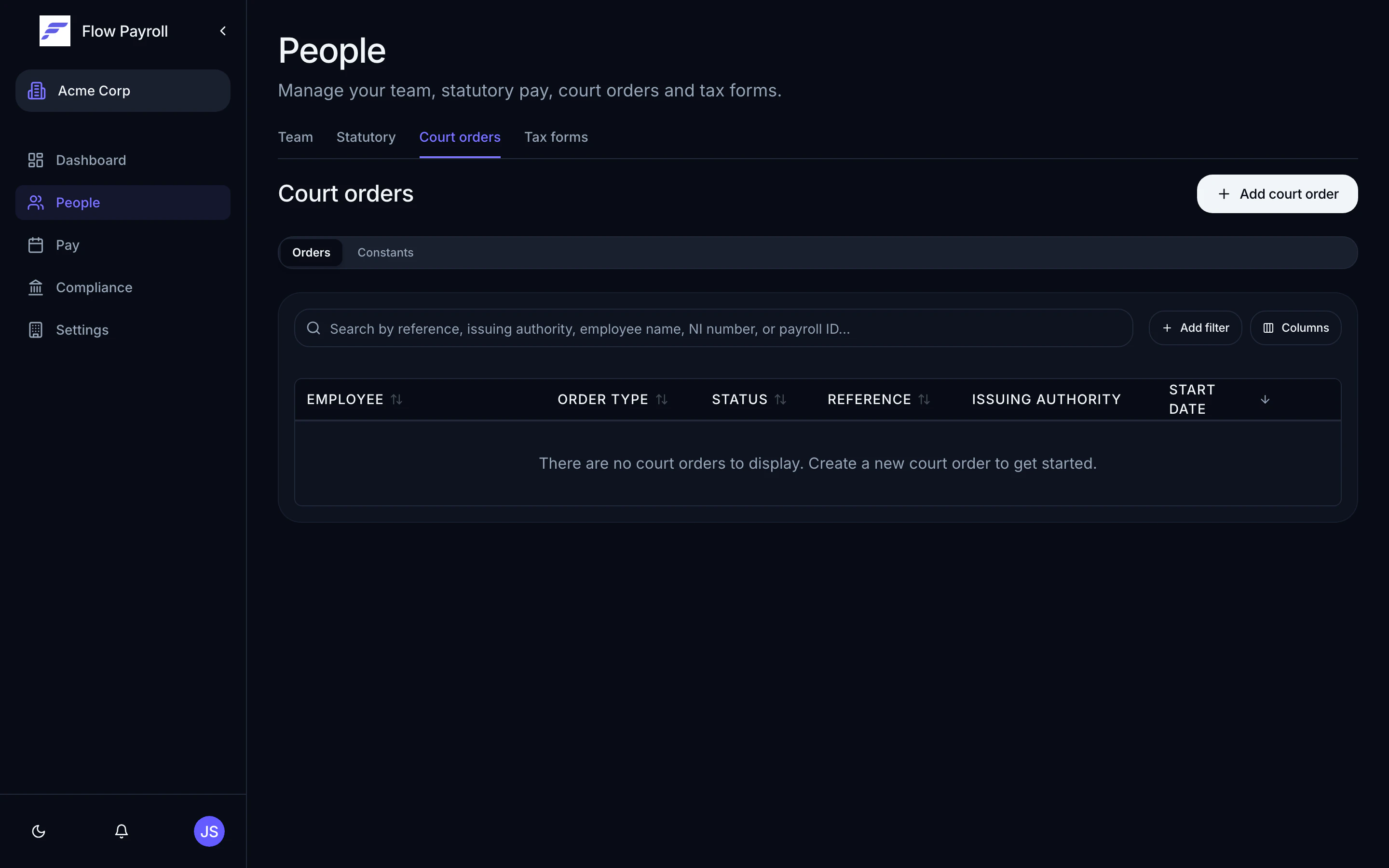
Go to the employee's profile and open the **Court orders** section, then select **Add court order**. Alternatively, go to **People > Court orders** and select **Add** to create an order without pre-selecting an employee.
Choose the order type from the searchable dropdown. The description shown in the list includes the acronym and the issuing authority, which helps you match the order you received.
The order type cannot be changed after the order is created.
* **Order reference** — the reference on the order document.
* **Issuing authority** — pre-filled with the default for the order type; edit if the actual issuer differs.
* **Date received** — when you received the order. This determines the earliest valid start date.
* **Start date** — when deductions begin. Minimum lead times apply by order type (see table below).
* **End date** — optional. Leave blank for open-ended orders; set if the order specifies a discharge date.
| Order type | Earliest start date after receipt |
| ------------------------------ | --------------------------------------------- |
| CMS DEO | Next available pay day |
| AEO (priority or non-priority) | Next pay day if at least 7 days after receipt |
| DEA | First pay day at least 22 days after receipt |
| CTAEO | Next pay day if at least 7 days after receipt |
| EA | Next pay day if at least 7 days after receipt |
| MCAEO | Next pay day if at least 7 days after receipt |
The fields shown depend on the order type:
**CMS DEO** — choose between percentage of net earnings (maximum 40%) or a fixed amount per period. Enter the total amount owed if you want the order to auto-discharge once repaid.
**AEO (priority)** — select the category (fines or maintenance) and the deduction basis (statutory table, percentage, or fixed amount). For fines, the court-specified Protected Earnings Rate (PER) is required.
**AEO (non-priority)** — civil debt category; select the deduction basis.
**DEA** — select the deduction basis. When using the statutory table, choose Standard Rate or Higher Rate (DWP instructs which applies). A combined 20% cap applies when multiple DEA orders are active.
**CTAEO** — enter the local authority name and select the statutory earnings table (weekly, monthly, or daily) matching the employee's pay frequency.
**EA** — select the earnings table (Table A for weekly earnings, Table B for monthly).
**MCAEO** — enter the total amount owed and the court-specified PER; select the deduction basis.
Protected earnings prevent the deduction from reducing the employee's net pay below a minimum. Flow Payroll pre-fills the default for the order type. For orders where the court specifies a Protected Earnings Rate, enter that amount.
* **Previously paid** — if some of the debt was already paid before this order was set up, enter the amount so the remaining balance is correct from the start.
* **Instruction amount** — if a revised notice specifies a particular deduction per period, enter it here. This overrides the normal calculation but still respects protected earnings.
* **Payee** — select an existing payee or create a new one. A payee holds the bank details and payment method for remitting the deduction. Leave empty if you handle remittances outside Flow.
* **Remittance reference** — the reference to include with the payment. It defaults to the order reference but can be changed.
Attach the original order document (PDF, DOC, or image — up to three files). Add any internal notes about the order.
Select **Create court order** to save.
## Payees
A payee is the organisation or account that receives the remitted deductions. You set up payees centrally and reuse them across orders.
Each payee stores:
* Name and payment method (BACS, cheque, or card).
* BACS sort code and account number (if BACS).
* Whether the payee should be included in the remittance file.
When a payee is assigned to a court order, Flow Payroll associates each deduction payment with that payee's details. The remittance deadline shown on the order detail page reflects the order type: within 5 working days for CMS DEO, and by the 19th of the following month for all other types.
## Editing and managing orders
Open an order from the employee's profile or the court orders list. You can:
* Change the **status** (Active, Suspended, On hold, or Discharged). Use Suspended to pause deductions temporarily. Discharged marks the order as complete.
* Update the end date, instruction amount, notes, and payee.
* View the payment history — every deduction applied in each pay run, with dates and amounts.
You cannot change the order type or employee after creation.
## Where to go next
See how court order deductions appear in pay run calculations.
View all court orders for an employee from their profile.
Understand how statutory pay interacts with court order deductions and eligible earnings.
Reporting and insights — coming soon.
## Supported order types
| Order | Acronym | Issued by | Priority | Protected earnings |
| ------------------------------------------------------- | ------------------ | -------------------------------- | ------------ | ------------------- |
| Child Maintenance Service Deduction from Earnings Order | CMS DEO | Child Maintenance Service | Highest | 60% of net |
| Attachment of Earnings Order – Priority | AEO (priority) | Magistrates' Court / Civil Court | Priority | Court-specified PER |
| Attachment of Earnings Order – Non-Priority | AEO (non-priority) | Civil Court | Non-priority | 60% of net |
| Direct Earnings Attachment | DEA | Department for Work & Pensions | Non-priority | 60% of net |
| Council Tax Attachment of Earnings Order | CTAEO | Local Authority | Priority | Table-implied |
| Earnings Arrestment (Scotland) | EA | Scottish Court | Priority | Table-implied |
| Magistrates Court Attachment of Earnings Order | MCAEO | Magistrates' Court | Priority | Court-specified PER |
Priority orders are deducted before student loans. Non-priority orders are deducted after student loans. CMS DEO has the highest priority of all, above other priority orders.
## How deductions apply during a pay run
Each pay run, Flow Payroll:
1. Identifies all active court orders for employees in the run.
2. Applies orders in priority order (CMS DEO first, then priority orders, then non-priority orders).
3. Calculates the deduction amount using the method specified for each order — statutory table, percentage of net, or fixed amount.
4. Checks that the deduction does not reduce the employee's net pay below the protected earnings floor.
5. If the employee's earnings are insufficient, the shortfall is carried forward where the order type supports it (CMS DEO does; AEO and DEA do not).
6. Updates the remaining balance for orders where a total amount owed was recorded.
7. An employer admin fee of £1 per pay period can be applied to each order.
Orders that suppress student loans (CMS DEO, AEO priority, CTAEO, EA, MCAEO) will prevent student loan deductions from being applied while the order is active.
## Creating a court order
Go to the employee's profile and open the **Court orders** section, then select **Add court order**. Alternatively, go to **People > Court orders** and select **Add** to create an order without pre-selecting an employee.
Choose the order type from the searchable dropdown. The description shown in the list includes the acronym and the issuing authority, which helps you match the order you received.
The order type cannot be changed after the order is created.
* **Order reference** — the reference on the order document.
* **Issuing authority** — pre-filled with the default for the order type; edit if the actual issuer differs.
* **Date received** — when you received the order. This determines the earliest valid start date.
* **Start date** — when deductions begin. Minimum lead times apply by order type (see table below).
* **End date** — optional. Leave blank for open-ended orders; set if the order specifies a discharge date.
| Order type | Earliest start date after receipt |
| ------------------------------ | --------------------------------------------- |
| CMS DEO | Next available pay day |
| AEO (priority or non-priority) | Next pay day if at least 7 days after receipt |
| DEA | First pay day at least 22 days after receipt |
| CTAEO | Next pay day if at least 7 days after receipt |
| EA | Next pay day if at least 7 days after receipt |
| MCAEO | Next pay day if at least 7 days after receipt |
The fields shown depend on the order type:
**CMS DEO** — choose between percentage of net earnings (maximum 40%) or a fixed amount per period. Enter the total amount owed if you want the order to auto-discharge once repaid.
**AEO (priority)** — select the category (fines or maintenance) and the deduction basis (statutory table, percentage, or fixed amount). For fines, the court-specified Protected Earnings Rate (PER) is required.
**AEO (non-priority)** — civil debt category; select the deduction basis.
**DEA** — select the deduction basis. When using the statutory table, choose Standard Rate or Higher Rate (DWP instructs which applies). A combined 20% cap applies when multiple DEA orders are active.
**CTAEO** — enter the local authority name and select the statutory earnings table (weekly, monthly, or daily) matching the employee's pay frequency.
**EA** — select the earnings table (Table A for weekly earnings, Table B for monthly).
**MCAEO** — enter the total amount owed and the court-specified PER; select the deduction basis.
Protected earnings prevent the deduction from reducing the employee's net pay below a minimum. Flow Payroll pre-fills the default for the order type. For orders where the court specifies a Protected Earnings Rate, enter that amount.
* **Previously paid** — if some of the debt was already paid before this order was set up, enter the amount so the remaining balance is correct from the start.
* **Instruction amount** — if a revised notice specifies a particular deduction per period, enter it here. This overrides the normal calculation but still respects protected earnings.
* **Payee** — select an existing payee or create a new one. A payee holds the bank details and payment method for remitting the deduction. Leave empty if you handle remittances outside Flow.
* **Remittance reference** — the reference to include with the payment. It defaults to the order reference but can be changed.
Attach the original order document (PDF, DOC, or image — up to three files). Add any internal notes about the order.
Select **Create court order** to save.
## Payees
A payee is the organisation or account that receives the remitted deductions. You set up payees centrally and reuse them across orders.
Each payee stores:
* Name and payment method (BACS, cheque, or card).
* BACS sort code and account number (if BACS).
* Whether the payee should be included in the remittance file.
When a payee is assigned to a court order, Flow Payroll associates each deduction payment with that payee's details. The remittance deadline shown on the order detail page reflects the order type: within 5 working days for CMS DEO, and by the 19th of the following month for all other types.
## Editing and managing orders
Open an order from the employee's profile or the court orders list. You can:
* Change the **status** (Active, Suspended, On hold, or Discharged). Use Suspended to pause deductions temporarily. Discharged marks the order as complete.
* Update the end date, instruction amount, notes, and payee.
* View the payment history — every deduction applied in each pay run, with dates and amounts.
You cannot change the order type or employee after creation.
## Where to go next
See how court order deductions appear in pay run calculations.
View all court orders for an employee from their profile.
Understand how statutory pay interacts with court order deductions and eligible earnings.
Reporting and insights — coming soon.