> ## Documentation Index
> Fetch the complete documentation index at: https://docs.flowpayroll.ai/llms.txt
> Use this file to discover all available pages before exploring further.
# HMRC & RTI submissions
> Submit your Full Payment Submission and Employer Payment Summary to HMRC, view submission history, and resubmit when needed.
Real Time Information (RTI) is how you report payroll to HMRC. Flow Payroll handles both submission types — the FPS and the EPS — from the **Compliance** area of the app.
The FPS must reach HMRC **on or before** each pay day. The EPS is due by the **19th of the following tax month** (the 22nd if you pay HMRC electronically).
 ## The two submission types
| Submission | What it reports | When it is due |
| ---------------------------------- | ------------------------------------------------------------------------------------------------------------------- | -------------------------------------- |
| **FPS** — Full Payment Submission | Pay, tax, and NI for each employee in a pay period | On or before pay day |
| **EPS** — Employer Payment Summary | Employer-level adjustments: statutory pay recovery, employment allowance, no-payment periods, and final submissions | By the 19th of the following tax month |
FPS submissions are generated automatically when you lock a pay run. You manage EPS submissions manually when you have something to report at employer level.
## The Compliance page
Go to **Compliance** in the main navigation. The page has four tabs:
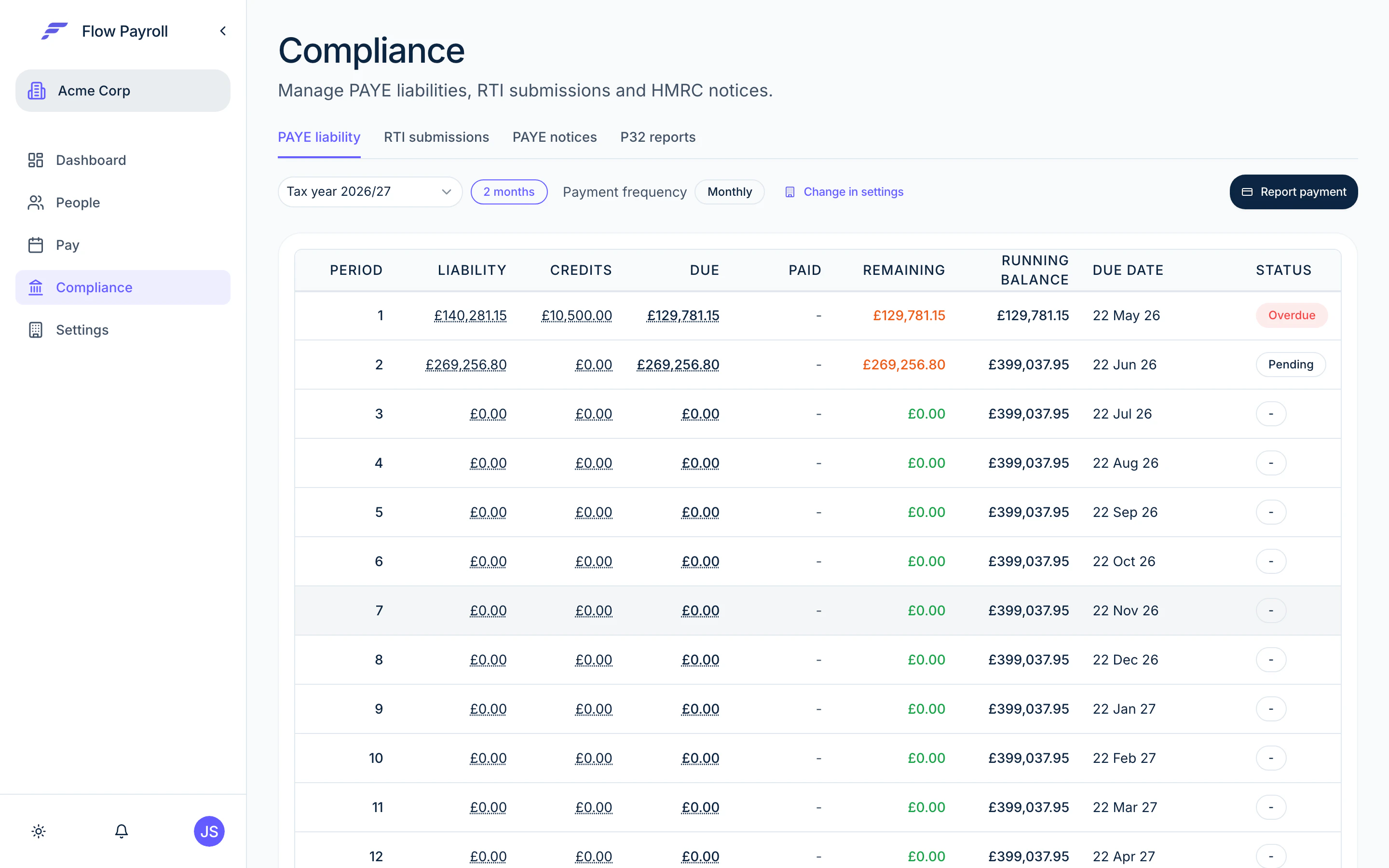
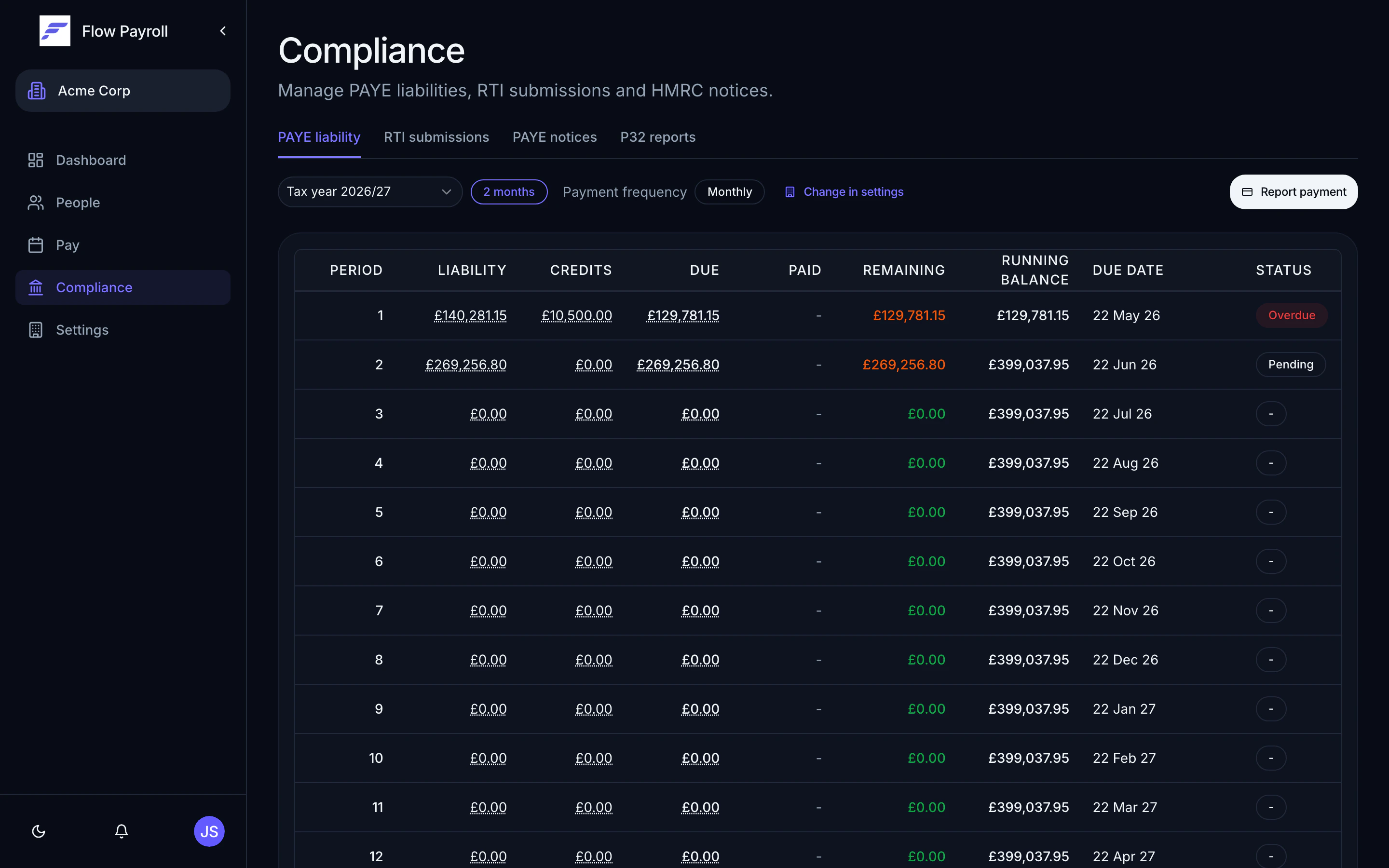
* **PAYE liability** — a summary of what you owe HMRC each period, with the ability to record payments.
* **RTI submissions** — a history of every FPS and EPS sent from this organisation.
* **PAYE notices** — incoming HMRC notices (P6, P9, coding changes, penalties, and others) retrieved via the HMRC Data Provisioning Service.
* **P32 reports** — monthly employer payment record.
## Viewing RTI submissions
Open the **RTI submissions** tab. You see a table of every submission, with columns for type, period, submission date, and status.
Each submission shows one of the following statuses:
| Status | Meaning |
| ---------------------- | -------------------------------------- |
| **Sent** | Successfully received by HMRC |
| **Sending** | In progress |
| **Failed** | The submission was rejected or errored |
| **Not sent** | Created but not yet sent |
| **Generating preview** | Preview XML is being built |
| **Preview ready** | Preview XML available to inspect |
Use the **tax year** selector to switch between years. Use the **filter** control to narrow by type (FPS or EPS) or by status.
Click any row to view the full submission detail — including the underlying XML if you need it for audit or troubleshooting purposes.
## Submitting a Full Payment Submission (FPS)
Flow Payroll creates an FPS automatically when you lock a pay run. You do not need to submit it separately — locking the pay run triggers the submission.
If an FPS shows a **Failed** status, open it from the RTI submissions table to see the error detail, then contact support if the issue is not resolved by correcting the pay run data.
Approve and lock your pay run before pay day so the FPS reaches HMRC in time. The deadline is on or before the pay day itself, not after.
## Creating an EPS
On the **RTI submissions** tab, select **Add submission**. The dialog asks you to select a submission type.
Two options are available:
* **EPS manual** — you enter all values yourself. Use this when you need precise control over what is reported.
* **EPS from monthly balances** — Flow Payroll pre-fills the recoverable statutory pay amounts from your pay run data for the selected tax month. This is the fastest route for most employers.
The dialog auto-selects the current tax period. Adjust if you are submitting for a prior month.
The form contains the following sections. Enable each section with its toggle only if you have something to report.
| Section | When to use |
| ---------------------------- | -------------------------------------------------------------------------------------------------- |
| **No payment for period** | You paid no employees in a period and are telling HMRC you owe nothing |
| **Period of inactivity** | You will not pay anyone for one or more future periods |
| **Employment allowance** | You are claiming or adjusting your Employment Allowance entitlement |
| **Recoverable amounts** | You are reclaiming statutory pay (SMP, SPP, SAP, ShPP, and others) and associated NIC compensation |
| **Apprenticeship levy** | You have levy amounts to declare |
| **Final submission details** | This is the last EPS for the tax year, or your PAYE scheme has ceased |
Select **Preview XML** at any time to inspect the XML that will be sent to HMRC. When you are ready, select **Submit**. A confirmation modal asks you to confirm before the submission is sent.
After a successful submission you are taken to the submission detail page where you can see the status and the submitted XML.
## Reissuing an EPS
If you need to correct a previously sent EPS, open the submission from the RTI submissions table and select **Reissue**. This opens a pre-filled version of the EPS form with the original values. Make your corrections, then submit. The reissued EPS replaces the original for that tax month.
## PAYE notices
The **PAYE notices** tab shows notifications from HMRC delivered via the Data Provisioning Service (DPS). These include:
* **P6** — new tax code for an employee
* **P9** — annual tax code update
* **AR** — annual reminders
* **Coding notices, penalties, and incentives**
You can filter notices by type and status. Assign a notice to a specific employee to link it to their record. Bulk-apply or bulk-dismiss multiple notices at once using the selection controls.
Applying a tax code notice updates the employee's tax code in Flow Payroll. Check the employee's record after applying to confirm the change is correct before the next pay run.
## PAYE liability
The **PAYE liability** tab shows what you owe HMRC each period based on the pay runs you have run. Select **Report payment** to record that you have paid HMRC for a given period. This keeps your liability view accurate.
## Year end
At the end of the tax year you have a few extra obligations on top of your usual pay runs:
1. **Final FPS** — on the last pay run of the tax year, the **Final submission** toggle is pre-enabled in the pay run wizard's RTI step. This tells HMRC it's your final submission for the year.
2. **Final EPS** — if you have employer-level amounts to report, send a final EPS and enable the **Final submission details** section.
3. **P60s** — issue a P60 to every employee who is still employed at the end of the tax year. P60s are available from **People**, on the **Tax forms** tab (and on each employee's **Tax forms** tab in their record).
Only mark the FPS or EPS as a final submission on the genuine last submission of the tax year. Marking it early can cause HMRC processing issues.
## Where to go next
Lock a pay run to trigger the FPS submission automatically.
Record statutory pay so it appears correctly in your EPS recoverable amounts.
Make sure your PAYE reference and HMRC credentials are configured.
Reporting and insights — coming soon.
## The two submission types
| Submission | What it reports | When it is due |
| ---------------------------------- | ------------------------------------------------------------------------------------------------------------------- | -------------------------------------- |
| **FPS** — Full Payment Submission | Pay, tax, and NI for each employee in a pay period | On or before pay day |
| **EPS** — Employer Payment Summary | Employer-level adjustments: statutory pay recovery, employment allowance, no-payment periods, and final submissions | By the 19th of the following tax month |
FPS submissions are generated automatically when you lock a pay run. You manage EPS submissions manually when you have something to report at employer level.
## The Compliance page
Go to **Compliance** in the main navigation. The page has four tabs:
* **PAYE liability** — a summary of what you owe HMRC each period, with the ability to record payments.
* **RTI submissions** — a history of every FPS and EPS sent from this organisation.
* **PAYE notices** — incoming HMRC notices (P6, P9, coding changes, penalties, and others) retrieved via the HMRC Data Provisioning Service.
* **P32 reports** — monthly employer payment record.
## Viewing RTI submissions
Open the **RTI submissions** tab. You see a table of every submission, with columns for type, period, submission date, and status.
Each submission shows one of the following statuses:
| Status | Meaning |
| ---------------------- | -------------------------------------- |
| **Sent** | Successfully received by HMRC |
| **Sending** | In progress |
| **Failed** | The submission was rejected or errored |
| **Not sent** | Created but not yet sent |
| **Generating preview** | Preview XML is being built |
| **Preview ready** | Preview XML available to inspect |
Use the **tax year** selector to switch between years. Use the **filter** control to narrow by type (FPS or EPS) or by status.
Click any row to view the full submission detail — including the underlying XML if you need it for audit or troubleshooting purposes.
## Submitting a Full Payment Submission (FPS)
Flow Payroll creates an FPS automatically when you lock a pay run. You do not need to submit it separately — locking the pay run triggers the submission.
If an FPS shows a **Failed** status, open it from the RTI submissions table to see the error detail, then contact support if the issue is not resolved by correcting the pay run data.
Approve and lock your pay run before pay day so the FPS reaches HMRC in time. The deadline is on or before the pay day itself, not after.
## Creating an EPS
On the **RTI submissions** tab, select **Add submission**. The dialog asks you to select a submission type.
Two options are available:
* **EPS manual** — you enter all values yourself. Use this when you need precise control over what is reported.
* **EPS from monthly balances** — Flow Payroll pre-fills the recoverable statutory pay amounts from your pay run data for the selected tax month. This is the fastest route for most employers.
The dialog auto-selects the current tax period. Adjust if you are submitting for a prior month.
The form contains the following sections. Enable each section with its toggle only if you have something to report.
| Section | When to use |
| ---------------------------- | -------------------------------------------------------------------------------------------------- |
| **No payment for period** | You paid no employees in a period and are telling HMRC you owe nothing |
| **Period of inactivity** | You will not pay anyone for one or more future periods |
| **Employment allowance** | You are claiming or adjusting your Employment Allowance entitlement |
| **Recoverable amounts** | You are reclaiming statutory pay (SMP, SPP, SAP, ShPP, and others) and associated NIC compensation |
| **Apprenticeship levy** | You have levy amounts to declare |
| **Final submission details** | This is the last EPS for the tax year, or your PAYE scheme has ceased |
Select **Preview XML** at any time to inspect the XML that will be sent to HMRC. When you are ready, select **Submit**. A confirmation modal asks you to confirm before the submission is sent.
After a successful submission you are taken to the submission detail page where you can see the status and the submitted XML.
## Reissuing an EPS
If you need to correct a previously sent EPS, open the submission from the RTI submissions table and select **Reissue**. This opens a pre-filled version of the EPS form with the original values. Make your corrections, then submit. The reissued EPS replaces the original for that tax month.
## PAYE notices
The **PAYE notices** tab shows notifications from HMRC delivered via the Data Provisioning Service (DPS). These include:
* **P6** — new tax code for an employee
* **P9** — annual tax code update
* **AR** — annual reminders
* **Coding notices, penalties, and incentives**
You can filter notices by type and status. Assign a notice to a specific employee to link it to their record. Bulk-apply or bulk-dismiss multiple notices at once using the selection controls.
Applying a tax code notice updates the employee's tax code in Flow Payroll. Check the employee's record after applying to confirm the change is correct before the next pay run.
## PAYE liability
The **PAYE liability** tab shows what you owe HMRC each period based on the pay runs you have run. Select **Report payment** to record that you have paid HMRC for a given period. This keeps your liability view accurate.
## Year end
At the end of the tax year you have a few extra obligations on top of your usual pay runs:
1. **Final FPS** — on the last pay run of the tax year, the **Final submission** toggle is pre-enabled in the pay run wizard's RTI step. This tells HMRC it's your final submission for the year.
2. **Final EPS** — if you have employer-level amounts to report, send a final EPS and enable the **Final submission details** section.
3. **P60s** — issue a P60 to every employee who is still employed at the end of the tax year. P60s are available from **People**, on the **Tax forms** tab (and on each employee's **Tax forms** tab in their record).
Only mark the FPS or EPS as a final submission on the genuine last submission of the tax year. Marking it early can cause HMRC processing issues.
## Where to go next
Lock a pay run to trigger the FPS submission automatically.
Record statutory pay so it appears correctly in your EPS recoverable amounts.
Make sure your PAYE reference and HMRC credentials are configured.
Reporting and insights — coming soon.