> ## Documentation Index
> Fetch the complete documentation index at: https://docs.flowpayroll.ai/llms.txt
> Use this file to discover all available pages before exploring further.
# Managing people
> View your team, understand what an employee record contains, and keep details up to date.
The **People** section is where every employee in your organisation lives. Open it from the main navigation to see your team, access individual records, and manage payroll across the full employee lifecycle — from new starter to leaver.
 ## The People section
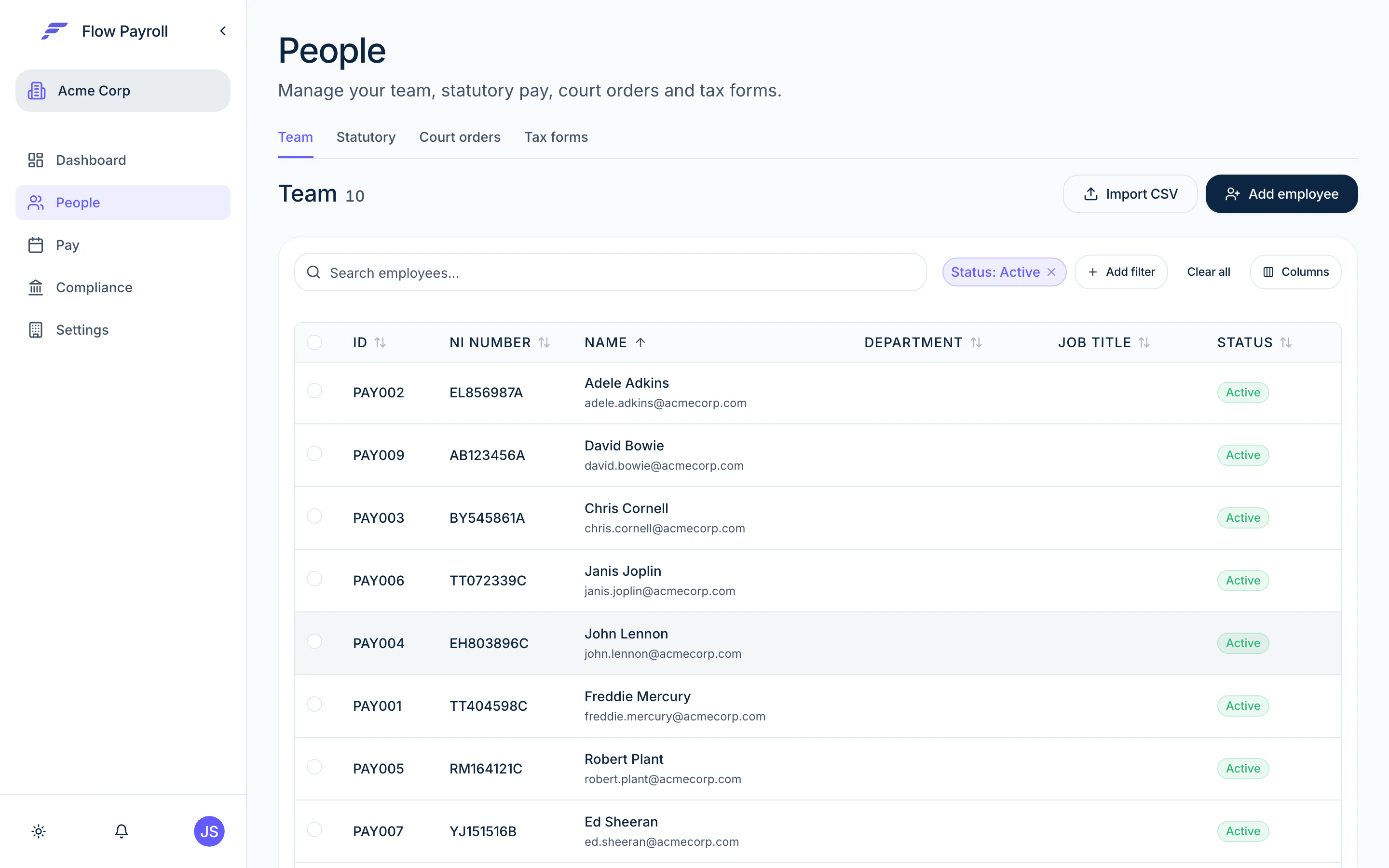
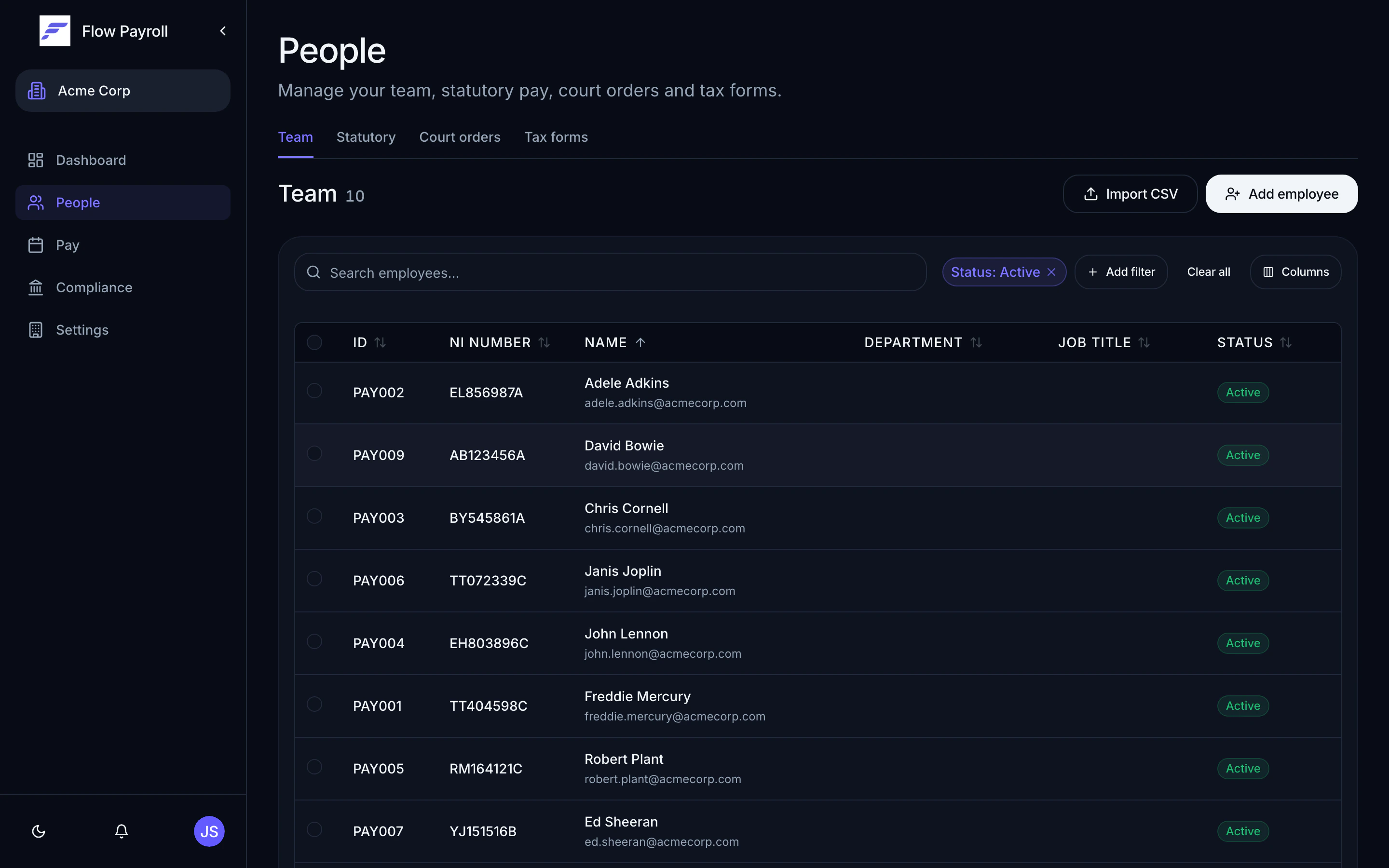
The **People** page has four tabs, all accessible via the tab strip below the "People" heading.
| Tab | What it contains |
| ---------------- | ------------------------------------------------------ |
| **Team** | The full employee list with search and filters |
| **Statutory** | Statutory payment records across your organisation |
| **Court orders** | Attachment-of-earnings orders across your organisation |
| **Tax forms** | P60s and P45s at the organisation level |
The **Team** tab is the default view. Filter by status, payroll schedule, department, or job title using the filter controls. Search is instant — it matches name, payroll ID, NI number, email, department, and job title.
## Your team list
The team list shows every employee matched by the current filter. By default it shows **Active** employees only. Use the **Status** filter to switch to **Leavers** or **All**.
From the list you can:
* Click any row to open that employee's full record.
* Select multiple rows using the checkboxes to perform bulk actions — mark as leavers, cancel leaver status, or clear the selection.
* Click **Import CSV** to add or update employees in bulk.
* Click **Add employee** to onboard a new person individually.
## Employee record layout
When you open an employee you see a two-column layout:
* **Left sidebar** — a profile card summarising name, job title, payroll ID, NI number, department, contact details, start date, and any leaver details. Quick actions appear here too.
* **Right panel** — a tabbed record with all editable detail sections.
### Tabs inside an employee record
| Tab | What you'll find |
| ------------------------- | ------------------------------------------------------------------------------------------------------------------------------- |
| **Overview** | Personal information, employment details, starter details, and partner details |
| **Payroll & tax** | Payroll ID, pay and schedule settings, current year-to-date summary, previous employment (P45 values), and recurring line items |
| **Benefits & loans** | Pension enrolment, student loan, and postgraduate loan |
| **Financial** | Bank account details |
| **Year-to-date earnings** | Cumulative earnings and deductions for the current tax year |
| **Payslips** | Historical payslips for this employee |
| **Holiday** | Holiday allowance and leave dashboard |
| **Court orders** | Active court orders and calculation constants for this employee |
| **Statutory payments** | SSP, SMP, SPP, SAP, ShPP, and other statutory pay records |
| **Tax forms** | P60 end-of-year certificates and P45 leaver form |
The app remembers the last tab you visited for each employee and returns to it automatically.
## Personal information (Overview tab)
The **Overview** tab holds four cards:
* **Personal information** — name (title, first, middle, last), email, phone, date of birth, birth gender, marital status, NI number, passport number, address, and previous names.
* **Employment information** — job title, department, start date, hours worked category, working days pattern, and flags for irregular employment and off-payroll (IR35) workers.
* **Starter details** — starter declaration (A, B, or C), whether the starter has already been reported to HMRC via FPS, and related dates.
* **Partner details** — partner name and NI number, used for Statutory Shared Parental Pay.
Each card has an **Edit** button. Make your changes and save — the record updates immediately.
## Payroll and tax (Payroll & tax tab)
This tab holds the information that drives pay calculations:
* **Payroll ID** — the identifier used on payslips and RTI submissions.
* **Payroll information** — the employee's annual salary and their assigned payroll schedule.
* **Pay run settings** — schedule-specific overrides such as payment method.
* **Current year-to-date summary** — cumulative gross, tax, and NI figures for the running tax year, editable for mid-year starters or corrections.
* **Previous employment** — gross taxable pay and tax paid from a P45, used in the first pay run after joining.
* **Recurring line items** — fixed additions or deductions that appear automatically in every pay run (for example a car allowance or a salary sacrifice deduction).
### Tax code and NI category
Tax codes and NI categories are held per tax year within the **Payroll & tax** tab. Flow Payroll uses the current year's values in every pay run. When HMRC sends a new tax code notice, update it here.
If HMRC sends a P6 or P9 coding notice mid-year, update the tax code on the employee record before the next pay run so the correct code is used.
## Editing employee details
Every card in the record supports inline editing. Click **Edit** on any card, change what you need, and click **Save**. Changes take effect in the next pay run.
To make several changes across multiple sections in one pass, click the overflow menu in the page header and choose **Edit** — this opens the full onboarding flow pre-populated with the employee's current data, letting you move through every step and save at the end.
## Filtering and searching
On the **Team** tab, filters appear above the table:
* **Status** — Active, Leavers, or All.
* **Payroll** — filter to one or more payroll schedules (visible when you have more than one).
* **Department** — filter to specific departments.
* **Job title** — filter to specific job titles.
The search box matches against name, payroll ID, NI number, email, department, and job title simultaneously. Results update as you type.
## Where to go next
Add a new employee individually or import in bulk.
Record a leaving date, process a final pay run, and issue a P45.
Use employee records in a pay run.
Record SSP, SMP, and other statutory pay for your team.
## The People section
The **People** page has four tabs, all accessible via the tab strip below the "People" heading.
| Tab | What it contains |
| ---------------- | ------------------------------------------------------ |
| **Team** | The full employee list with search and filters |
| **Statutory** | Statutory payment records across your organisation |
| **Court orders** | Attachment-of-earnings orders across your organisation |
| **Tax forms** | P60s and P45s at the organisation level |
The **Team** tab is the default view. Filter by status, payroll schedule, department, or job title using the filter controls. Search is instant — it matches name, payroll ID, NI number, email, department, and job title.
## Your team list
The team list shows every employee matched by the current filter. By default it shows **Active** employees only. Use the **Status** filter to switch to **Leavers** or **All**.
From the list you can:
* Click any row to open that employee's full record.
* Select multiple rows using the checkboxes to perform bulk actions — mark as leavers, cancel leaver status, or clear the selection.
* Click **Import CSV** to add or update employees in bulk.
* Click **Add employee** to onboard a new person individually.
## Employee record layout
When you open an employee you see a two-column layout:
* **Left sidebar** — a profile card summarising name, job title, payroll ID, NI number, department, contact details, start date, and any leaver details. Quick actions appear here too.
* **Right panel** — a tabbed record with all editable detail sections.
### Tabs inside an employee record
| Tab | What you'll find |
| ------------------------- | ------------------------------------------------------------------------------------------------------------------------------- |
| **Overview** | Personal information, employment details, starter details, and partner details |
| **Payroll & tax** | Payroll ID, pay and schedule settings, current year-to-date summary, previous employment (P45 values), and recurring line items |
| **Benefits & loans** | Pension enrolment, student loan, and postgraduate loan |
| **Financial** | Bank account details |
| **Year-to-date earnings** | Cumulative earnings and deductions for the current tax year |
| **Payslips** | Historical payslips for this employee |
| **Holiday** | Holiday allowance and leave dashboard |
| **Court orders** | Active court orders and calculation constants for this employee |
| **Statutory payments** | SSP, SMP, SPP, SAP, ShPP, and other statutory pay records |
| **Tax forms** | P60 end-of-year certificates and P45 leaver form |
The app remembers the last tab you visited for each employee and returns to it automatically.
## Personal information (Overview tab)
The **Overview** tab holds four cards:
* **Personal information** — name (title, first, middle, last), email, phone, date of birth, birth gender, marital status, NI number, passport number, address, and previous names.
* **Employment information** — job title, department, start date, hours worked category, working days pattern, and flags for irregular employment and off-payroll (IR35) workers.
* **Starter details** — starter declaration (A, B, or C), whether the starter has already been reported to HMRC via FPS, and related dates.
* **Partner details** — partner name and NI number, used for Statutory Shared Parental Pay.
Each card has an **Edit** button. Make your changes and save — the record updates immediately.
## Payroll and tax (Payroll & tax tab)
This tab holds the information that drives pay calculations:
* **Payroll ID** — the identifier used on payslips and RTI submissions.
* **Payroll information** — the employee's annual salary and their assigned payroll schedule.
* **Pay run settings** — schedule-specific overrides such as payment method.
* **Current year-to-date summary** — cumulative gross, tax, and NI figures for the running tax year, editable for mid-year starters or corrections.
* **Previous employment** — gross taxable pay and tax paid from a P45, used in the first pay run after joining.
* **Recurring line items** — fixed additions or deductions that appear automatically in every pay run (for example a car allowance or a salary sacrifice deduction).
### Tax code and NI category
Tax codes and NI categories are held per tax year within the **Payroll & tax** tab. Flow Payroll uses the current year's values in every pay run. When HMRC sends a new tax code notice, update it here.
If HMRC sends a P6 or P9 coding notice mid-year, update the tax code on the employee record before the next pay run so the correct code is used.
## Editing employee details
Every card in the record supports inline editing. Click **Edit** on any card, change what you need, and click **Save**. Changes take effect in the next pay run.
To make several changes across multiple sections in one pass, click the overflow menu in the page header and choose **Edit** — this opens the full onboarding flow pre-populated with the employee's current data, letting you move through every step and save at the end.
## Filtering and searching
On the **Team** tab, filters appear above the table:
* **Status** — Active, Leavers, or All.
* **Payroll** — filter to one or more payroll schedules (visible when you have more than one).
* **Department** — filter to specific departments.
* **Job title** — filter to specific job titles.
The search box matches against name, payroll ID, NI number, email, department, and job title simultaneously. Results update as you type.
## Where to go next
Add a new employee individually or import in bulk.
Record a leaving date, process a final pay run, and issue a P45.
Use employee records in a pay run.
Record SSP, SMP, and other statutory pay for your team.