> ## Documentation Index
> Fetch the complete documentation index at: https://docs.flowpayroll.ai/llms.txt
> Use this file to discover all available pages before exploring further.
# Organisation setup
> Configure your company details, HMRC references, and opening balances so Flow Payroll can calculate and submit payroll correctly.
Before you run your first pay run, Flow Payroll needs to know who you are — your company details, HMRC tax references, Government Gateway credentials, and (if you're joining mid-year) your year-to-date opening balances. All of these live under **Settings**.
Have your PAYE reference, Accounts Office reference, and Government Gateway credentials ready before you start. You'll find them on letters from HMRC or in your HMRC Online Services account.
 ## Finding Settings
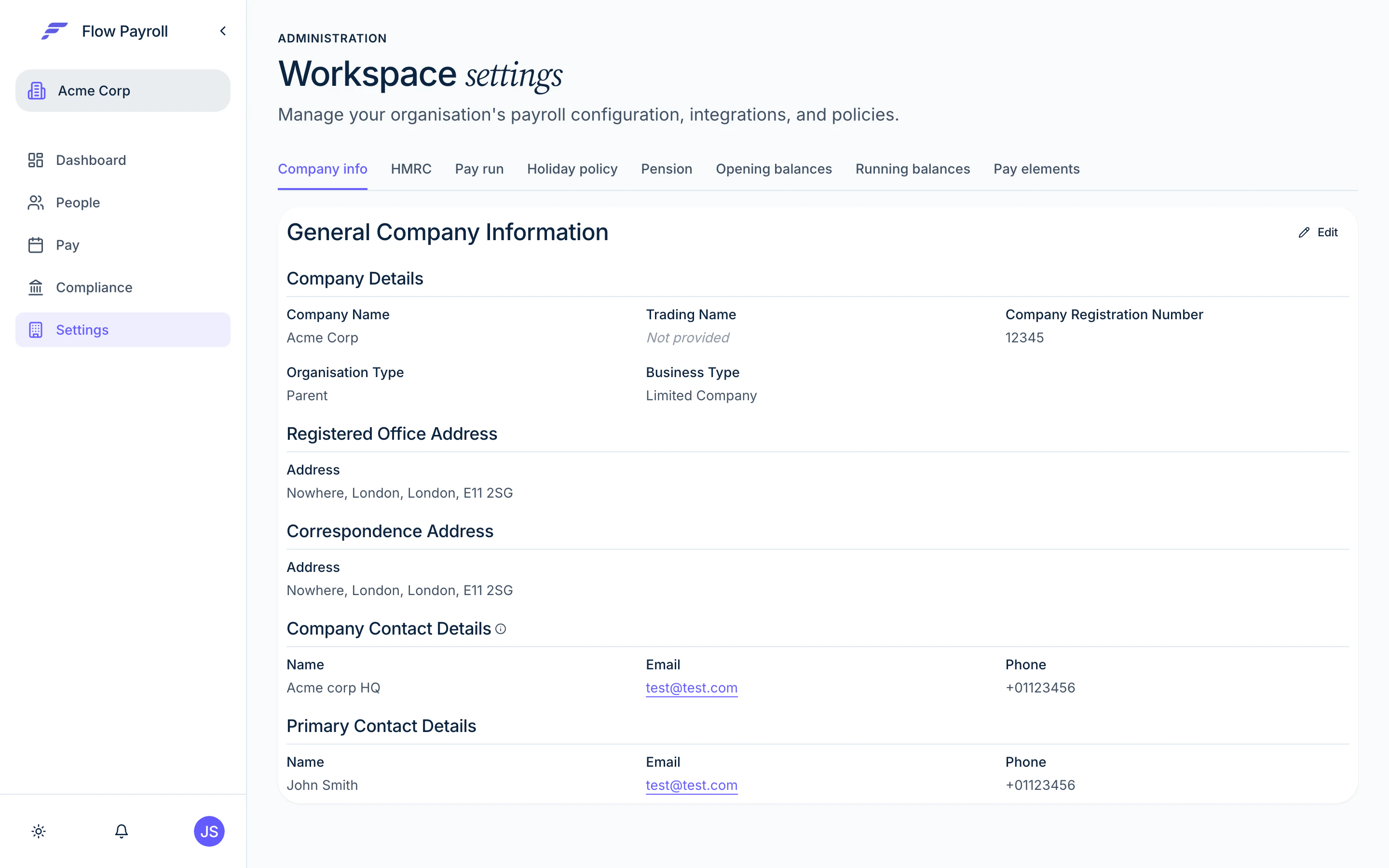
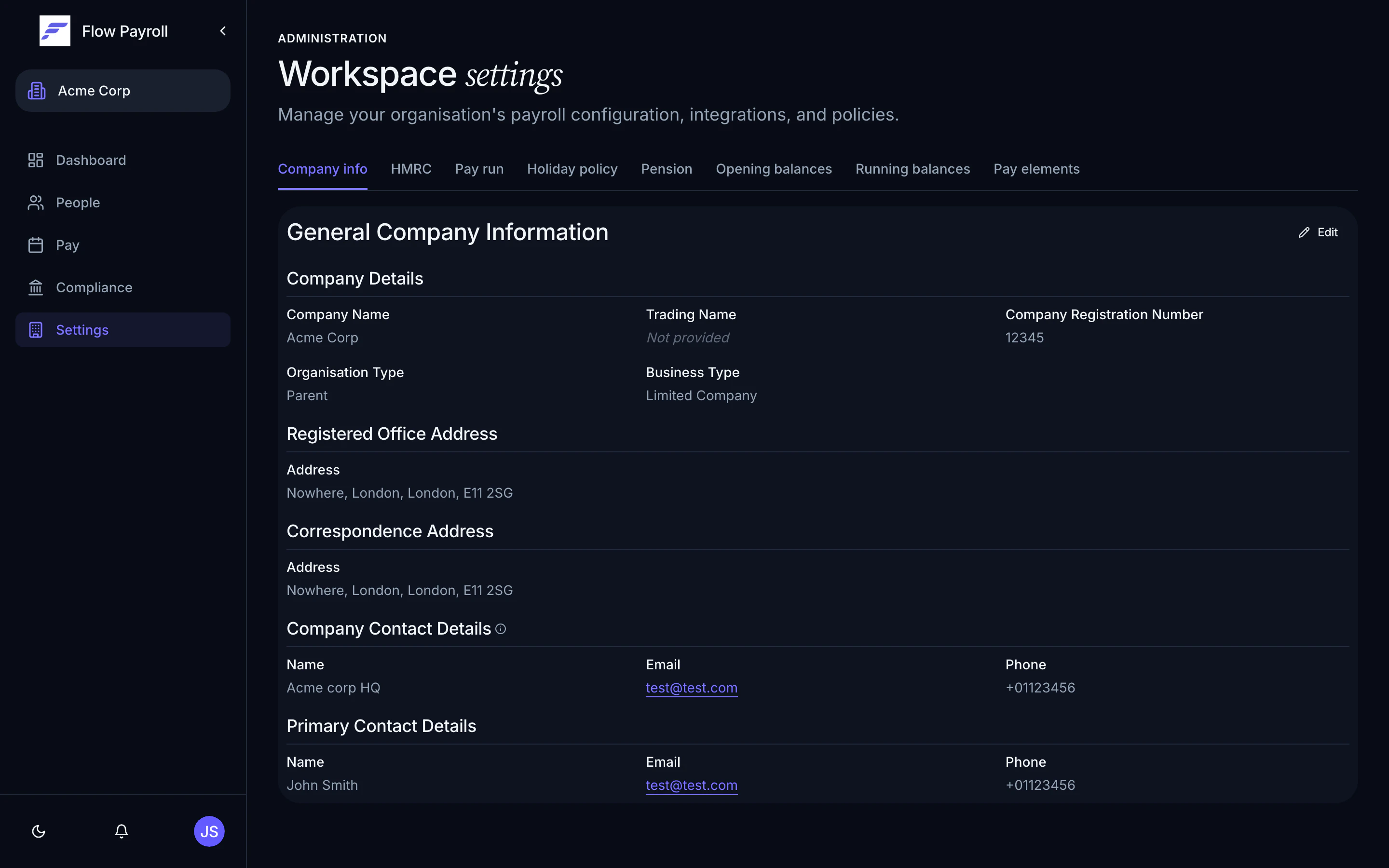
From any page, navigate to **Settings** in the left-hand menu. The page opens on the **Company info** tab. Use the tabs along the top to move between sections: **Company info**, **HMRC**, **Pay run**, **Holiday policy**, **Pension**, **Opening balances**, **Running balances**, and **Pay elements**.
***
## Company info tab
The **Company info** tab holds the details that appear on payslips and employee communications. Click **Edit** to enter editing mode; click **Save** when done.
### Company details
| Field | What to enter |
| ------------------------------- | ------------------------------------------------------------------------- |
| **Company Name** | Your legal company name |
| **Trading Name** | The name you trade under, if different |
| **Company Registration Number** | Eight-digit Companies House number |
| **Organisation Type** | Parent, Subsidiary, Independent, Franchise, or Branch |
| **Business Type** | Limited Company, LLP, Sole Trader, Partnership, Charity, or Public Sector |
### Addresses
You enter two addresses:
* **Registered Office Address** — your legal registered address.
* **Correspondence Address** — where HMRC and others should write to you. Toggle **Correspondence same as registered office** if they match.
### Contact details
You enter two sets of contact details:
* **Company Contact Details** — the name, email, and phone shown on payslips.
* **Primary Contact Details** — the internal contact for payroll queries. Toggle **Primary contact same as company contact** if they're the same person.
***
## HMRC tab
The **HMRC** tab holds everything Flow Payroll needs to submit RTI on your behalf. Click **Edit**, fill in all sections, then click **Save**.
### Tax reference numbers
| Field | Format | Where to find it |
| ----------------------------- | ------------------------------------ | --------------------------------------- |
| **PAYE Office Number** | 3 digits (e.g. `123`) | PAYE reference letter from HMRC |
| **PAYE Reference Number** | Up to 10 characters (e.g. `AB12345`) | Same letter, after the slash |
| **Accounts Office Reference** | 13 characters (e.g. `123PA1234567X`) | Employer Payment Booklet or HMRC letter |
| **Corporation Tax UTR** | 10 digits | Corporation Tax notice (optional) |
| **Self Assessment UTR** | 10 digits | Self Assessment letter (optional) |
Your full PAYE reference is the Office Number and Reference Number combined with a forward slash: `123/AB12345`. The Accounts Office Reference is separate and used for paying PAYE liabilities.
### Government gateway
Choose your **HMRC Submission Method**:
* **Direct** — Flow Payroll submits RTI using your own Government Gateway credentials. Enter your **Government Gateway User ID** and **Password**.
* **Agent** — Submissions go via an agent. Enter the agent's **User ID**, **Password**, and optionally an **Agent ID**.
Credentials are stored securely and never displayed in full after saving. If you need to change a password, edit the field and enter the new value — leaving it blank retains the existing one.
### Employment allowance
If your organisation is eligible for Employment Allowance, enable **Employment Allowance Eligibility**, set the **Claim Status** (Claimed, Not Claimed, or Not Eligible), and select the applicable **De Minimis State Aid Sectors**. Selecting **Not Applicable (NA)** means no state-aid restrictions apply — it cannot be combined with other sectors.
### Apprenticeship levy
Large employers with an annual pay bill above the threshold pay the apprenticeship levy. Enable **Applies** and enter your **Annual Allowance Amount** if this applies. The levy allowance is shared across connected employers — enter only your PAYE scheme's allocated share.
### PAYE liability
Set **Payment Frequency** to **Monthly** or **Quarterly** depending on how you pay your PAYE liability to HMRC.
### Small employer relief
Enable **Small Employer Relief** if you qualify. This affects how much statutory pay you can reclaim from HMRC.
### Bank account
Enter the bank account details Flow Payroll uses to pay HMRC:
* **Account Holder Name**
* **Account Number**
* **Sort Code**
* **Building Society Reference** (if applicable)
***
## Opening balances tab
You only need opening balances if you're starting to use Flow Payroll part-way through a tax year and employees already have year-to-date figures from another system.
Select the **Tax Year**, then enter the accumulated totals for each employee-level figure. The fields cover:
**Base values** — gross pay, gross pay for NI, tax paid, employee NI, employer NI, student loan, postgraduate loan, and net pay.
**Apprenticeship levy allowance** — allowance used and remaining.
**Employment allowance** — allowance used and remaining.
**Statutory payments reclaims** — for each statutory pay type (SSP, SMP, SPP, SAP, Shared Parental Pay, SPBP, and Neonatal Care Pay), enter the amount reclaimed from HMRC and NIC compensation recovered.
Opening balances are per organisation, not per employee. For employee-level year-to-date figures, use the running balances area or enter them when adding each person.
***
## Where to go next
Define how often you pay people and on which day.
Onboard employees and attach them to a pay schedule.
Submit FPS and EPS once your first pay run is complete.
The full setup checklist from zero to first pay run.
## Finding Settings
From any page, navigate to **Settings** in the left-hand menu. The page opens on the **Company info** tab. Use the tabs along the top to move between sections: **Company info**, **HMRC**, **Pay run**, **Holiday policy**, **Pension**, **Opening balances**, **Running balances**, and **Pay elements**.
***
## Company info tab
The **Company info** tab holds the details that appear on payslips and employee communications. Click **Edit** to enter editing mode; click **Save** when done.
### Company details
| Field | What to enter |
| ------------------------------- | ------------------------------------------------------------------------- |
| **Company Name** | Your legal company name |
| **Trading Name** | The name you trade under, if different |
| **Company Registration Number** | Eight-digit Companies House number |
| **Organisation Type** | Parent, Subsidiary, Independent, Franchise, or Branch |
| **Business Type** | Limited Company, LLP, Sole Trader, Partnership, Charity, or Public Sector |
### Addresses
You enter two addresses:
* **Registered Office Address** — your legal registered address.
* **Correspondence Address** — where HMRC and others should write to you. Toggle **Correspondence same as registered office** if they match.
### Contact details
You enter two sets of contact details:
* **Company Contact Details** — the name, email, and phone shown on payslips.
* **Primary Contact Details** — the internal contact for payroll queries. Toggle **Primary contact same as company contact** if they're the same person.
***
## HMRC tab
The **HMRC** tab holds everything Flow Payroll needs to submit RTI on your behalf. Click **Edit**, fill in all sections, then click **Save**.
### Tax reference numbers
| Field | Format | Where to find it |
| ----------------------------- | ------------------------------------ | --------------------------------------- |
| **PAYE Office Number** | 3 digits (e.g. `123`) | PAYE reference letter from HMRC |
| **PAYE Reference Number** | Up to 10 characters (e.g. `AB12345`) | Same letter, after the slash |
| **Accounts Office Reference** | 13 characters (e.g. `123PA1234567X`) | Employer Payment Booklet or HMRC letter |
| **Corporation Tax UTR** | 10 digits | Corporation Tax notice (optional) |
| **Self Assessment UTR** | 10 digits | Self Assessment letter (optional) |
Your full PAYE reference is the Office Number and Reference Number combined with a forward slash: `123/AB12345`. The Accounts Office Reference is separate and used for paying PAYE liabilities.
### Government gateway
Choose your **HMRC Submission Method**:
* **Direct** — Flow Payroll submits RTI using your own Government Gateway credentials. Enter your **Government Gateway User ID** and **Password**.
* **Agent** — Submissions go via an agent. Enter the agent's **User ID**, **Password**, and optionally an **Agent ID**.
Credentials are stored securely and never displayed in full after saving. If you need to change a password, edit the field and enter the new value — leaving it blank retains the existing one.
### Employment allowance
If your organisation is eligible for Employment Allowance, enable **Employment Allowance Eligibility**, set the **Claim Status** (Claimed, Not Claimed, or Not Eligible), and select the applicable **De Minimis State Aid Sectors**. Selecting **Not Applicable (NA)** means no state-aid restrictions apply — it cannot be combined with other sectors.
### Apprenticeship levy
Large employers with an annual pay bill above the threshold pay the apprenticeship levy. Enable **Applies** and enter your **Annual Allowance Amount** if this applies. The levy allowance is shared across connected employers — enter only your PAYE scheme's allocated share.
### PAYE liability
Set **Payment Frequency** to **Monthly** or **Quarterly** depending on how you pay your PAYE liability to HMRC.
### Small employer relief
Enable **Small Employer Relief** if you qualify. This affects how much statutory pay you can reclaim from HMRC.
### Bank account
Enter the bank account details Flow Payroll uses to pay HMRC:
* **Account Holder Name**
* **Account Number**
* **Sort Code**
* **Building Society Reference** (if applicable)
***
## Opening balances tab
You only need opening balances if you're starting to use Flow Payroll part-way through a tax year and employees already have year-to-date figures from another system.
Select the **Tax Year**, then enter the accumulated totals for each employee-level figure. The fields cover:
**Base values** — gross pay, gross pay for NI, tax paid, employee NI, employer NI, student loan, postgraduate loan, and net pay.
**Apprenticeship levy allowance** — allowance used and remaining.
**Employment allowance** — allowance used and remaining.
**Statutory payments reclaims** — for each statutory pay type (SSP, SMP, SPP, SAP, Shared Parental Pay, SPBP, and Neonatal Care Pay), enter the amount reclaimed from HMRC and NIC compensation recovered.
Opening balances are per organisation, not per employee. For employee-level year-to-date figures, use the running balances area or enter them when adding each person.
***
## Where to go next
Define how often you pay people and on which day.
Onboard employees and attach them to a pay schedule.
Submit FPS and EPS once your first pay run is complete.
The full setup checklist from zero to first pay run.