> ## Documentation Index
> Fetch the complete documentation index at: https://docs.flowpayroll.ai/llms.txt
> Use this file to discover all available pages before exploring further.
# Pension defaults
> Set organisation-level auto-enrolment mode and postponement rules so every new employee inherits the right pension settings automatically.
Pension defaults let you configure how Flow Payroll handles auto-enrolment and postponement for your organisation. Setting these once means every new employee starts with the right behaviour — you don't need to configure pension rules individually for each person.
Pension defaults cover the organisation-wide auto-enrolment and postponement rules. For pension schemes, providers, and contribution groups, go to **Settings** and open the **Pension** tab.
***
 ## Where pension defaults live
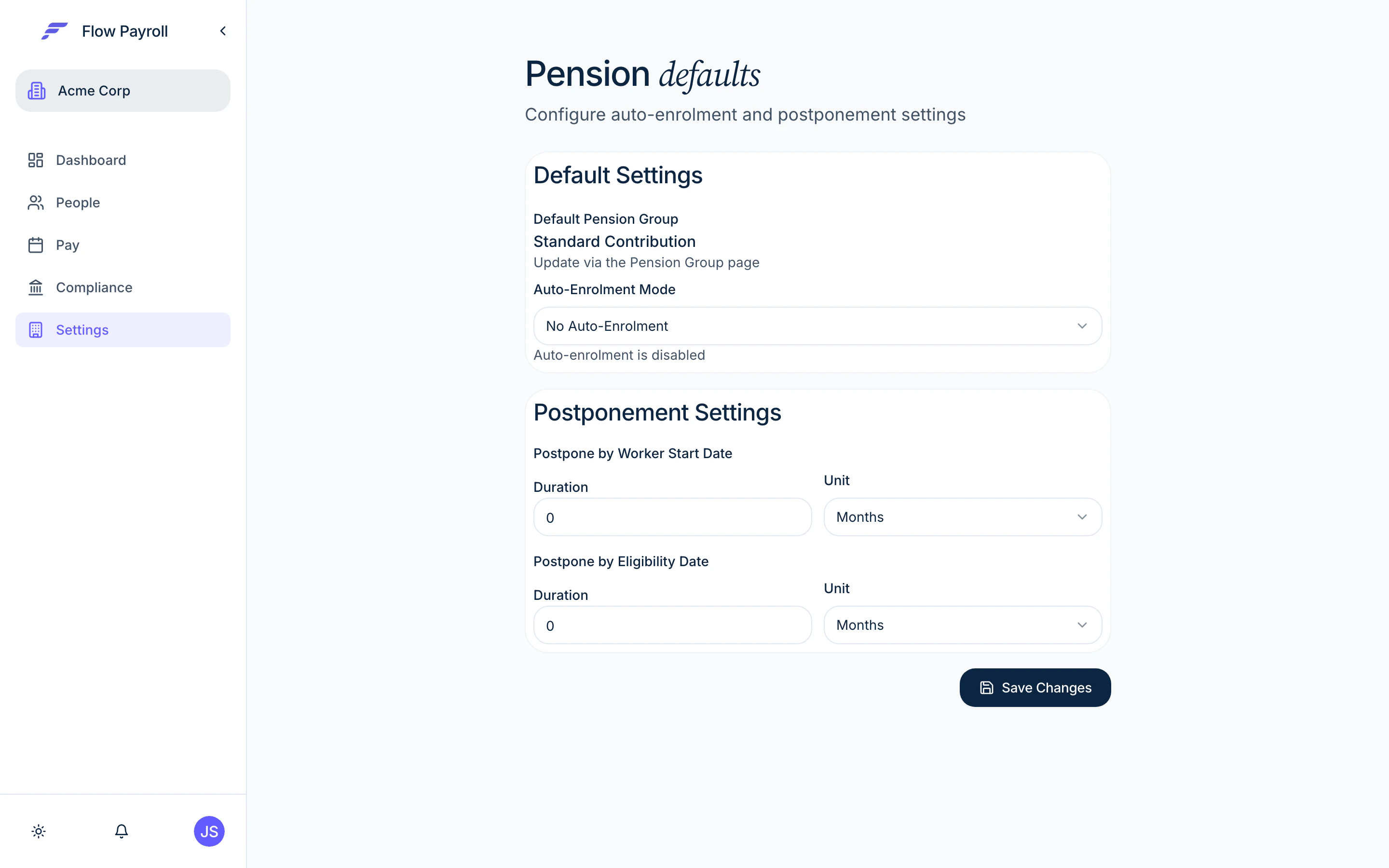
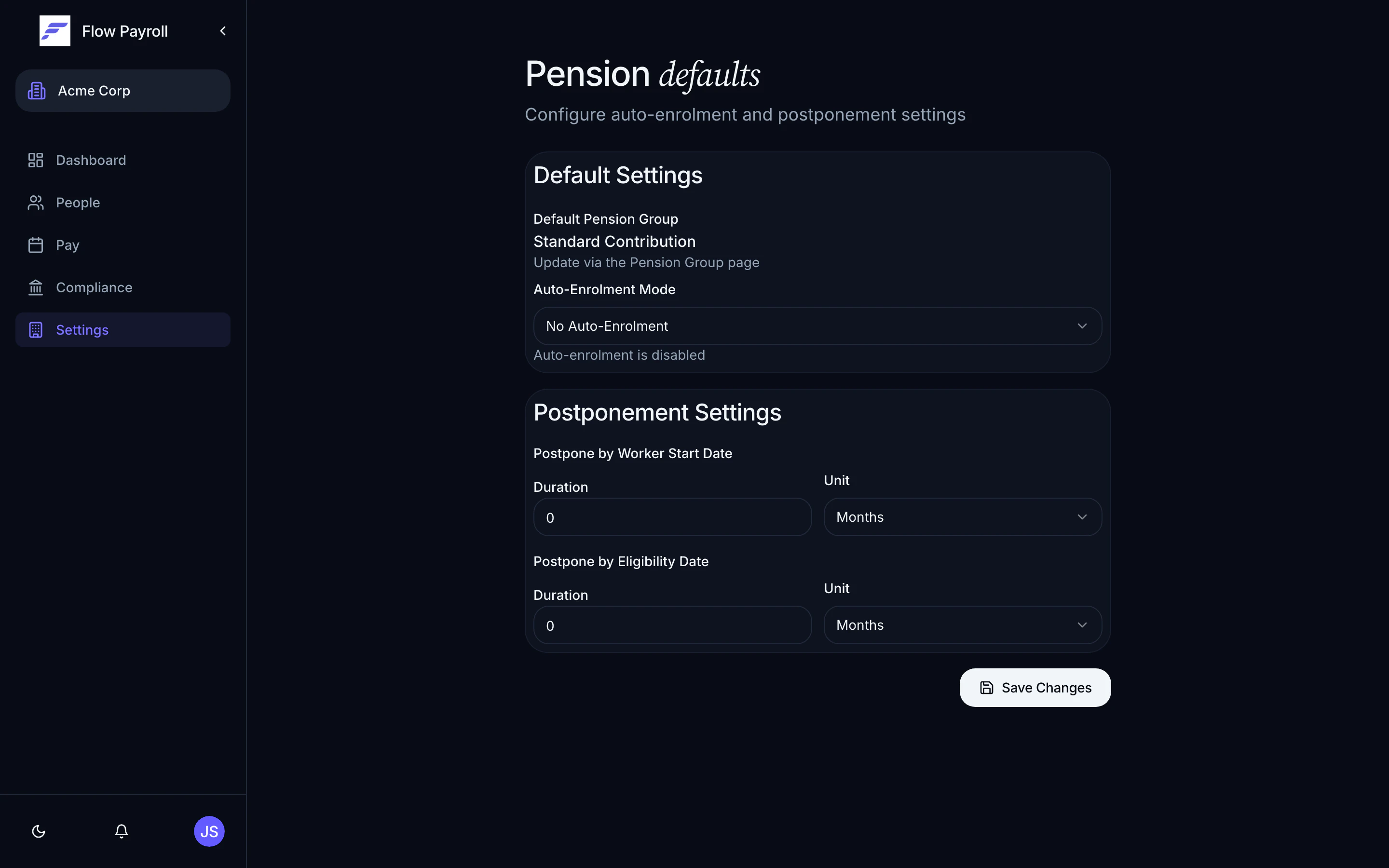
Go to **Settings**, then open the **Pension** tab. The unified pension settings page shows your schemes, pension groups, and the organisation-level defaults together.
Alternatively, navigate directly to the pension defaults page via **Settings → Pension defaults** if it is linked from your navigation.
***
## Auto-enrolment mode
The **Auto-Enrolment Mode** setting controls how Flow Payroll responds when a worker becomes eligible for a workplace pension.
| Mode | What it does |
| --------------------- | ---------------------------------------------------------------------------------------------------------------------------- |
| **Automatic** | Flow Payroll enrols eligible workers automatically at the end of each pay run assessment. No manual action required. |
| **Manual** | Flow Payroll flags eligible workers but waits for you to confirm enrolment. Useful if you review each case before enrolment. |
| **No Auto-Enrolment** | Auto-enrolment is disabled. Workers are not assessed or enrolled automatically. |
UK law requires you to automatically enrol eligible workers. Only use **No Auto-Enrolment** if you have a specific legal reason, such as managing enrolment entirely through another process. Setting this mode does not remove your legal obligations.
***
## Postponement settings
Postponement allows you to delay the auto-enrolment assessment date for a new worker. UK legislation permits postponement for up to three months from the worker's start date or eligibility date.
Flow Payroll supports two postponement definitions:
### Postpone by worker start date
This postpones enrolment assessment by a duration measured from when the worker joins your organisation. Set the **Duration** (a number) and the **Unit** (days, weeks, or months).
For example, setting 3 months means a new starter will not be assessed for auto-enrolment until three months after their employment start date.
### Postpone by eligibility date
This postpones assessment by a duration measured from when the worker first becomes eligible — for instance, when they reach age 22 or their earnings first exceed the qualifying threshold. Set the **Duration** and **Unit** in the same way.
If you use postponement, you must issue a postponement notice to the worker within six weeks of their first pay day. Flow Payroll generates the required letters — see the [auto-enrolment guide](/guides/pensions/auto-enrolment) for details.
***
## Default pension group
The **Default Pension Group** shown on this page is the pension group new workers are initially assigned to. This determines which pension scheme and contribution rates apply.
You set the default group from the **Pension** tab in Settings, under the pension groups section. The pension defaults page shows the current default group name for reference.
***
## Saving your defaults
After making changes, click **Save Changes**. Flow Payroll updates the auto-enrolment mode and postponement rules independently — only the values that have changed are sent to the server.
***
## How defaults apply in practice
When you add a new employee, Flow Payroll uses the organisation defaults as the starting point:
1. The employee is assigned to the default pension group.
2. The auto-enrolment mode determines whether assessment is automatic or manual.
3. If postponement is configured, the assessment date is deferred accordingly.
4. During each pay run, eligible workers are assessed and, if auto-enrolment is active, enrolled and contributions are applied.
You can override pension settings at the employee level if a particular worker needs different treatment.
***
## Where to go next
Assess and enrol workers in each pay run, and manage ongoing pension obligations.
Configure the pay schedules that pension assessment runs against.
See how auto-enrolment fits into the full pay run process.
Complete your HMRC settings and other organisation configuration.
## Where pension defaults live
Go to **Settings**, then open the **Pension** tab. The unified pension settings page shows your schemes, pension groups, and the organisation-level defaults together.
Alternatively, navigate directly to the pension defaults page via **Settings → Pension defaults** if it is linked from your navigation.
***
## Auto-enrolment mode
The **Auto-Enrolment Mode** setting controls how Flow Payroll responds when a worker becomes eligible for a workplace pension.
| Mode | What it does |
| --------------------- | ---------------------------------------------------------------------------------------------------------------------------- |
| **Automatic** | Flow Payroll enrols eligible workers automatically at the end of each pay run assessment. No manual action required. |
| **Manual** | Flow Payroll flags eligible workers but waits for you to confirm enrolment. Useful if you review each case before enrolment. |
| **No Auto-Enrolment** | Auto-enrolment is disabled. Workers are not assessed or enrolled automatically. |
UK law requires you to automatically enrol eligible workers. Only use **No Auto-Enrolment** if you have a specific legal reason, such as managing enrolment entirely through another process. Setting this mode does not remove your legal obligations.
***
## Postponement settings
Postponement allows you to delay the auto-enrolment assessment date for a new worker. UK legislation permits postponement for up to three months from the worker's start date or eligibility date.
Flow Payroll supports two postponement definitions:
### Postpone by worker start date
This postpones enrolment assessment by a duration measured from when the worker joins your organisation. Set the **Duration** (a number) and the **Unit** (days, weeks, or months).
For example, setting 3 months means a new starter will not be assessed for auto-enrolment until three months after their employment start date.
### Postpone by eligibility date
This postpones assessment by a duration measured from when the worker first becomes eligible — for instance, when they reach age 22 or their earnings first exceed the qualifying threshold. Set the **Duration** and **Unit** in the same way.
If you use postponement, you must issue a postponement notice to the worker within six weeks of their first pay day. Flow Payroll generates the required letters — see the [auto-enrolment guide](/guides/pensions/auto-enrolment) for details.
***
## Default pension group
The **Default Pension Group** shown on this page is the pension group new workers are initially assigned to. This determines which pension scheme and contribution rates apply.
You set the default group from the **Pension** tab in Settings, under the pension groups section. The pension defaults page shows the current default group name for reference.
***
## Saving your defaults
After making changes, click **Save Changes**. Flow Payroll updates the auto-enrolment mode and postponement rules independently — only the values that have changed are sent to the server.
***
## How defaults apply in practice
When you add a new employee, Flow Payroll uses the organisation defaults as the starting point:
1. The employee is assigned to the default pension group.
2. The auto-enrolment mode determines whether assessment is automatic or manual.
3. If postponement is configured, the assessment date is deferred accordingly.
4. During each pay run, eligible workers are assessed and, if auto-enrolment is active, enrolled and contributions are applied.
You can override pension settings at the employee level if a particular worker needs different treatment.
***
## Where to go next
Assess and enrol workers in each pay run, and manage ongoing pension obligations.
Configure the pay schedules that pension assessment runs against.
See how auto-enrolment fits into the full pay run process.
Complete your HMRC settings and other organisation configuration.