

How it works
1
Somebody opens Support
They choose the Support button at the foot of the app’s side menu. The app asks Flow Payroll for a support session and shows your page in a frame. Nothing about the person is in your page’s address.
2
Your page says it is ready
It posts a
ready message to the app.3
The app hands over a token, then the screen
An
auth message carries a signed token. A context message says where the person is in the app, and is sent again whenever that changes.4
Your server verifies the token
Your page sends the token to your own server, which checks it against Flow Payroll’s public keys and learns who the person and the organisation are, in your own identifiers.
5
Your support tool starts
Your server signs the person in to your support tool with your own secret, and your page shows it.
Before you start
- Your account needs white label. The support panel is part of your brand.
- Give your people, your guests and your organisations an
externalId, so the token names them the way your own systems do. Set it when you invite people, through SCIM, or withPATCH /users/{principalId}andPATCH /organisations/{organisationId}. - Tell us the address of your support page, for sandbox and for production: Ask us to allow your page on the Support panel tab opens an email to us for you to send. We allow each address before it can be shown. Until we have, the app offers no Support entry.
- Note your account’s customer id, from
GET /customer. It is the token’s audience.
Set the address
In the app, go to Administration, then Branding, then the Support panel tab. Enter the Support panel address, and the Support panel width if your tool needs more or less room, then publish the brand.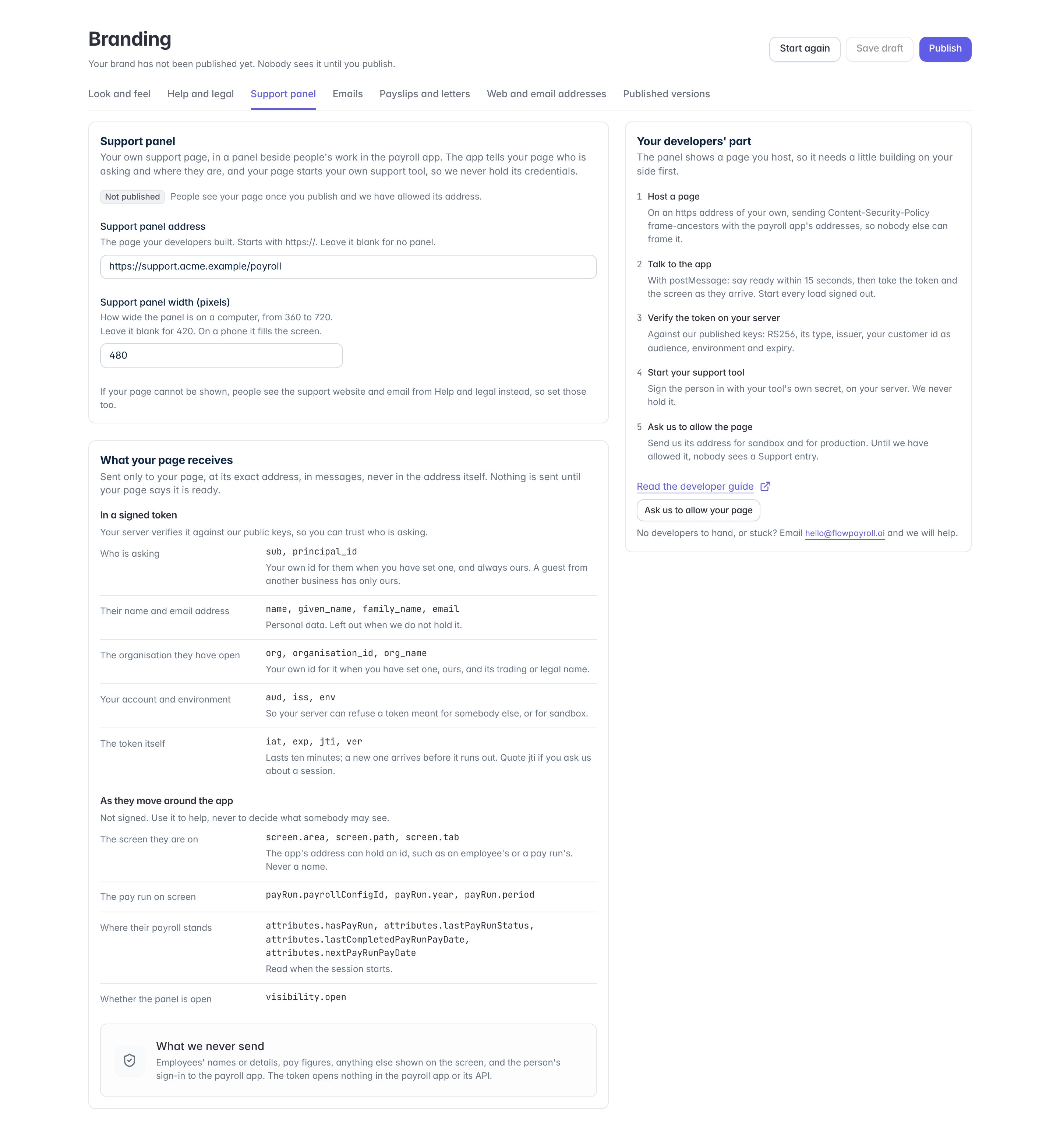
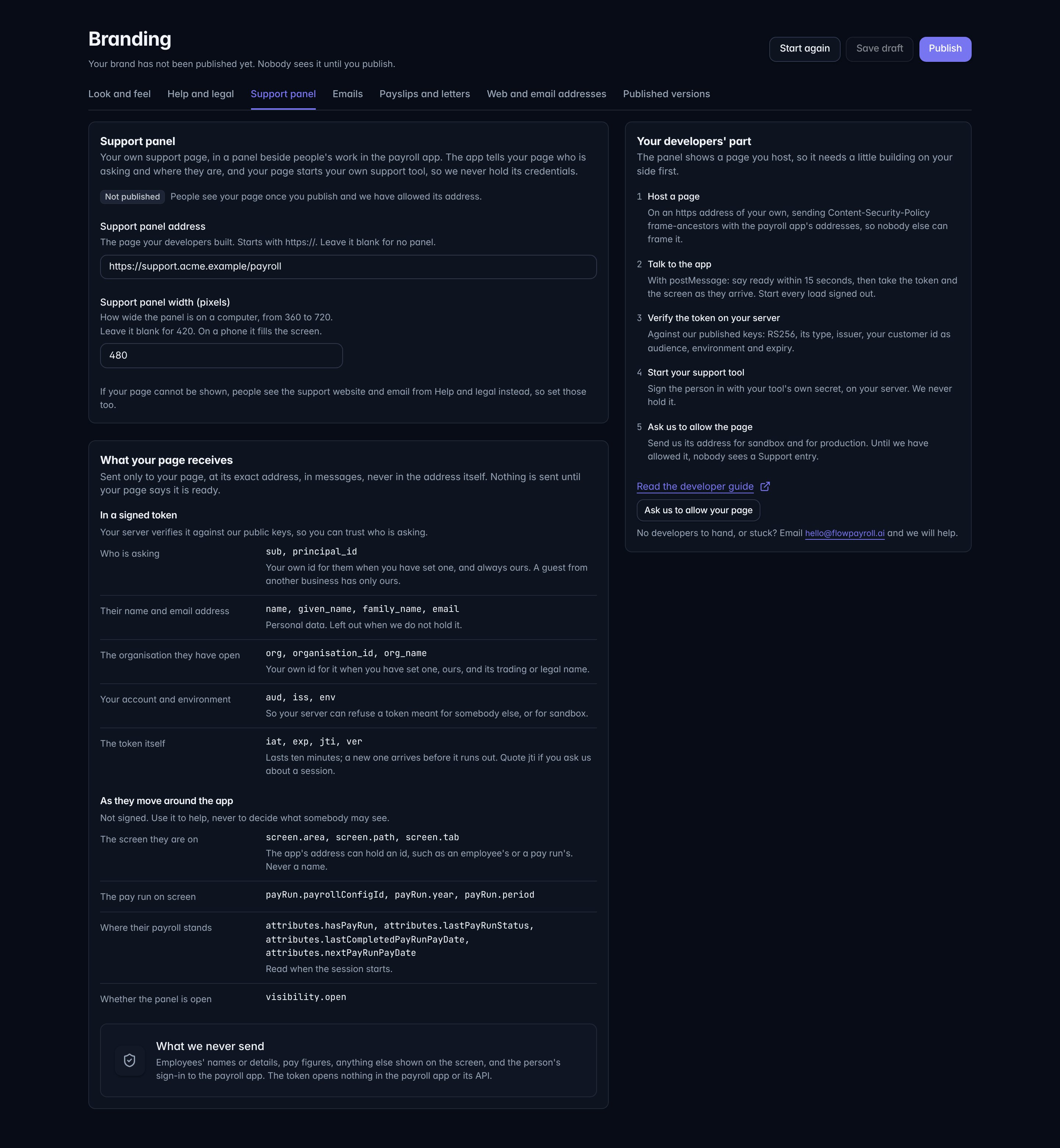
The Support panel tab: the address and width, what your page receives, and your developers' part
supportEmbedUrl and supportPanelWidth to PATCH /customer/branding/draft and publish with POST /customer/branding/revisions.
The address must start with https:// and have no # part. Leave it empty and publish to remove the panel.
The width is in pixels, from 360 to 720. Leave it empty for 420. It applies on a computer; on a phone the panel always fills the screen.
Sandbox and production each have their own brand, so each has its own address.
Host the page
Your page is an ordinary web page on an address you control. Three things are required of it. Allow Flow Payroll to frame it, and nobody else. Send aContent-Security-Policy header naming the app’s addresses:
https://sandbox.app.flowpayroll.ai in sandbox. Add your own payroll address if you have one. Do not send X-Frame-Options: DENY or SAMEORIGIN.
Start every load signed out. Do not show anybody’s conversations until a token has arrived and your server has verified it.
Take messages only from the app. Check both the sender and its origin on every message, as the example below does.
The page is shown in a panel beside the person’s work, at the width you set (420 pixels unless you change it) on a computer and the full width of a phone. Fill the frame: the app draws the panel’s title and its close button.
The frame limits what your page can do. It can run scripts, submit forms, open pop-ups, start downloads and write to the clipboard. It cannot move the app to another address, and it cannot use the camera, the microphone or screen sharing. If your support tool offers calls or screen sharing, have it open them in a new window.
Messages
The app and your page talk withwindow.postMessage. Every message is an object with source: "flow-payroll-support" and version: 1. Ignore anything else.
Your page sends:
The app sends:
context looks like this:
screen.path is the app’s address for the screen, so it can hold an id, such as an employee’s or a pay run’s. It never holds a name. payRun is null away from a pay run. attributes says where the organisation’s payroll stands. It is read when the panel first opens and again with each new token:
attributes is null when it cannot be read; the panel still opens. More attributes may be added, so ignore any you do not know.
Set these as attributes on the conversation, so your agents see where the person is without asking. context is not signed: use it to help, never to decide what somebody may see.
Verify the token on your server
The token is a JSON Web Token signed with RS256, withtyp support-assertion+jwt in its header. Verify it on your server, never in the page: the person controls their browser, so a check made there proves nothing about who they are.
email, name, given_name, family_name and org_name use the names OpenID Connect uses, and each is left out when we do not have it. The token carries no payroll data, and it gives no access to the Flow Payroll API.
The public keys are at:
- The algorithm is
RS256. Do not accept whatever the token’s header says. - The header’s
typissupport-assertion+jwt. Any other token Flow Payroll signs is not a support token. - The signature, with the key whose
kidthe header names. issis the issuer for your environment.audis your customer id.envis the environment you are running in.exphas not passed. Allow 60 seconds for clocks that disagree.
Who the token names
sub is your own externalId for the person when you have given them one and they are still one of your people or your guests (anybody GET /users/{principalId} shows you). Otherwise it is flow: followed by their Flow Payroll id. That happens for:
- somebody you have not given an
externalIdyet - somebody who no longer has any access through your account, even if you gave them one before
flow: person as somebody you do not have on record. You can still help them, and principal_id lets you look them up with GET /users/{principalId}.
org works the same way for the organisation. The organisation is always the one the person has open in the app, so somebody who works across several employers is named with the right one each time.
Start your support tool
Once your server has verified the token, sign the person in to your support tool the way that tool asks, with its secret, on your server. For Intercom, that is the identity verification its Messenger security settings describe: sign the user with your Intercom secret, send the result to your page, and start the Messenger with it. Usesub as the user and org as the company, with email, name and org_name as their details.
Your support tool’s secret stays on your server. Flow Payroll never has it.
Renewal
A token lasts 10 minutes. The app sends a new one in anauth message about a minute before each expires, for as long as your page is loaded. You do not need to do anything with a renewed token for the same person and organisation, unless your own session depends on it.
Sign-out and changing organisation
When the person signs out of the app or changes organisation, the app removes your page and sendssignout as it does. A page that is being removed may not receive it. So do not rely on signout alone:
- Start every load signed out, as above.
- When an
authtoken names a differentsubororgfrom the session you have, end that session and start a new one. - On
signout, end the session if you receive it.
When keys change
The key set holds two keys: the one that signs now, and the one that signs next. We change which one signs from time to time, without notice, and both are published long before either is used. Cache the keys bykid. When a token names a kid you do not have, fetch the key set again once, then refuse the token if it is still missing. The libraries above do this for you. The file may be cached for 10 minutes.
If your page is unavailable
If your page has not saidready within 15 seconds, or the app cannot start a support session, the app shows the person your support website and support email from your brand, with a Try again button. Set both on the Help and legal tab of Branding so nobody is left with nothing.
Limits
- One person can start 120 support sessions an hour. The app asks for about six an hour while the panel is open.
- A support session is for a signed-in person. An API token cannot ask for one.
Check your integration
1
Sandbox first
Set the sandbox address on your sandbox brand and publish. Open an organisation of your account in the sandbox app and choose Support.
2
Refuse what you should
Check that your server refuses a token with another
aud, a token from the other environment, an expired token, a token with another typ, and a token whose signature you have altered.3
Change organisation
Open Support in one organisation, change to another and open it again. Your tool should show the second organisation.
4
Somebody with no externalId
Open Support as somebody with no
externalId. Your tool should treat them as somebody new.Related
POST /organisations/{organisationId}/support-sessionsin the Administration API reference, which the app calls for you- Users, roles and permissions
- Provisioning users with SCIM 2.0