

The clients feature is part of the bureau billing module. You need an accounting integration connected (Settings → Billing → Integrations) to sync clients and invoices to an external provider such as Xero.
Your clients
What a client is
A client represents a company you serve. It holds:- Identity details — name, company registration number, VAT number
- Finance defaults — default revenue account and tax rate used when creating invoices for this client
- Billing preferences — invoice format, PO number requirement, attachment requirement, payment terms
- Contacts — the people at the client company you bill or correspond with
- Tags — custom labels for filtering and reporting
Viewing your clients
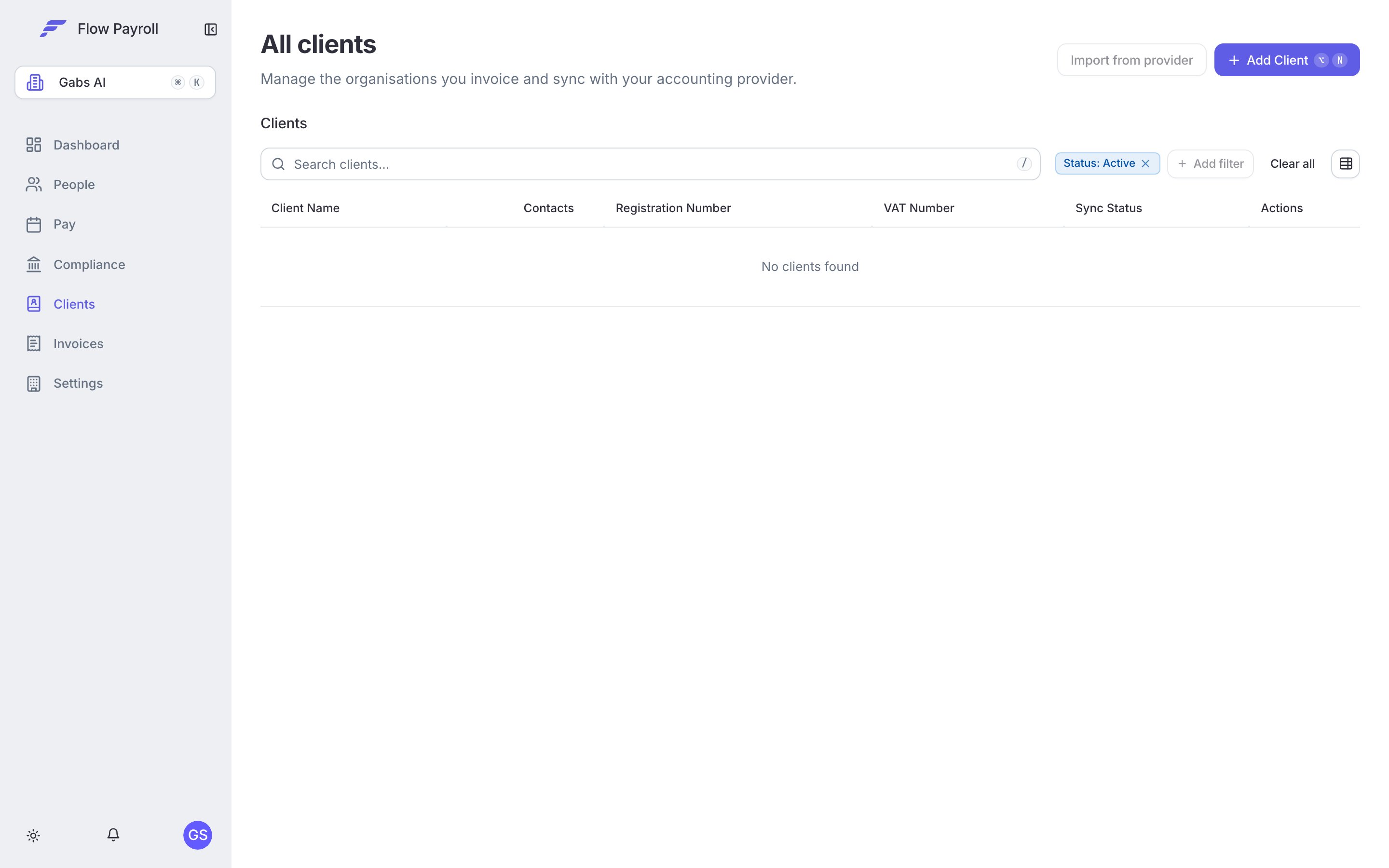
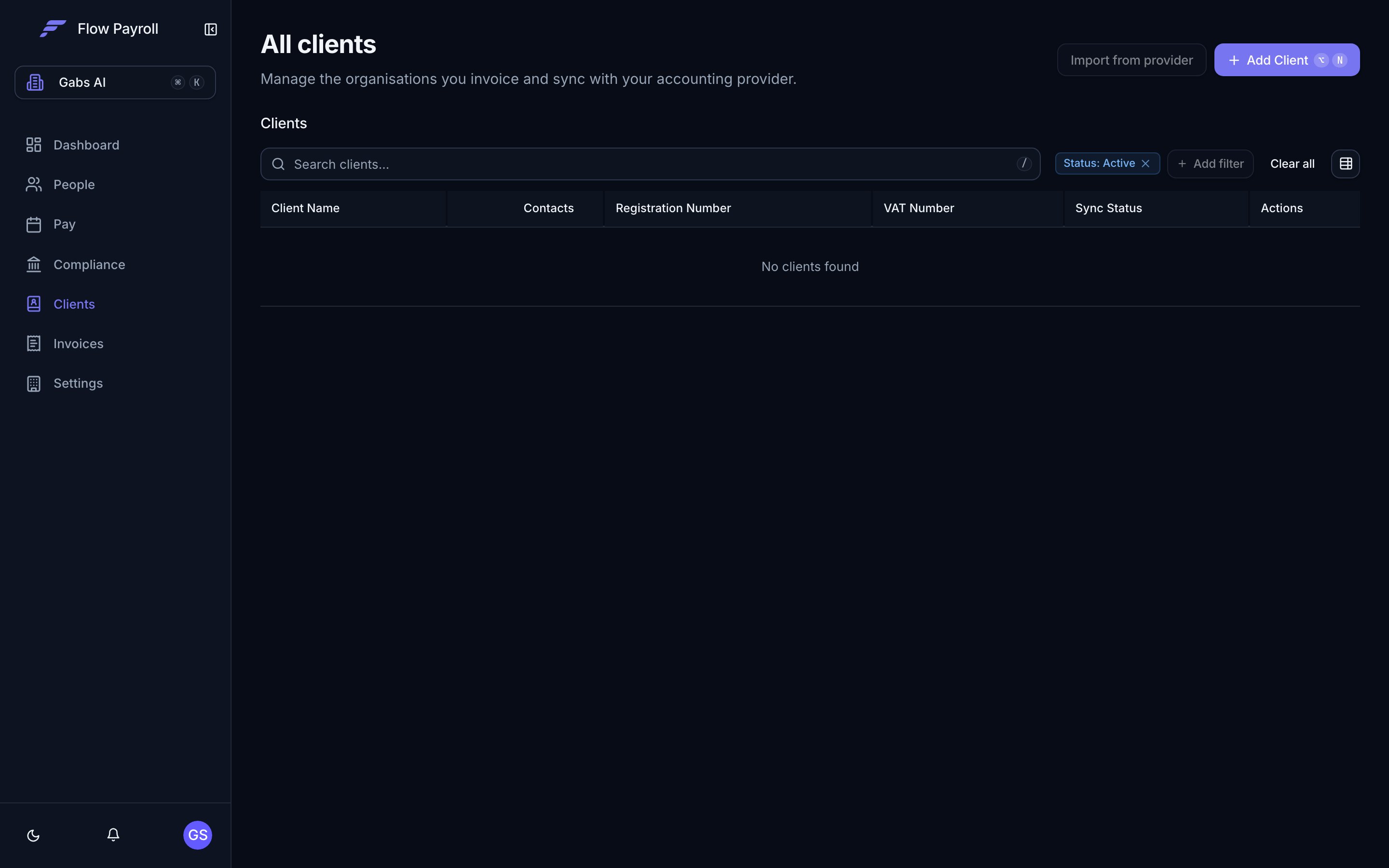
Navigate to Clients in the main menu to see all your active clients in a searchable table. The table shows client name, number of contacts, registration number, VAT number, sync status, and status (active or archived). Use the Status filter to switch between active, archived, or all clients.Adding a client
1
Open the Add Client dialog
On the Clients page, select Add Client.
2
Enter basic details
Fill in at minimum the Client Name (required). Optionally add a Client ID — leave it blank to auto-generate one. Add Registration Number and VAT Number if relevant.
3
Set finance defaults
Choose a Default Revenue Account and Default Tax from your organisation’s chart of accounts and tax rates. These default onto every new invoice for this client. If you have set organisation-wide defaults in Settings → Billing, they pre-fill here and you can leave them or override them.
4
Configure billing preferences
5
Add addresses
Enter a Billing address and optionally a Physical address.
6
Add contacts
Select Add Contact to add the people at this company. Each contact has a first name, last name, email, phone, and role. You can add as many contacts as you need.
If you are connected to Xero, only the first five contact persons per client are synced (a Xero API limit).
7
Save
Select Add Client. The client appears in the table immediately.
Importing clients from your accounting provider
If you are connected to an accounting provider such as Xero, you can import existing contacts directly rather than creating clients from scratch. On the Clients page, use the Import from [provider] option. Select the contacts you want, then confirm the import.Editing a client
Select any row in the Clients table to open the client detail page. The detail page has several sections you can edit independently.Basic information
Edit the client’s name, company registration number, VAT number, addresses, invoice format, PO requirement, attachment requirement, and rebate percentage. Save each section separately.Finance settings
The Finance settings section on the client detail page lets you set per-client overrides for invoicing behaviour.Invoice defaults
Invoice defaults
Override the default revenue account, default tax rate, payment terms, currency, and line amount type (Exclusive or Inclusive) for this client. These apply when new invoices are created for this client and can still be changed per invoice on draft invoices.Payment terms options:
- Days after the invoice date
- Days after the invoice month Of the current month
- Of the following month
Invoice reference formula
Invoice reference formula
When the client’s invoice format is set to anything other than None, you can configure a custom reference formula using tokens (such as pay run, date, or PO number), fixed text, and separators. This controls how the invoice reference field is built automatically. Leave blank to use the raw grouping key.
Payroll mapping
Payroll mapping
Map specific pay elements to account codes and tax types for this client. When payroll syncs to billing, invoice lines are assigned these codes automatically. If no client-level mappings are set, the global payroll mapping from Settings → Billing → Payroll mapping is used instead.
Invoice and credit note templates
Invoice and credit note templates
Override the organisation-wide invoice or credit note template for this client only. You can customise layout, line description format, and attachment strategy per client, or copy from the organisation template as a starting point. Select Remove override to revert to the organisation template.
Contacts
Add, edit, or remove the contacts associated with this client from the Contacts section. Changes sync to your accounting provider on the next sync.Tags
Add tags to classify the client by department, cost centre, or any category you choose.Sync status
The Sync Status column in the clients table reflects the last sync attempt with your accounting provider:Archiving and restoring clients
Removing a client behaves differently depending on whether they have billing records:- If the client has invoices or credit notes, they are archived rather than deleted. Archived clients remain in the system but are hidden from the active list.
- If the client has no billing records, they are permanently deleted.
Where to go next
Invoices and billing
Raise invoices, issue credit notes, and sync to your accounting provider.
Running a pay run
Run payroll for a client and feed the results into billing.
Key concepts
Understand how clients fit into the wider Flow Payroll model.
Getting started
Set up your organisation before adding clients.