

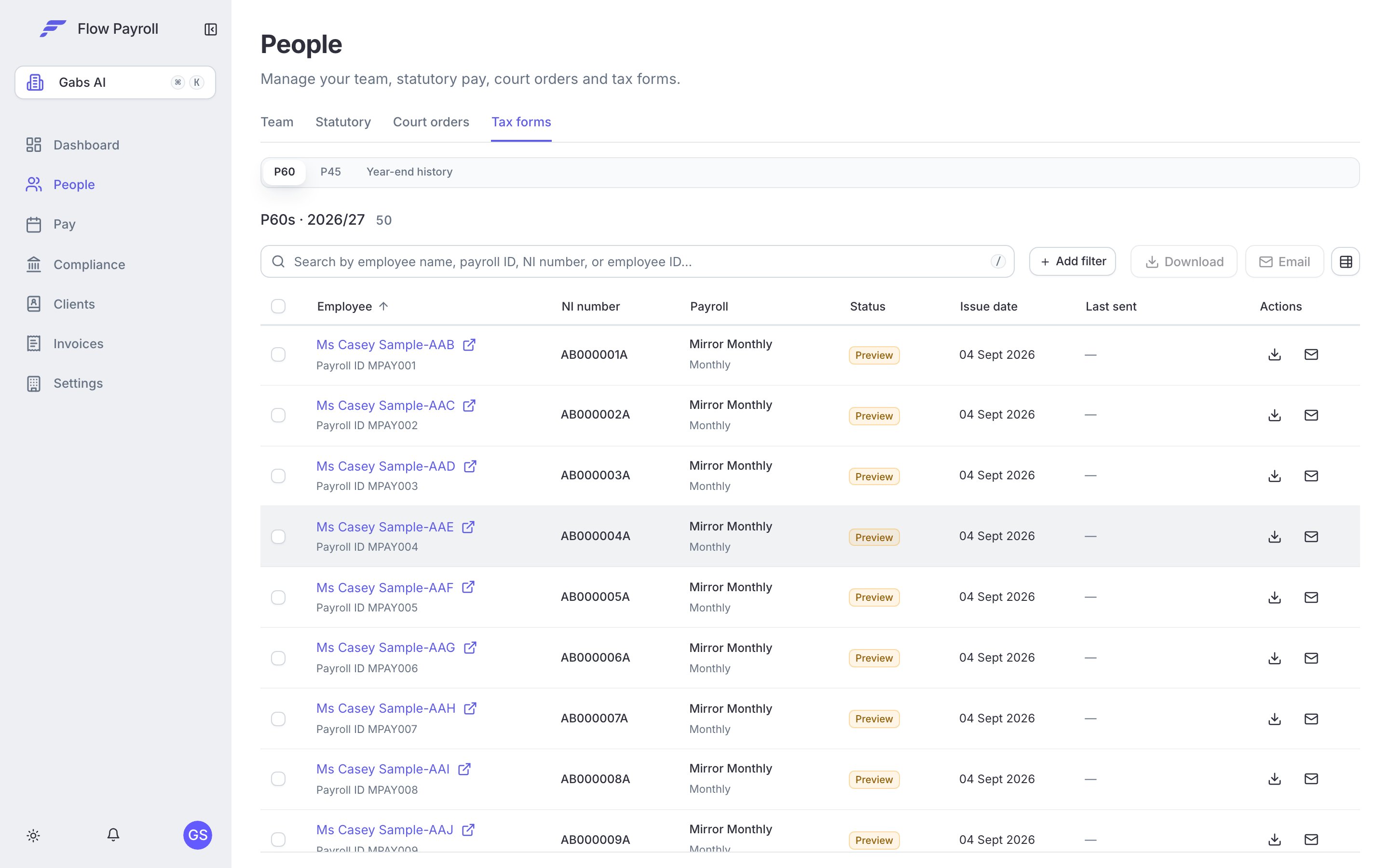
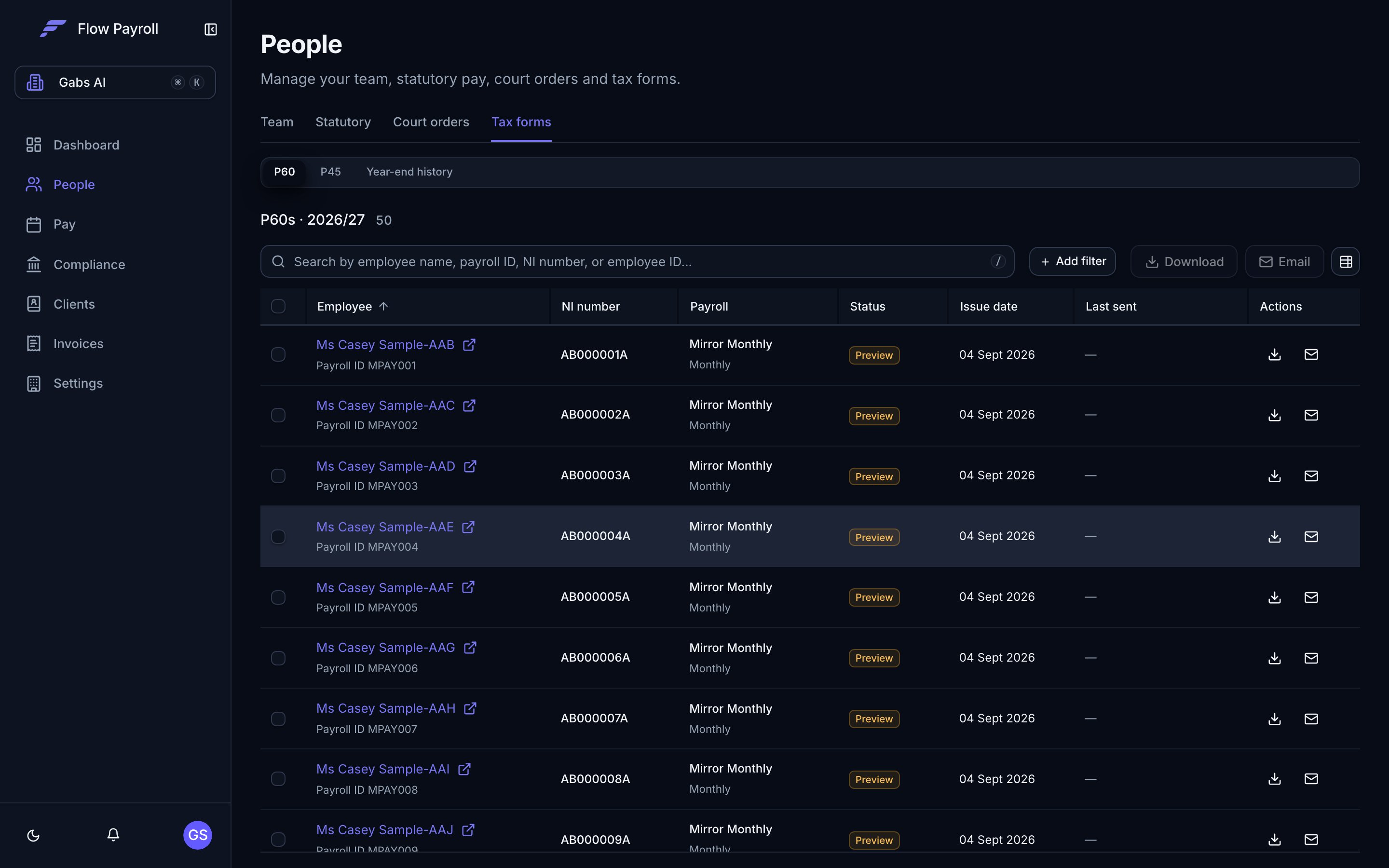
The Tax forms tab — P45s and P60s
What happens when you mark a leaver
Recording a leaving date does three things:- The employee’s status changes to Leaver and they drop off the default Active view in the Team list.
- Flow Payroll uses the leaving date in the next FPS submission to notify HMRC that employment has ended.
- A P45 becomes available to preview and issue from the Tax forms tab on the employee’s record.
Always run a final pay run for the employee before or on their leaving date. The P45 is based on the last payslip on record.
If you record the leaving date late
If you record a leaving date after that employee’s final pay run has already been submitted to HMRC, nothing is lost. They stay on the pay run list and are picked up automatically on the next one, where they appear with a zero-value payslip carrying only their leaving date. That submission is what tells HMRC the employment has ended, and the employee then drops off the list. You will see them flagged as Leaver on this pay run on the alerts step, so you can check the date before you finalise.Recording a leaving date
You can mark a single employee as a leaver, or process several at once.Single leaver
1
Open the employee record
Go to People and click the employee’s name to open their record.
2
Open the leaver details modal
On the left-hand profile card, click Set leaver details (or Update leaver details if a leaving date is already recorded). The modal opens.
3
Enter the leaving date
Set the Leaving date. If the employee has an existing payslip, the field pre-fills with the end date of their most recent pay period — change it if they are leaving on a different date.
4
Select a reason (optional)
Choose a Reason for leaving from the dropdown: Resignation, Retirement, Redundancy, Dismissal, End of Contract, Death, or Other. This is optional but useful for your records.
5
Save
Click Update leaver details. The profile card updates immediately to show the leaving date and status.
The modal includes a banner explaining that a P45 is issued automatically once the employee’s final payslip for the period has been run. You can preview the P45 at any time before that from the Tax forms tab.
Bulk leavers
If several employees are leaving on the same date — for example at the end of a project — you can mark them all at once from the Team tab.1
Select employees
On the Team tab, tick the checkbox next to each employee you want to mark. The bulk action toolbar appears above the table showing how many employees are selected.
2
Click Set as leavers
Click Set as leavers in the toolbar. A modal opens listing all selected active employees.
3
Set a common leaving date
Enter a Default leaving date and optionally a Default reason. These apply to everyone in the list.
4
Override individual dates if needed
Expand any employee row and enter a specific leaving date or reason to override the common values for that person.
5
Confirm
Click Mark as leavers. Each employee is updated immediately.
Cancelling leaver status
If you recorded a leaving date by mistake, you can cancel it. Select the employee on the Team tab (filter to Leavers first), select them, and click Cancel leavers in the bulk action toolbar. This removes the leaving date and returns their status to Active.Final pay run
The employee must appear in at least one pay run with a payslip before a finalised P45 can be issued. Their pay for any period that includes or precedes the leaving date is calculated as normal. Once you run, lock, and submit that pay run, the P45 is automatically generated and marked as Issued. For guidance on running that final pay run, see running a pay run.The P45
A P45 is the HMRC certificate showing:- The employee’s tax code on leaving.
- Total pay and tax deducted in the current tax year.
- The leaving date.
Previewing a P45
You can generate a draft P45 at any time — nothing is stored or sent to the employee until the final payslip exists.- Open the employee record and go to the Tax forms tab.
- Select the P45 sub-tab.
- Enter a Leaving date (pre-filled from the leaver record if one exists) and optionally a reason.
- Click Generate preview. A PDF renders inline based on the employee’s most recent payslip.
Issuing a P45
Once the final pay run is locked and the payslip exists, the P45 is generated automatically and marked as Issued on the P45 tab. From there you can:- Download — save the PDF for your records.
- Email — send the P45 to the employee’s registered email address with one click. You are asked to confirm before sending.
- Replace — create a new copy of the P45 if the employee loses theirs. The original is kept on file for audit and the replacement count increases by one.
If no P45 appears
A finalised P45 requires at least one payslip on record for the employee. If you see “No P45 to show yet”, generate a pay run for this employee first. The preview tools are still available in the meantime.What Flow Payroll reports to HMRC
When the final pay run containing the employee is submitted, the FPS includes the leaving date and reports to HMRC that employment has ended. You do not need to take any separate action — the RTI submission covers it. If the leaving date was recorded too late to make that submission, the employee is carried into the next pay run and reported there instead, so the cessation always reaches HMRC. Until HMRC has it, they may keep issuing tax codes for that employee against your PAYE scheme. For more detail on how HMRC submissions work, see HMRC RTI.Where to go next
HMRC & RTI
How the FPS reports the leaver to HMRC.
Running a pay run
Process the employee’s final pay period.
Statutory payments
Check whether any outstanding statutory pay is due.
Managing people
Overview of the People section and employee records.