

The FPS must reach HMRC on or before each pay day. The EPS is due by the 19th of the following tax month (the 22nd if you pay HMRC electronically).
The Compliance area
The two submission types
FPS submissions are generated automatically when you lock a pay run. You manage EPS submissions manually when you have something to report at employer level.
The Compliance page
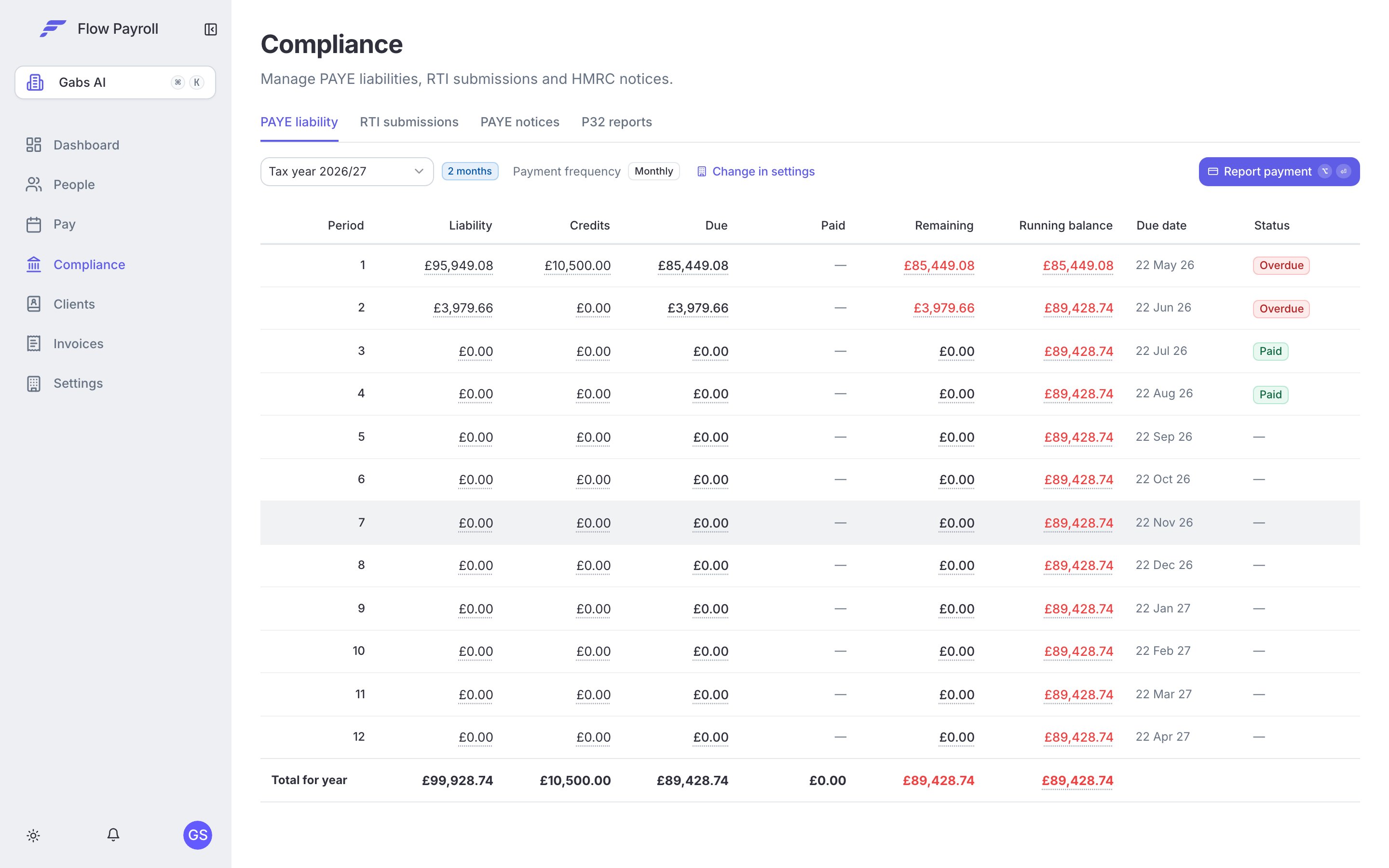
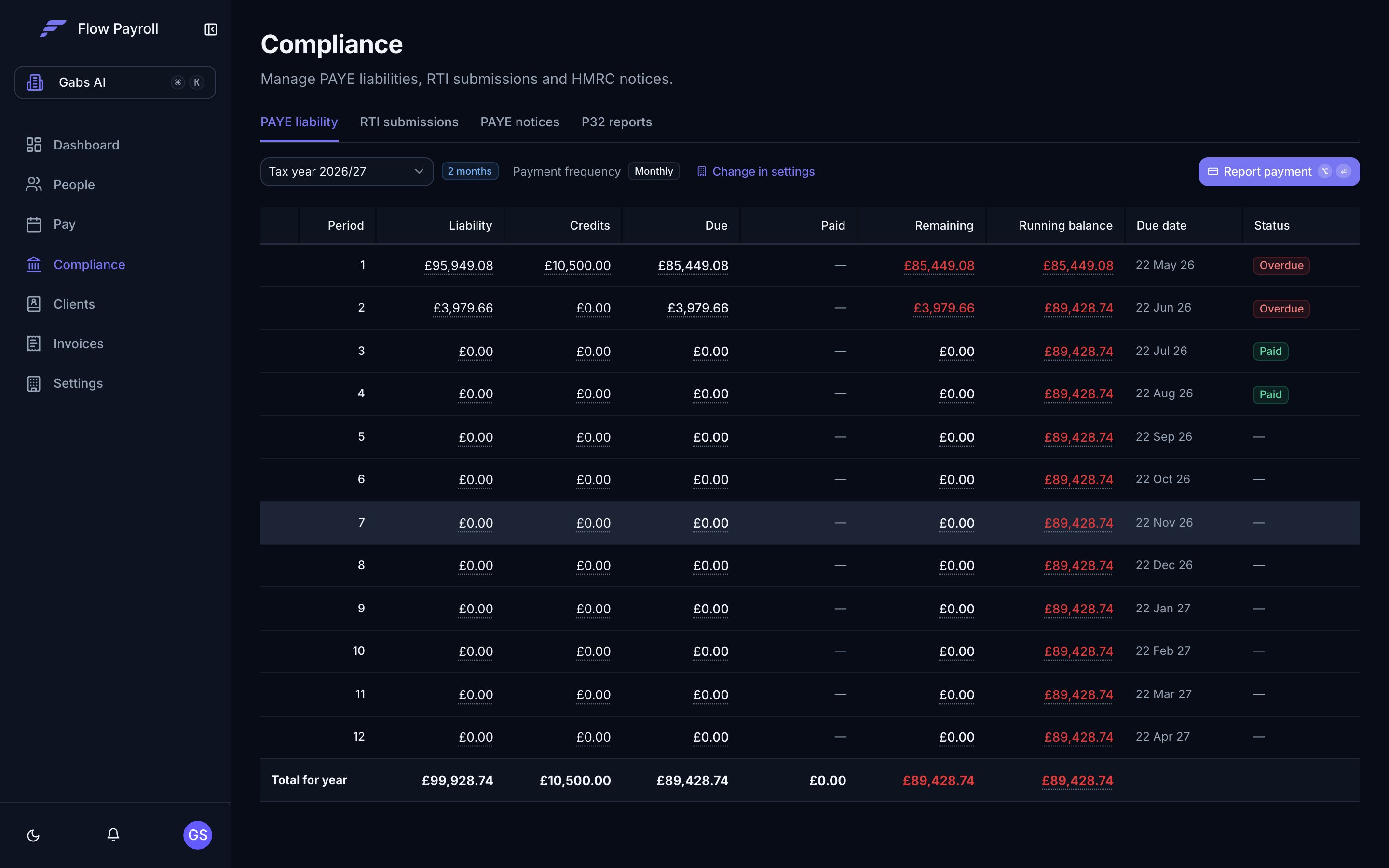
Go to Compliance in the main navigation. The page has four tabs:- PAYE liability — a summary of what you owe HMRC each period, with the ability to record payments.
- RTI submissions — a history of every FPS and EPS sent from this organisation.
- PAYE notices — incoming HMRC notices (P6, P9, coding changes, penalties, and others) retrieved via the HMRC Data Provisioning Service.
- P32 reports — monthly employer payment record.
Viewing RTI submissions
Open the RTI submissions tab. You see a table of every submission, with columns for type, period, submission date, and status. Each submission shows one of the following statuses:
Use the tax year selector to switch between years. Use the filter control to narrow by type (FPS or EPS) or by status.
Click any row to view the full submission detail — including the underlying XML if you need it for audit or troubleshooting purposes.
Submitting a Full Payment Submission (FPS)
Flow Payroll creates an FPS automatically when you lock a pay run. You do not need to submit it separately — locking the pay run triggers the submission. If an FPS shows a Failed status, open it from the RTI submissions table to see the error detail, then contact support if the issue is not resolved by correcting the pay run data.Creating an EPS
1
Open the Add submission dialog
On the RTI submissions tab, select Add submission. The dialog asks you to select a submission type.
2
Choose your EPS type
Two options are available:
- EPS manual — you enter all values yourself. Use this when you need precise control over what is reported.
- EPS from monthly balances — Flow Payroll pre-fills the recoverable statutory pay amounts from your pay run data for the selected tax month. This is the fastest route for most employers.
3
Select the tax year and tax month
The dialog auto-selects the current tax period. Adjust if you are submitting for a prior month.
4
Complete the EPS form
The form contains the following sections. Enable each section with its toggle only if you have something to report.
5
Preview and submit
Select Preview XML at any time to inspect the XML that will be sent to HMRC. When you are ready, select Submit. A confirmation modal asks you to confirm before the submission is sent.After a successful submission you are taken to the submission detail page where you can see the status and the submitted XML.
Reissuing an EPS
If you need to correct a previously sent EPS, open the submission from the RTI submissions table and select Reissue. This opens a pre-filled version of the EPS form with the original values. Make your corrections, then submit. The reissued EPS replaces the original for that tax month.PAYE notices
The PAYE notices tab shows notifications from HMRC delivered via the Data Provisioning Service (DPS). These include:- P6 — new tax code for an employee
- P9 — annual tax code update
- AR — annual reminders
- Coding notices, penalties, and incentives
PAYE liability
The PAYE liability tab shows what you owe HMRC each period based on the pay runs you have run. Select Report payment to record that you have paid HMRC for a given period. This keeps your liability view accurate.Year end
At the end of the tax year you have a few extra obligations on top of your usual pay runs:- Final FPS — on the last pay run of the tax year, the Final submission toggle is pre-enabled in the pay run wizard’s RTI step. This tells HMRC it’s your final submission for the year.
- Final EPS — if you have employer-level amounts to report, send a final EPS and enable the Final submission details section.
- P60s — issue a P60 to every employee who is still employed at the end of the tax year. P60s are available from People, on the Tax forms tab (and on each employee’s Tax forms tab in their record).
Where to go next
Run a pay run
Lock a pay run to trigger the FPS submission automatically.
Statutory payments
Record statutory pay so it appears correctly in your EPS recoverable amounts.
Organisation setup
Make sure your PAYE reference and HMRC credentials are configured.
Reports
Reporting and insights — coming soon.