

Court orders across your organisation
Supported order types
Flow Payroll uses the names on GOV.UK and on the paperwork you receive. The abbreviation is what you see on badges, filters and payslips.
An AEO priority order is used for unpaid maintenance or fines, and the order says it is a priority order. An AEO non-priority order is for debts from a county court judgment (CCJ). If it does not say what it is, it’s a ‘non-priority order’.
Adding a court order
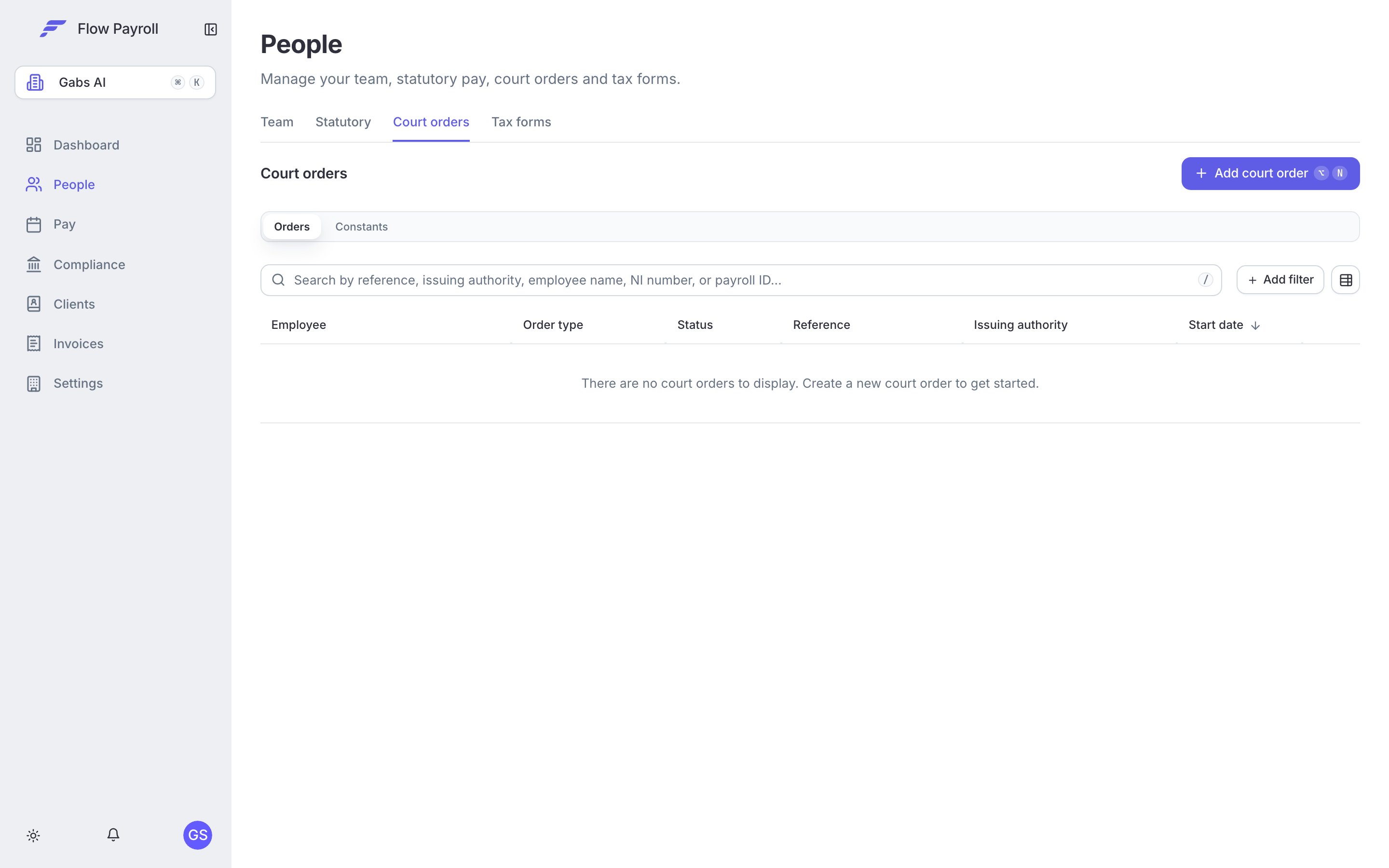
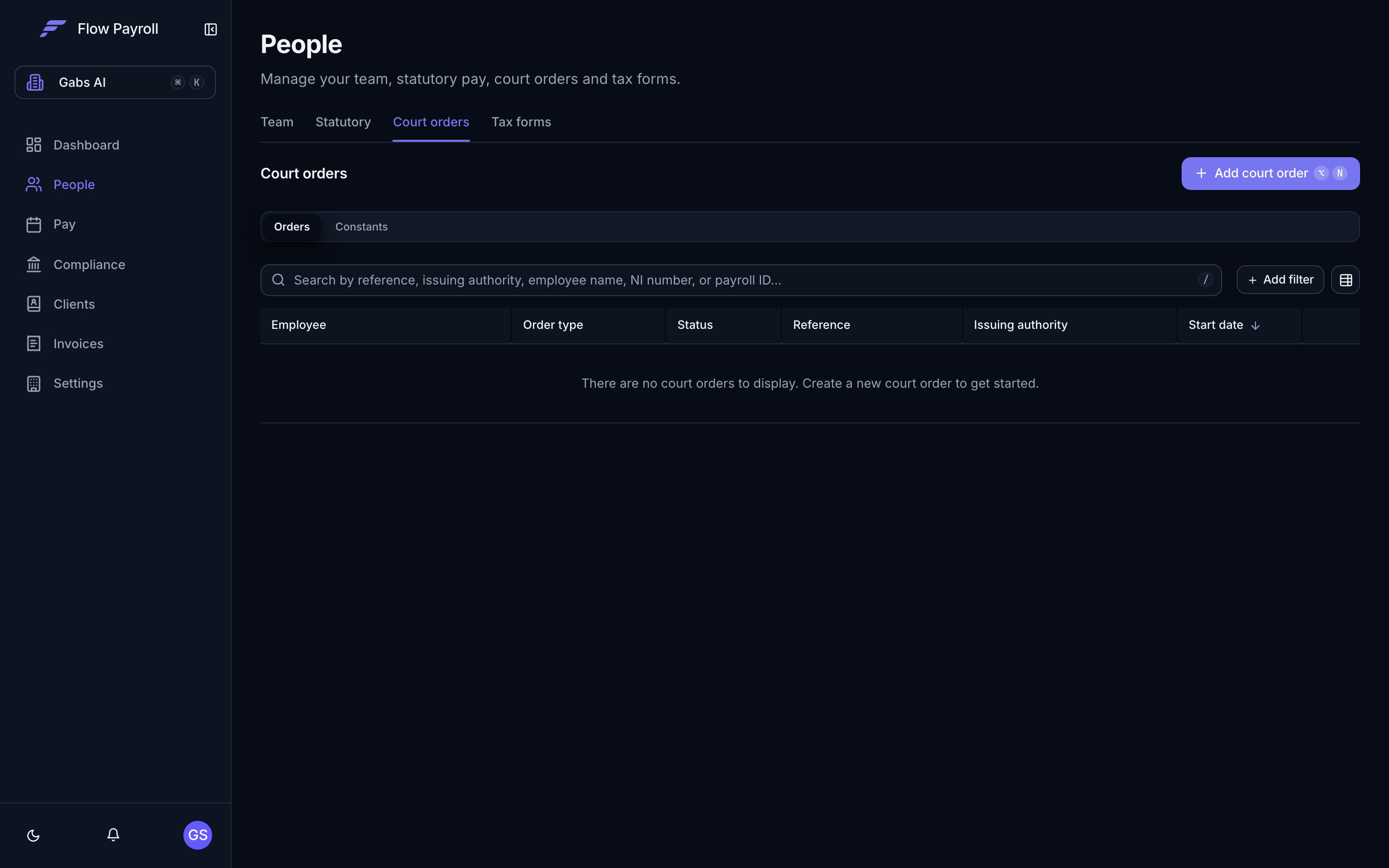
Go to People → Court orders and select Add court order, or open the employee and use their Court orders tab. The form is one page, in numbered sections. Every field says where to find its value on the order, with an example.Step 1: choose the order type
There are two equal ways in. Flow Payroll remembers the one you used last on this device.- I know the order type: answer Which order is it? from the list of official names. Each one says who it comes from and when you get one.
- Help me choose: answer Who sent you the order? from the letter in front of you. Some answers ask one more question, What is the order for?
If you choose I’m not sure, the form links to this guide and shows the list of official names. The type can’t be changed once the order is added.
The rest of the form
1
Whose order it is
Choose the Employee named on the order as the debtor or the paying parent. If you started from the employee’s record, they are already chosen. Then enter:
- Order reference: the reference or case number printed on the order.
- Sent by: the court, office or organisation named at the top of the order.
- Date you received it: the date the order reached you, not the date printed on it.
- First deduction from: worked out from the date you received it, using the notice the law allows. Change it only if the order gives a different date.
- Last deduction by (optional): only if the order says when deductions must stop.
For a CTAEO, also choose whether the council is in England or Wales (Council is in). The two countries use different tables, so the order can’t be added without it.
2
How much is owed
Enter How much your employee owes (£), as shown on the order. It is required for an AEO, an MCAEO and both Northern Ireland orders. For other types, enter it only if the order gives a total. When there is a total, deductions stop once it has been paid.Already paid before this order was added (£) is only for money paid before you added the order here, for example through your previous payroll.A CAO asks for its Ordinary debts total (£) instead. Maintenance has no total and continues until the order ends.
3
How much to take each pay run
The fields depend on the order type. See How each order is worked out. The section heading says, in one sentence, what will be taken each pay run as you fill it in.
4
Protecting the employee's pay
The law makes sure the employee always keeps enough take-home pay to live on. Where the order states a Protected earnings rate (PER), enter it. Where the law sets the rule, it is shown read-only with “Set by law for this type of order.” Student loan is shown the same way.
5
Where to send the money
- Who you pay: the court, office or person the deductions are paid to. Leave it empty if you pay them outside payroll. See Payees.
- Payment reference: the reference to quote when you pay. It starts as the order reference.
- Payment deadline: set by law for the type of order and shown read-only.
- Admin fee: the law lets you take £1 from the employee’s pay each time you make a deduction, to cover your costs.
6
Copy of the order and notes
Upload a copy of the order and any letters (PDF, Word or an image, up to three files), so anyone can check the figures later. Add any notes your team should know. Then select Add court order.
Values set by law are shown, not asked
Some values are fixed by law for the type of order, so the form shows them read-only with the reason, rather than asking you to choose:- Table used: the deduction table depends on how often the employee is paid. Weekly, fortnightly and four-weekly pay use the weekly table; monthly, quarterly, twice-yearly and annual pay use the monthly table; daily pay uses the daily table.
- Protected earnings, for orders where the law sets the rule rather than the order.
- Student loan: see Student loan.
- Payment deadline: within 5 working days for a DEO; as soon as you reasonably can for a CMA; at the times the order sets out for a CAO and an NI AEO EJO; by the 19th of the month after the pay day for every other type.
How each order is worked out
Every order works from the employee’s take-home pay as the law defines it for that order: the pay the order can be taken from, less income tax, employee National Insurance and pension contributions.Deduction from earnings order (DEO)
Choose What the notice asks you to take: a Percentage of take-home pay (never more than 40%) or a Fixed amount each pay run. At least 60% of take-home pay is always left. A shortfall is collected on a later pay day.AEO for maintenance or a debt (England and Wales)
The court sets two figures on the order, and you enter both:- Normal deduction rate (NDR) (£ each pay day): the most to take each pay day.
- Protected earnings rate (PER) (£ each pay day): take-home pay is never taken below it.
AEO for fines and MCAEO
An AEO priority order for fines takes a percentage of take-home pay from the official table, chosen from the employee’s pay frequency. It leaves either the protected earnings rate the court set or 60% of take-home pay, whichever the order says. An MCAEO follows the table, a percentage or a set amount, as the order says. It always leaves at least the protected earnings rate the court set.Direct Earnings Attachment (DEA)
Choose the Rate on the DWP notice: Standard rate or Higher rate, which take a percentage of take-home pay from the DWP table, or Fixed amount set by DWP, where you enter the amount. At least 60% of take-home pay is always left, and at the standard rate no more than 20% is taken. First payday this was taken on is recorded by the first pay run that takes a deduction.Council tax attachment of earnings order (CTAEO)
A percentage of take-home pay is taken from the council tax table for England or for Wales, whichever Council is in says. The table already leaves the employee enough to live on.Earnings arrestment (EA)
An amount from the Scottish earnings arrestment table is taken each pay run, based on take-home pay. The table already leaves the employee enough to live on. An exact half penny is rounded down, as the Debtors (Scotland) Act 1987 (Schedule 2) sets.Current maintenance arrestment (CMA)
Enter the Daily rate (£ per day) from the schedule. If the schedule gives a monthly or quarterly amount, choose Per month or Per quarter and enter that. Flow Payroll works out the daily rate (monthly × 12 ÷ 365, quarterly × 4 ÷ 365, to the nearest penny) and shows the working under the field. This is the conversion the Debtors (Scotland) Act 1987 sets (section 51). Each pay day takes the daily rate for every day since the last pay day a deduction was taken (shown as Last payday with a deduction), or since the schedule was served. Take-home pay is never taken below £24.66 for each of those days. Missed days roll into the next pay day; nothing else is carried forward.- Only one can run for an employee at a time. To add another, end the existing one first.
- Pay the creditor as soon as you reasonably can after each pay day.
Conjoined arrestment order (CAO)
Enter the Ordinary debts total (£), the Maintenance daily rate (£ per day), or both. Leave either at £0 if the order has none.- Ordinary debts are taken using the earnings arrestment table until they are paid.
- Maintenance is then worked out like a CMA, from what is left.
- It replaces any EA or CMA for the employee, so end those before you add it.
- It starts 7 days after it is served on you.
Attachment of earnings order (Northern Ireland) – fines
The official tables are weekly (Table A) and monthly (Table B), and the order works for every pay frequency, as the Northern Ireland Courts and Tribunals Service employer guide sets out:- Weekly and monthly pay use their own table.
- Fortnightly and four-weekly pay use the weekly table for each week in the pay period.
- Quarterly, twice-yearly and yearly pay use the monthly table for each month in the pay period.
- Daily pay uses the weekly table, pro rata.
Attachment of earnings order (Northern Ireland) – Enforcement of Judgments Office
For orders made by the Enforcement of Judgments Office. Orders made by a court rather than the Office aren’t supported.- Choose how The order states its rates: Per week, Per month or Per day.
- Enter the Normal deduction rate (NDR) and the Protected earnings rate (PER), exactly as the order prints them. Enter £0 if the protected earnings rate says nil.
Student loan
The form shows how student loan is handled for the order, under Student loan:
Northern Ireland’s fines regulations don’t say how student loan is handled, so NI AEO fines follows HMRC’s general rule for priority orders (CSLM18015): the order comes first, and the two together never take pay below 60%.
How deductions run in a pay run
Each pay run, Flow Payroll:- Takes a DEO before any other court order.
- Takes priority orders next, oldest first. A CMA and a CAO come after the other priority orders.
- Takes student loan, unless an order stops or limits it.
- Takes non-priority orders from what is left, oldest first.
- Never takes take-home pay below £0 through court order deductions, whatever an order’s own rules work out.
- Counts each deduction against the order’s balance, and ends the order once the total has been paid.
- A DEA and a Scottish arrestment. An arrestment already in effect on the DEA’s first payday is taken before it. One that started later is taken after it (Social Security (Overpayments and Recovery) Regulations 2013, regulation 29(10)).
- An EA and a CMA on the same pay day. If take-home pay above the protected amount can’t cover both, it is shared between them in proportion to what each would take (Debtors (Scotland) Act 1987, section 58).
On the payslip
Each deduction is a payslip line named with the order’s abbreviation and reference, for example “DEO - AB/123456”, “AEO priority - AB/123456” or “CMA - AB/123456”. The admin fee, if you switched it on, is its own £1 line with the same name followed by “Admin Fee”. Lines from earlier pay runs keep the name they were given at the time.Payees
A payee is the organisation or account that receives the deductions. You set up payees once and reuse them across orders. Each payee stores:- A name and payment method: Bank transfer (BACS), Cheque or Card payment.
- For bank transfer, the sort code and account number.
- Whether the payee is included in the remittance file.
Changing an order
Open the order from People → Court orders, or from the employee’s Court orders tab. The order has Overview, Deduction settings, Remittance, Payment history and Attachments tabs.Recording a change from the court or DWP
When a court or DWP varies an order, select the edit (pencil) button and change the figures. You can change:
For every type you can also change the status, dates, reference, who sent it, who you pay, the payment reference, the admin fee and notes, and correct Already paid before this order was added or Repaid through payroll so far. Except for the Scottish and Northern Ireland orders, which always use their own rates, you can enter a New amount from a revised notice (£ each pay run), which replaces the usual calculation.
The employee and the order type can’t be changed. If you get a new order, end this one and add the new one.
Pausing and ending an order
Use More actions on the order:- Pause order: no deductions are taken while it is paused. Resume order starts them again from the next pay run.
- End order: use this when the court or authority tells you the order has ended. No more deductions are taken, and you can’t undo this.
- Delete: removes the order.
- when its total has been paid, or
- when its Last deduction by date has passed and no pay run is left before it (“end date reached”).
Orders added before the court’s rates were used
An AEO for maintenance or a debt added before the court’s rates were used may have been set up on the official table or a percentage. It keeps working exactly as it is until it is paid, and its settings are marked “Set up this way before the court’s rates were used.” If the court sends you new figures, open the order, select the edit button and choose Update to the amounts on the court order. Enter the normal deduction rate and the protected earnings rate from the order. Both are saved together and replace how the order was set up. Keep the current set-up cancels the change.Where to go next
Running a pay run
See how court order deductions appear in pay run calculations.
Managing people
View all court orders for an employee from their profile.
Statutory payments
Understand how statutory pay interacts with court order deductions.
Court orders API
Add and manage court orders from your own systems.