

Have your PAYE reference, Accounts Office reference, and Government Gateway credentials ready before you start. You’ll find them on letters from HMRC or in your HMRC Online Services account.
Organisation settings
Finding Settings
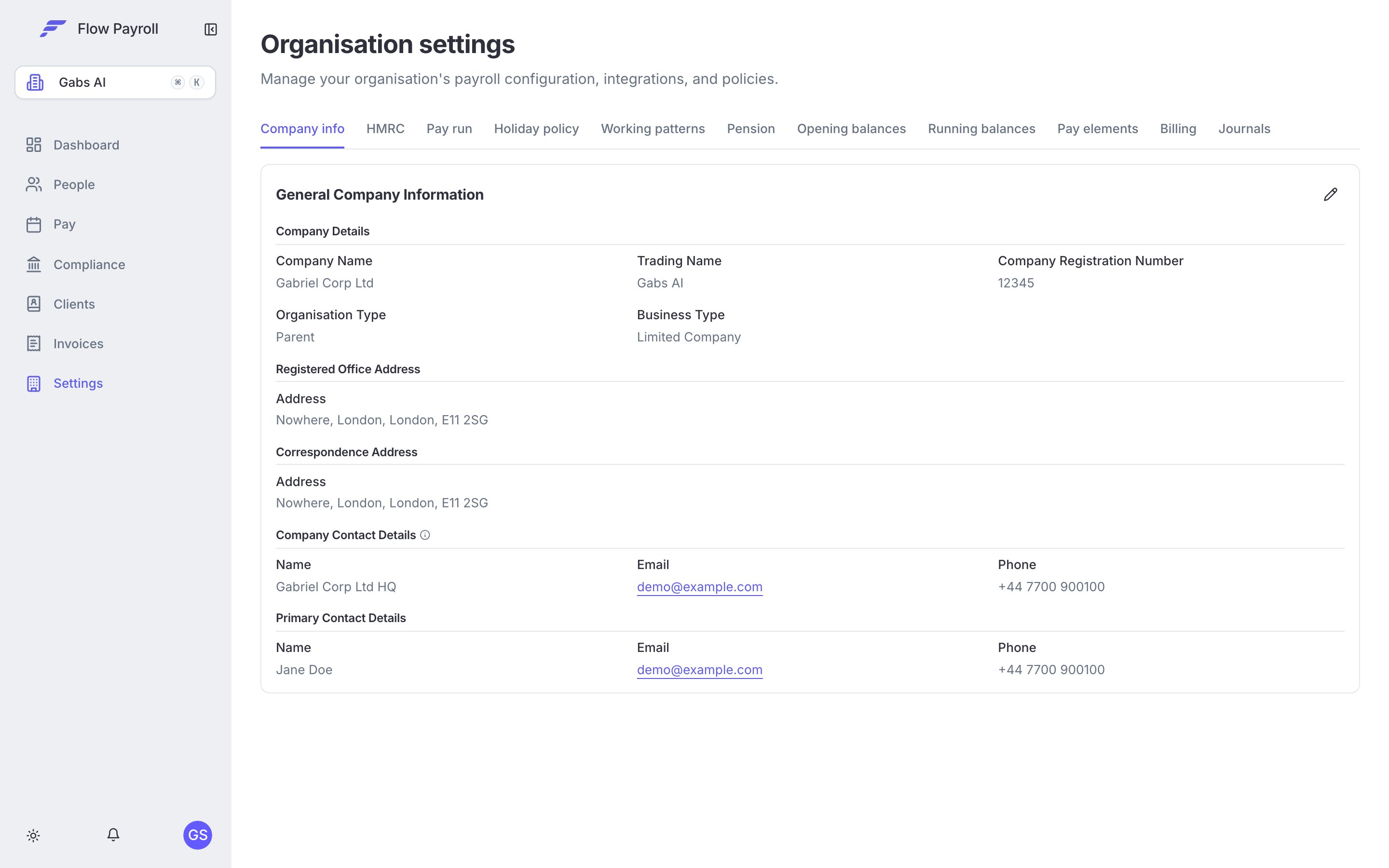
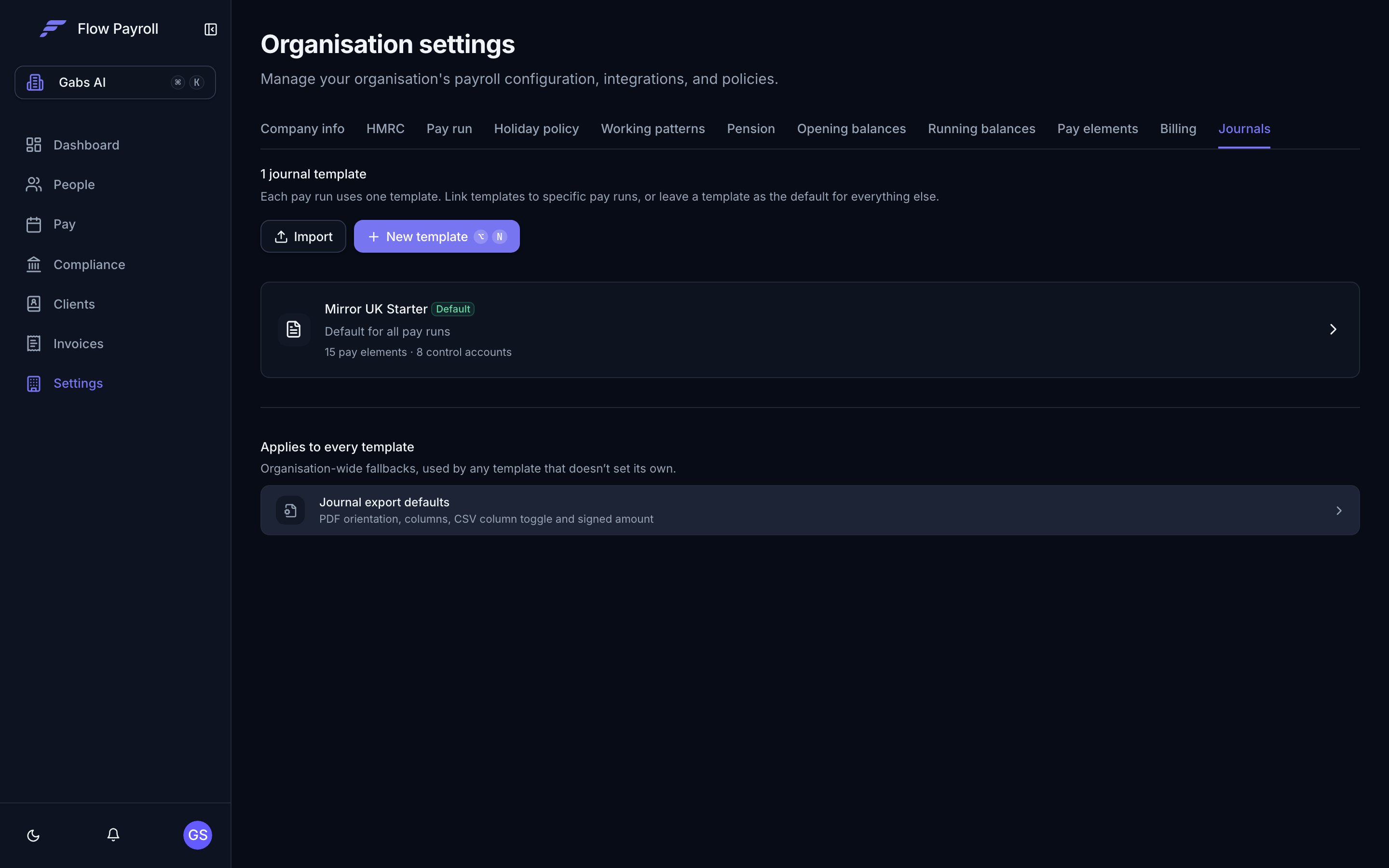
From any page, navigate to Settings in the left-hand menu. The page opens on the Company info tab. Use the tabs along the top to move between sections: Company info, HMRC, Pay run, Holiday policy, Pension, Opening balances, Running balances, and Pay elements.Company info tab
The Company info tab holds the details that appear on payslips and employee communications. Click Edit to enter editing mode; click Save when done.Company details
Addresses
You enter two addresses:- Registered Office Address — your legal registered address.
- Correspondence Address — where HMRC and others should write to you. Toggle Correspondence same as registered office if they match.
Contact details
You enter two sets of contact details:- Company Contact Details — the name, email, and phone shown on payslips.
- Primary Contact Details — the internal contact for payroll queries. Toggle Primary contact same as company contact if they’re the same person.
HMRC tab
The HMRC tab holds everything Flow Payroll needs to submit RTI on your behalf. Click Edit, fill in all sections, then click Save.Tax reference numbers
Government gateway
Choose your HMRC Submission Method:- Direct — Flow Payroll submits RTI using your own Government Gateway credentials. Enter your Government Gateway User ID and Password.
- Agent — Submissions go via an agent. Enter the agent’s User ID, Password, and optionally an Agent ID.
Employment allowance
If your organisation is eligible for Employment Allowance, enable Employment Allowance Eligibility, set the Claim Status (Claimed, Not Claimed, or Not Eligible), and select the applicable De Minimis State Aid Sectors. Selecting Not Applicable (NA) means no state-aid restrictions apply — it cannot be combined with other sectors.Apprenticeship levy
Large employers with an annual pay bill above the threshold pay the apprenticeship levy. Enable Applies and enter your Annual Allowance Amount if this applies. The levy allowance is shared across connected employers — enter only your PAYE scheme’s allocated share.PAYE liability
Set Payment Frequency to Monthly or Quarterly depending on how you pay your PAYE liability to HMRC.Small employer relief
Enable Small Employer Relief if you qualify. This affects how much statutory pay you can reclaim from HMRC.Bank account
Enter the bank account details Flow Payroll uses to pay HMRC:- Account Holder Name
- Account Number
- Sort Code
- Building Society Reference (if applicable)
Opening balances tab
You only need opening balances if you’re starting to use Flow Payroll part-way through a tax year and employees already have year-to-date figures from another system.
Opening balances are per organisation, not per employee. For employee-level year-to-date figures, use the running balances area or enter them when adding each person.
Where to go next
Create a pay schedule
Define how often you pay people and on which day.
Add your people
Onboard employees and attach them to a pay schedule.
HMRC & RTI
Submit FPS and EPS once your first pay run is complete.
Getting started
The full setup checklist from zero to first pay run.