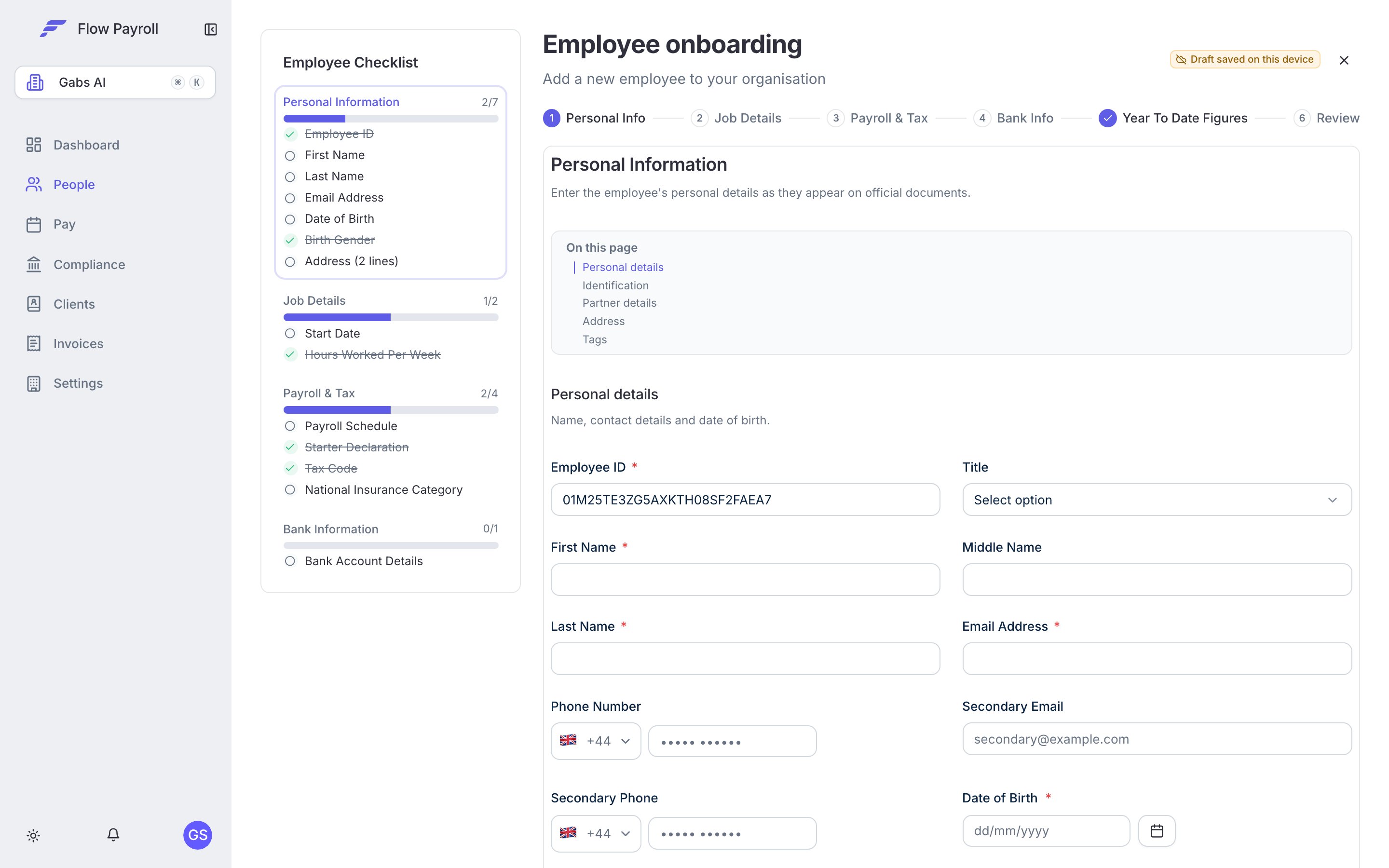
Add a new employee individually through the onboarding wizard, or import multiple employees at once via CSV.
When someone joins your organisation you need to add them to Flow Payroll before they can appear in a pay run. You can add one person at a time using the onboarding wizard, or import many people at once using the CSV importer.
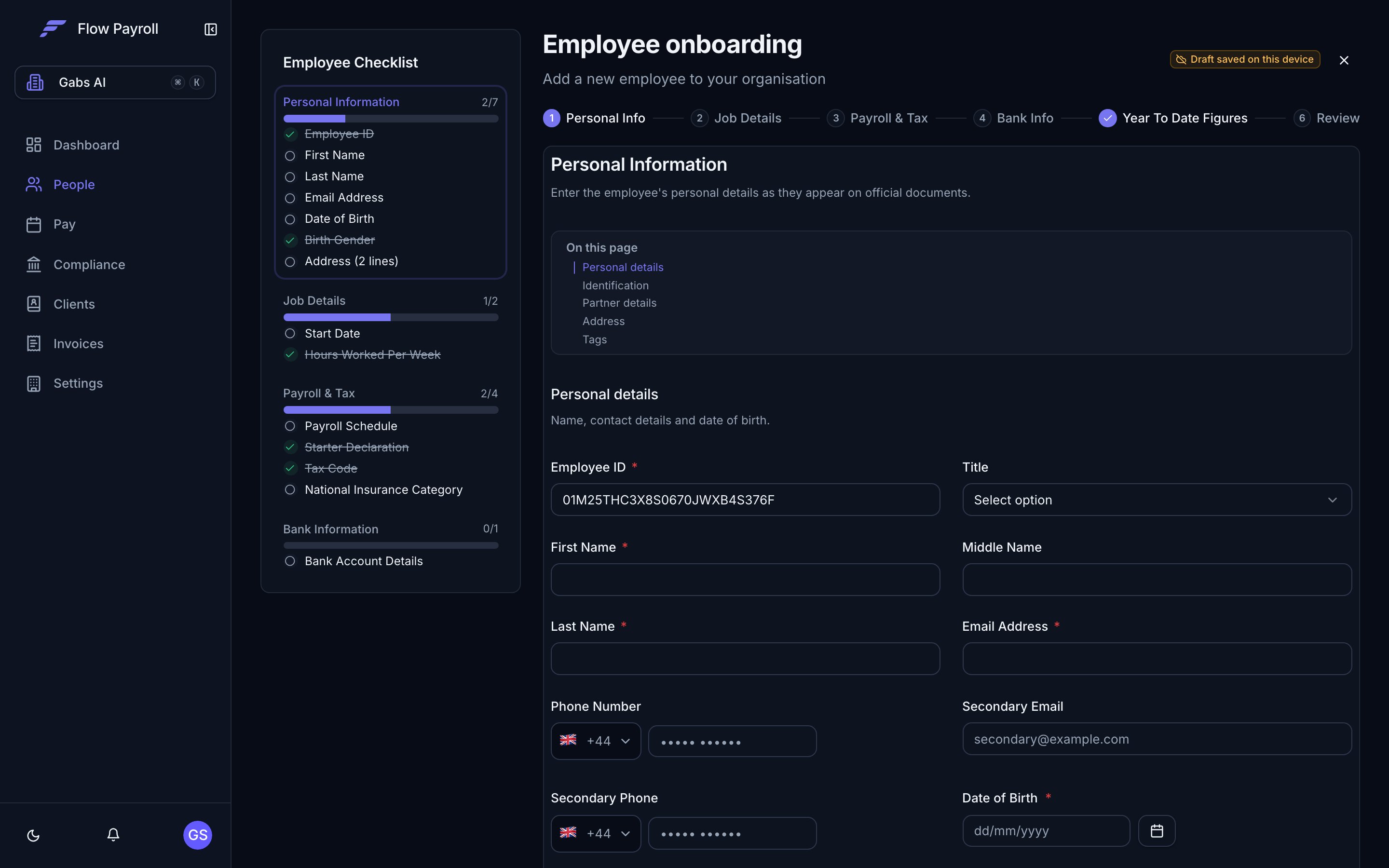
Go to People, make sure you are on the Team tab, and click Add employee. The wizard opens with a checklist sidebar on the left that tracks your progress through each step.
2
Personal information
Enter the employee’s personal details exactly as they appear on official documents — HMRC validates these fields on the FPS. Required fields are:
Employee ID (auto-generated, but you can change it)
First name and last name
Email address
Date of birth
Birth gender
Optional but useful: title, middle name, phone number, NI number, passport number, marital status, home address, and tags. Partner details (name and NI number) are needed for Statutory Shared Parental Pay.
If you don’t have the NI number yet, enter at least two lines of the employee’s home address — HMRC requires one or the other on the FPS.
3
Job details
Fill in the employment specifics:
Start date — required.
Hours worked per week — choose the band (up to 16, 16–24, 24–30, above 30, or other). This is an HMRC-required field.
Job title and department — optional, but used for filtering and reporting.
Working pattern — tick the days the employee typically works. For a rota or an irregular schedule, see working patterns.
Irregular payment pattern — toggle on if pay varies and there is no regular cycle.
Off payroll worker (IR35) — toggle on for workers inside IR35.
4
Payroll and tax
This step contains four required items and several optional ones.Required:
Payroll schedule — assign the employee to an existing pay run configuration.
Starter declaration — select A, B, or C based on what the employee has told you:
A — first job since 6 April, no other job or pension.
B — this is their only job (they may have another source of income but no other employment).
C — they have another job or receive a pension.
Tax code — enter the code for the current tax year (for example 1257L). If you have a P45 from the previous employer, use the code shown there. Otherwise use the emergency code appropriate to the starter declaration. Tick W1/M1 if the code should be applied on a non-cumulative basis.
NI category — select the appropriate HMRC NI category letter. Category A applies to most employees. The wizard can suggest a category based on date of birth when you have provided it.
Optional:
Salary — the annual gross salary for reference.
Director settings — appointment date and NIC calculation method if the employee is a company director.
Student loan — plan type (Plan 1, 2, 4, or 5) and dates if applicable.
Postgraduate loan — if the employee has a postgraduate loan.
Pension — assign the employee to a pension group at onboarding. Auto-enrolment assessment runs every pay run regardless, but you can manually assign a group here.
Holiday policy — attach a holiday accrual policy.
If you have the employee’s P45 from a previous employer, enter the previous employment gross taxable pay and previous employment tax paid in the Payroll & tax tab after onboarding, or supply them in the Previous employment card inside the wizard’s Payroll & tax step. This ensures tax is calculated correctly in the first pay run.
5
Bank information
Enter the employee’s bank account details. All three fields are required when providing bank details:
Account holder name
Account number (8 digits)
Sort code (6 digits)
You can add more than one account and set the percentage of pay allocated to each. The percentages must total 100.
6
Year-to-date figures (optional)
This step is for employees joining mid-tax-year who have already had pay processed elsewhere. Enter the cumulative figures from their P60 or last payslip so that tax and NI calculations for the remainder of the year are correct:
YTD gross, taxable pay, and tax paid.
YTD employee and employer NI.
YTD student loan and postgraduate loan deductions.
Statutory pay received to date (SSP, SMP, SPP, SAP, ShPP, SPBP, SNCP).
Pension contributions.
You can skip this step if the employee is joining at the start of the tax year or if you are onboarding them for the first time and have no prior figures.
7
Review and save
The Review step shows a summary of every section. Scroll through to check the details. Click Save employee to create the record. The checklist sidebar shows a tick on every completed section — any incomplete required fields are highlighted before you can save.After saving, you are taken to the new employee’s record where you can continue adding details.
The wizard saves your progress automatically as you type. If you navigate away mid-onboarding, Flow Payroll offers to resume your draft when you return. Discard a draft to start fresh.
For bulk onboarding — for example when migrating from another system — use the CSV importer. It runs on Flow Payroll’s shared import wizard: upload the file exactly as your HR platform exports it, map the columns once, and save the mapping so every future import is recognised automatically. This section covers what’s specific to employee imports; see importing data from CSV for the wizard itself, including saved mappings, default values, and error handling.
1
Open the importer and choose a mode
On the Team tab, click Import CSV and pick a mode:
New Starters — employees joining the company who have not been paid in Flow Payroll before.
Existing Employees — migrate employees from another payroll system part-way through a tax year. This mode adds year-to-date and leaver columns, and relaxes the starter declaration requirement.
2
Upload your file
Upload a CSV or Excel (.xlsx) file, up to 20 MB. If a saved mapping matches the file’s headers, Flow offers it immediately — accept it and you skip straight to validation. You can also click Download template for a starter file with every column and an example row (the same templates are reproduced below).
3
Map columns
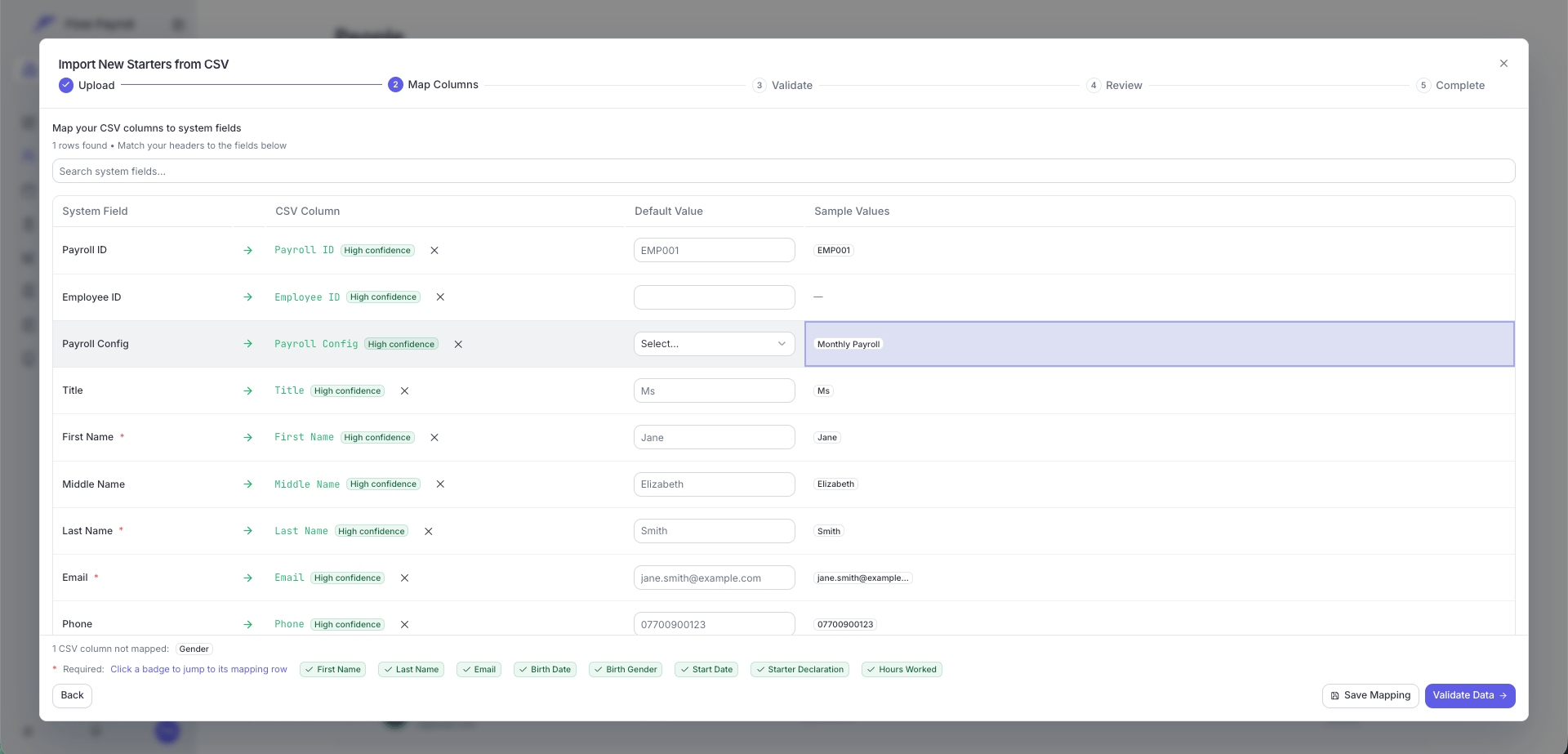
The importer matches your headers to Flow’s fields automatically — it recognises a wide range of names for each field (for example “Date of birth”, “DOB”, and “BirthDate” all map to the birth date field). Each match carries a confidence badge: accept green High confidence matches, and double-check amber Review match ones. Use the Default Value column for anything your export doesn’t carry — for example, set a default Payroll Config to put every imported employee on the same pay schedule.
Mapping an employee CSV — auto-matched columns with confidence badges
When you’re done, click Save Mapping so the next import from the same system maps itself.
4
Validate, review, and import
Every row is validated against the same rules as the manual onboarding form. Rows with only warnings (such as an unusual postcode format) are imported; rows with errors are skipped. Errors can’t be edited in the wizard — click Download Errors for a CSV of the failed rows with the reason per row, fix them in your spreadsheet, and re-upload. Click Import N Rows to create the employee records.
These columns must be mapped (or given a default value) in both modes:
Column
Notes
First Name
Last Name
Email
Birth Date
DD/MM/YYYY or YYYY-MM-DD
Birth Gender
Male or Female (M/F also accepted)
Start Date
DD/MM/YYYY or YYYY-MM-DD
Starter Declaration
A, B, or C. New Starters mode only — optional in Existing Employees mode, where None is also accepted for migrated employees
Hours Worked
Band — accepts values like “30 hours or more”, “Above30Hours”, or “full time”
Address Line 1
Street address — HMRC requires the employee’s address on the FPS
Address Line 2
Second address line
Everything else is optional but strongly recommended — the more you provide here, the less you fill in later on each employee record.
If you provide bank details, all three columns — Account Holder Name, Account Number (8 digits), and Sort Code (6 digits) — must be present for the same employee.
These are the exact files the wizard’s Download template button produces — one header row with every column, one example row showing the expected formats. Download the one you need, or copy it from the code block.
New Starters template (employee_importer_new_starter_template.csv)
Payroll ID,Employee ID,Payroll Config,Title,First Name,Middle Name,Last Name,Email,Phone,Birth Date,Birth Gender,Marital Status,Start Date,Starter Declaration,Starter Reported to HMRC,Director NIC Type,Director Appointment Date,Director End Date,Partner NI Number,Partner First Name,Partner Last Name,Hours Worked,Job Title,Department,Salary,Tax Code,NI Category,NI Number,Student Loan Plan,Postgraduate Loan Plan,Student Loan Start Date,Student Loan End Date,PG Loan Start Date,PG Loan End Date,P45 Previous Taxable Pay,P45 Previous Tax Paid,Address Line 1,Address Line 2,City,County,Postcode,Country Code,Account Holder Name,Account Number,Sort Code,Secondary Email,Secondary Phone,Employee Code,Passport Number,Gender,Irregular Employment,Off Payroll Worker (IR35),Workplace Postcode,Tax Code W1/M1,Works Monday,Works Tuesday,Works Wednesday,Works Thursday,Works Friday,Works Saturday,Works SundayEMP001,,Monthly Payroll,Ms,Jane,Elizabeth,Smith,jane.smith@example.com,07700900123,15/06/1990,Female,Married,06/04/2024,B,No,No,01/04/2024,31/03/2025,AB123456C,John,Smith,30 hours or more,Payroll Manager,Finance,35000,1257L,A,AB123456C,Plan 2,No,01/09/2020,30/06/2025,01/09/2021,30/06/2026,15000,3000,10 Downing Street,,London,Greater London,SW1A 2AA,England,Jane Smith,12345678,200000,john.alt@example.com,07700900456,EMP001,123456789,Male,No,No,SW1A 1AA,No,Yes,Yes,Yes,Yes,Yes,No,No