

Before running your first pay run, make sure your organisation settings, at least one pay run schedule, and your people are all set up. See getting started if you haven’t done that yet.
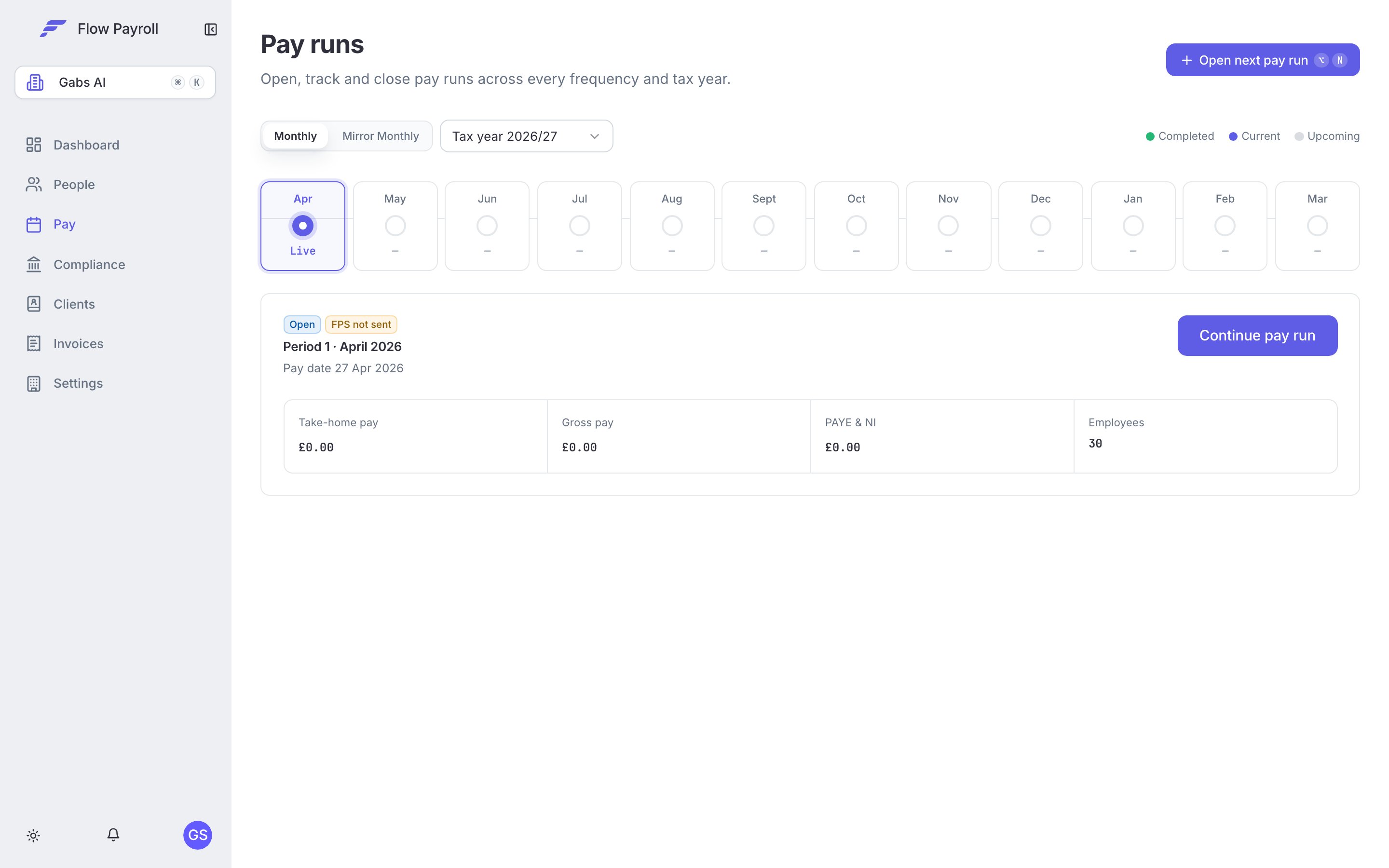
The Pay runs area
Starting a pay run
Go to Pay runs in the main navigation. The page shows pay runs in progress, grouped by pay frequency. Select Open next pay run (or Start new pay run if this is your first). A confirmation modal shows the suggested pay schedule, tax year, and period — and lets you override the payment date if needed. Confirm, and the wizard opens at step 1.The seven wizard steps
1
Step 1 — Payments
The payments step is a split-panel view: the employee list on the left, pay lines for the selected employee on the right.Reviewing what’s already thereEvery employee on the pay schedule appears with their calculated payslip. Statutory pay (SSP, SMP, SPP, and so on), recurring payments, and court-order deductions that were set up on the employee’s profile are already applied. Select an employee to inspect their individual lines.Adding a one-off payment or deductionSelect an employee, then choose Add payment or Add deduction. Pick the pay element, enter the amount and quantity, and save. The payslip recalculates immediately.Adjusting pension for this run onlyFor an enrolled employee, the small arrow next to Add deduction opens a menu with a Pension section: One-off additional voluntary contribution and Override pension this run. Both apply to this pay run only and leave the scheme settings alone. See pension contributions and refunds.Importing in bulk from CSVIf you have many lines to enter, click Import CSV in the pay run’s top bar to bring them in from a CSV or Excel file — hours exports, bonus lists, or a full payments file from another system. See importing payments from CSV below for the columns, the wide layout for one-row-per-employee files, and tagging imported lines.Alert filtersThe search bar and alert-code chips above the employee list let you filter to employees with specific issues — for example, employees flagged for a pension alert. Clicking through from the Alerts step (step 2) pre-filters the list automatically.
Statutory payments, pension contributions, and court-order deductions are calculated automatically. You do not need to enter them manually here. See statutory payments, auto-enrolment, and court orders for more detail.
2
Step 2 — Alerts
The alerts step surfaces anything that needs your attention before you lock the period.Alerts fall into two categories:
- Blocking alerts — must be resolved before you can lock. These include employees who need to be enrolled into a pension but haven’t been yet, and similar compliance issues.
- Advisory alerts — informational flags that you can acknowledge and proceed past.
Auto-enrolment
How Flow Payroll assesses and enrols workers each pay run.
3
Step 3 — Lock pay run
Locking finalises the period. Before you lock, review the summary information on this step:
- The lock status card tells you whether the pay run is already locked or still open.
- If unlocked, a list of what locking will do is shown: employee data and calculations are finalised, payslips are generated and can no longer be modified, RTI submission becomes available, and reporting documents can be generated.
4
Step 4 — Payslips
After locking, this step shows the full payslip list for the period.
- Search by employee name, payroll ID, NI number, or payroll code.
- Select individual payslips or use Select all to select every employee shown.
- View opens the payslip in a preview modal — payslips are marked Final once the period is locked, or Preview if viewed before locking.
- Download saves an individual payslip as a PDF.
- Download selected bundles the selected payslips into a single zip file.
- Email payslips sends a notification to selected employees with a link to their payslip.
Payslips
What payslips show, how to share them, and how employees access them.
5
Step 5 — RTI submission
This step manages your Full Payment Submission (FPS) to HMRC.Before submittingThe validation card confirms the pay run is locked and completed. The pay run summary card shows the total employee count, how many processed successfully, and how many (if any) failed.Generating a previewSelect Preview FPS to generate the FPS XML without submitting it to HMRC. Once the preview is ready, you can:
- View preview — inspect the XML in a viewer panel.
- Export PDF — download a formatted PDF report of the FPS data.
- Export CSV — download the FPS data as a spreadsheet.
- Regenerate preview — rebuild the preview after any late changes.
The FPS must reach HMRC on or before your pay day. Late submissions may attract a penalty.
HMRC & RTI
FPS, EPS, resubmissions, and HMRC notices.
6
Step 6 — Reporting and documents
This step provides access to the reports and documents generated from the period’s payslip data. Download or view the reports you need for your finance team, pension provider, or audit records.
7
Step 7 — Summary
The summary step shows the totals for the completed pay run:
The detailed breakdown expands into gross pay, net pay, PAYE deductions, student loan, postgraduate loan, NI split by employee/employer/Class 1A, and pension contributions split by employee/employer.If a pay run checklist is enabled for your organisation, it appears here so you can mark off your end-of-period tasks before closing.
Importing payments from CSV
Click Import CSV in the pay run’s top bar (available while the pay run is unlocked) to bulk-load payment lines from a CSV or Excel (.xlsx) file. The importer runs on Flow Payroll’s shared import wizard — map your columns once, click Save Mapping, and every future import from the same file structure is recognised automatically. See importing data from CSV for the wizard itself; this section covers what’s specific to payments.
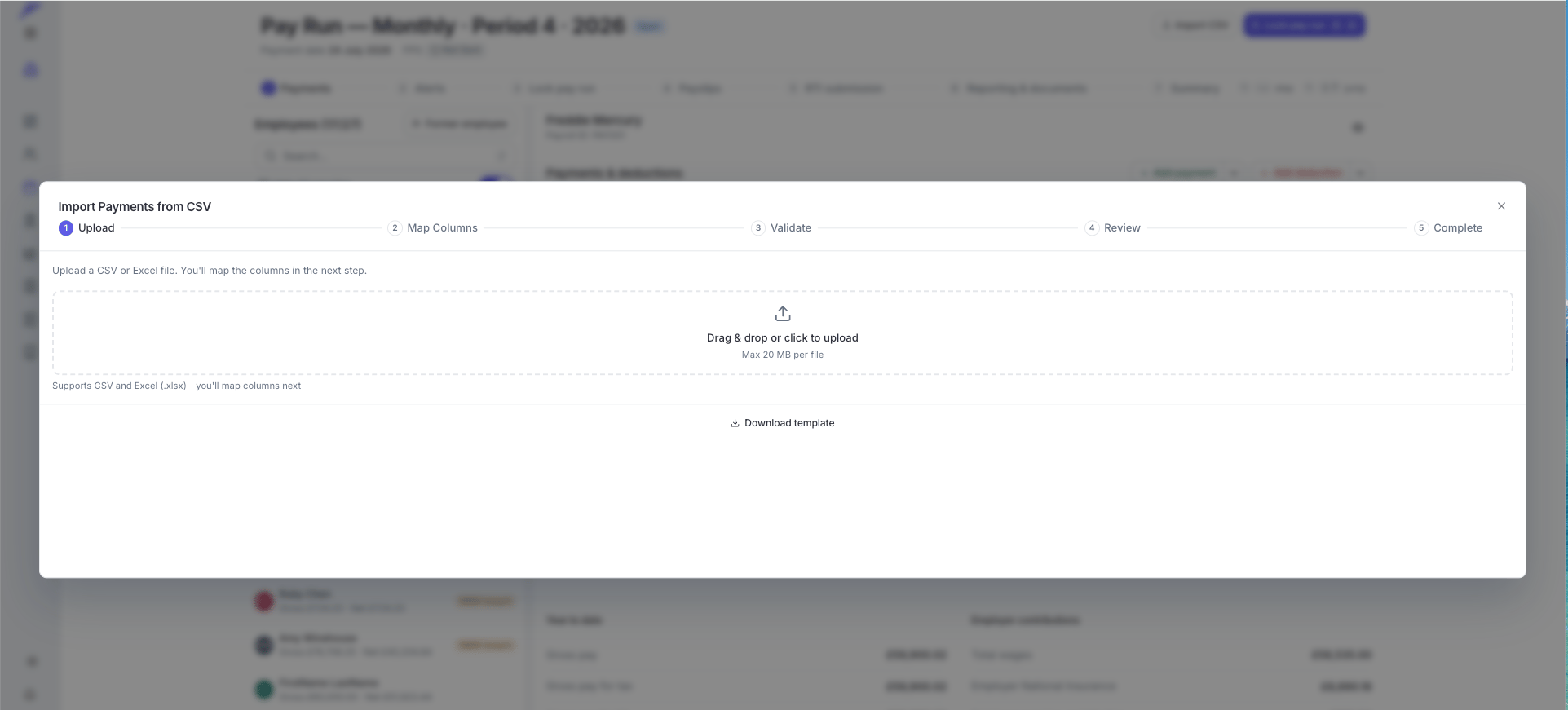
Importing payments into an open pay run
Deductions import through the same flow — a line whose pay element is a deduction element is applied as a deduction on the payslip.
Mandatory columns
Optional columns
Template (identical to the wizard’s Download template):
Wide layout — one row per employee
Many payroll exports put each employee on a single row with one column per pay element —Overtime Hours, Bonus, Mileage — rather than one row per line. Flip on Wide layout (many line items per row) at the top of the mapping step to import these files directly.
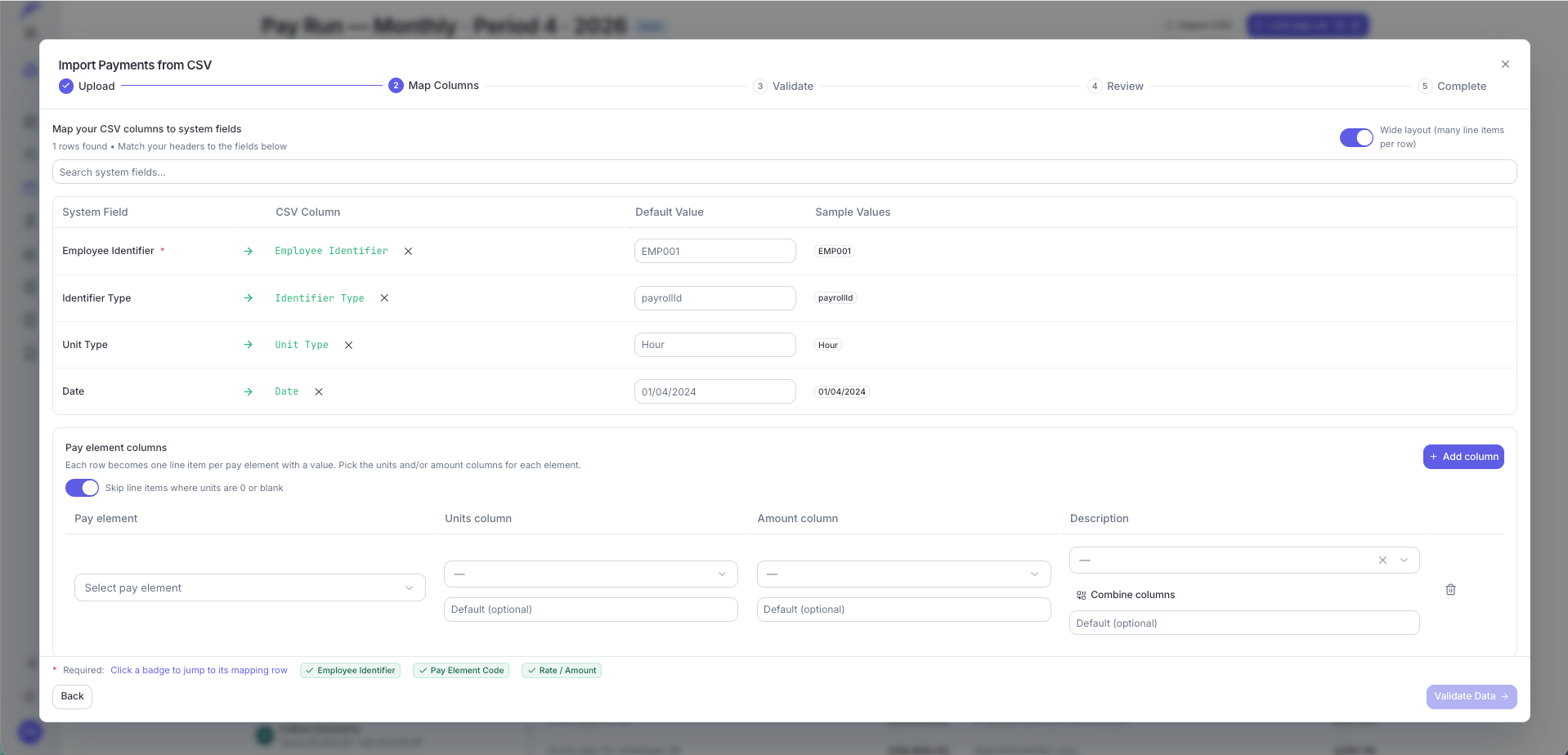
Wide layout — each pay element gets its own column mapping
Tag mappings
To tag every imported line — by site, project, cost centre, or any other dimension — expand Tag mappings at the bottom of the mapping step and click Add tag. Pick a tag group and name (you can create new ones on the spot), then either map a CSV column to supply the value per row or set a fixed value for all rows.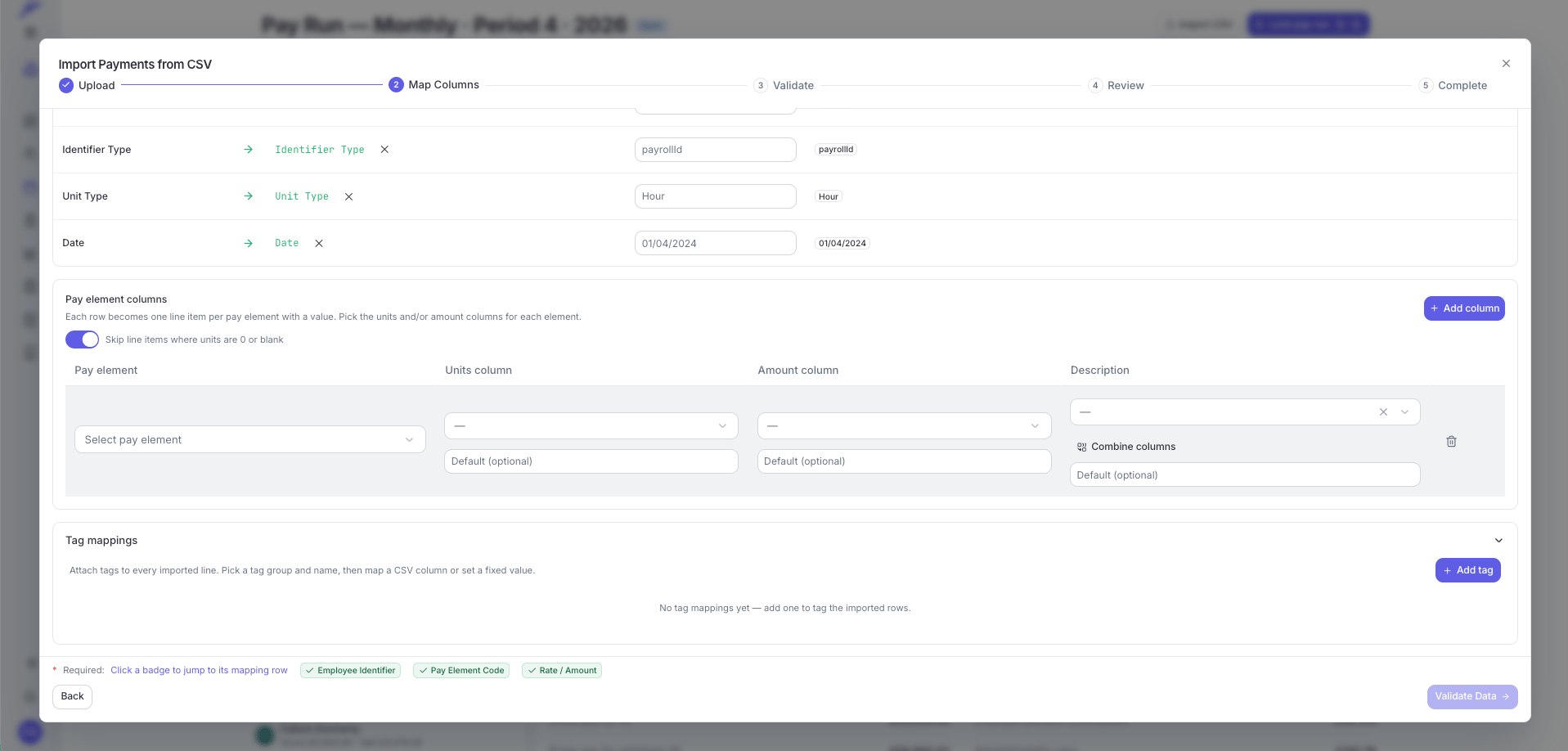
Tag mappings attach tags to every imported line
Pay run statuses
The FPS status is shown as a separate badge alongside the pay run status: FPS not sent, FPS sending, FPS sent, or FPS failed.
How statutory pay, pensions, and court orders fold in
You do not need to calculate or enter these manually:- Statutory payments (SSP, SMP, SPP, and so on) — set up on the employee’s profile and applied automatically each period they are applicable.
- Pension contributions — assessed and calculated automatically each period based on the worker’s enrolment status and the contribution rates on your pension configuration.
- Court orders — deducted automatically according to the order type, rate, and protected earnings threshold configured on the employee.
Where to go next
Payslips
Preview, download, and send payslips to your employees.
HMRC & RTI
Submit your FPS, file your EPS, and handle resubmissions.
Statutory payments
SSP, SMP, SPP, and other statutory pay types.
Auto-enrolment
Pension assessment, enrolment, and contributions.