

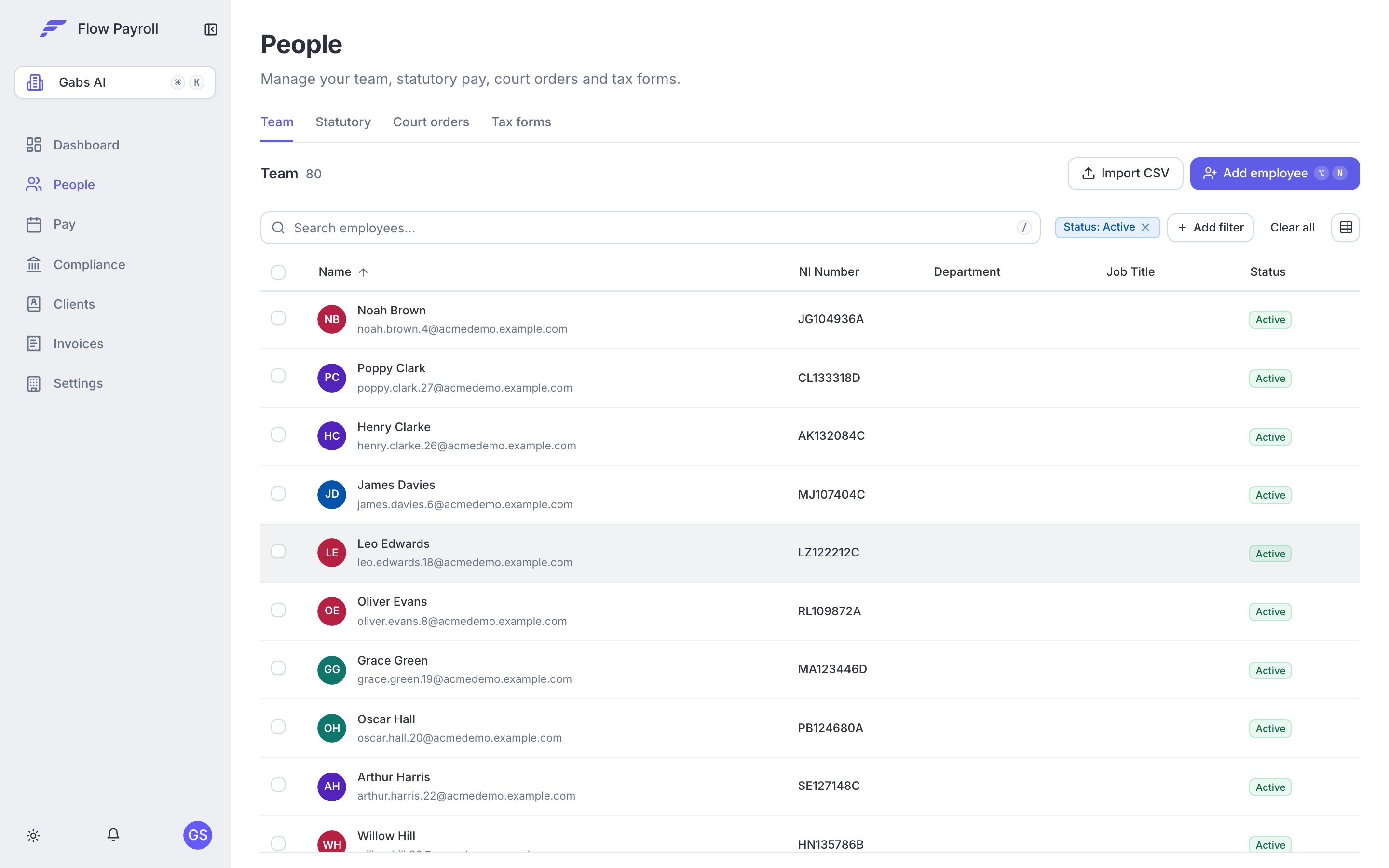
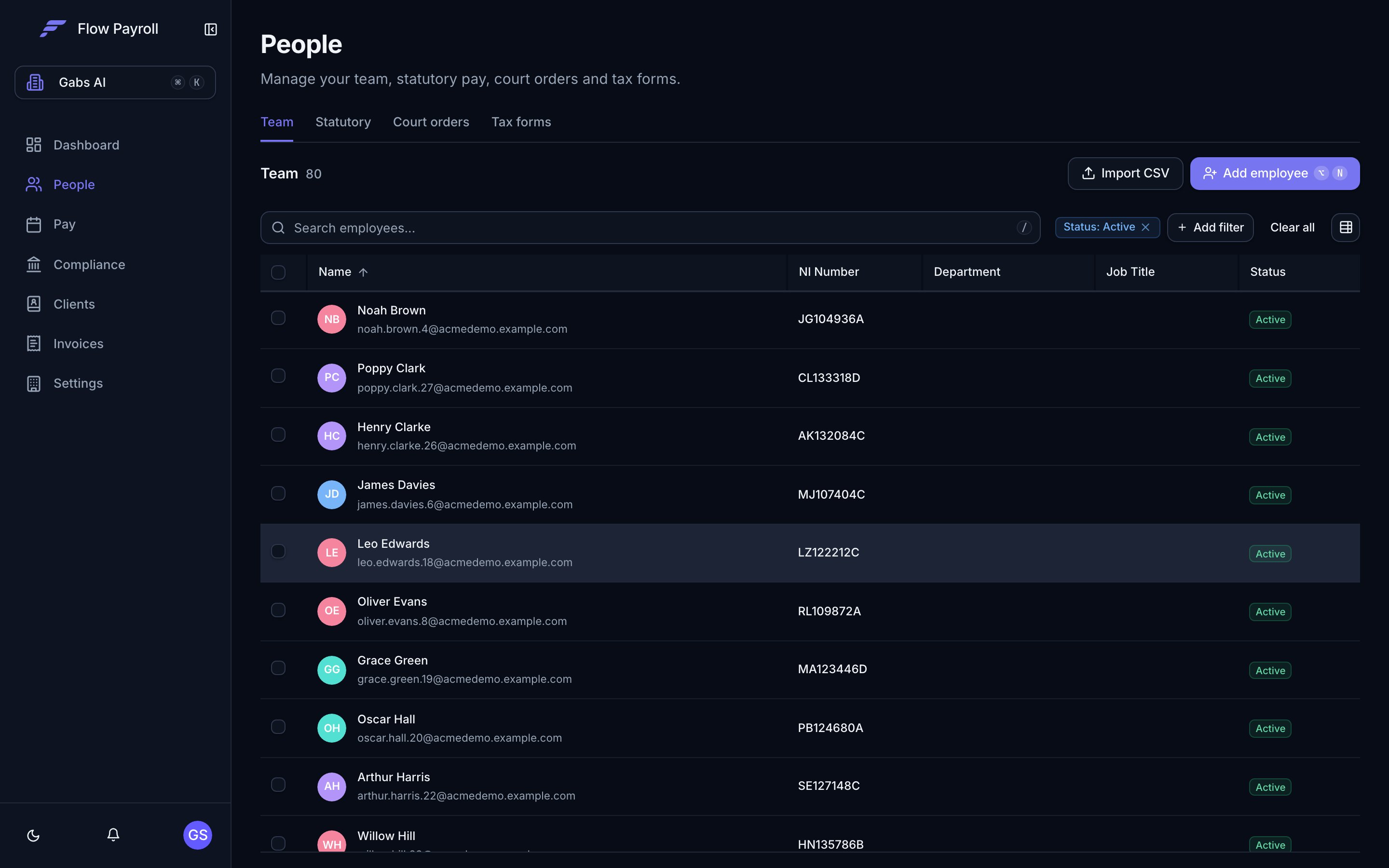
The People section, showing your team
The People section
The People page has four tabs, all accessible via the tab strip below the “People” heading.The Team tab is the default view. Filter by status, payroll schedule, department, job title, tax code, tax basis, NI category, student loan, postgraduate loan, starter declaration, start date, or director status using the filter controls. Search is instant — it matches name, payroll ID, NI number, email, department, and job title.
Your team list
The team list shows every employee matched by the current filter. By default it shows Active employees only. Use the Status filter to switch to Leavers or All. From the list you can:- Click any row to open that employee’s full record.
- Select multiple rows using the checkboxes to perform bulk actions — mark as leavers, cancel leaver status, or clear the selection.
- Click Import CSV to add employees in bulk — see importing employees via CSV.
- Click Add employee to onboard a new person individually.
Employee record layout
When you open an employee you see a two-column layout:- Left sidebar — a profile card summarising name, job title, payroll ID, NI number, department, contact details, start date, and any leaver details. Quick actions appear here too.
- Right panel — a tabbed record with all editable detail sections.
Tabs inside an employee record
The app remembers the last tab you visited for each employee and returns to it automatically.
Personal information (Overview tab)
The Overview tab holds four cards:- Personal information — name (title, first, middle, last), email, phone, date of birth, birth gender, marital status, NI number, passport number, address, and previous names.
- Employment information — job title, department, start date, hours worked category, working days pattern, and flags for irregular employment and off-payroll (IR35) workers.
- Starter details — starter declaration (A, B, or C), whether the starter has already been reported to HMRC via FPS, and related dates.
- Partner details — partner name and NI number, used for Statutory Shared Parental Pay.
Payroll and tax (Payroll & tax tab)
This tab holds the information that drives pay calculations:- Payroll ID — the identifier used on payslips and RTI submissions.
- Payroll information — the employee’s annual salary and their assigned payroll schedule.
- Pay run settings — schedule-specific overrides such as payment method.
- Current year-to-date summary — cumulative gross, tax, and NI figures for the running tax year, editable for mid-year starters or corrections.
- Previous employment — gross taxable pay and tax paid from a P45, used in the first pay run after joining.
- Recurring line items — fixed additions or deductions that appear automatically in every pay run (for example a car allowance or a salary sacrifice deduction).
Where dated salaries are enabled, salary moves to a Salary card on the Employment tab and becomes a history rather than a single figure — see Salary.
Tax code and NI category
Tax codes and NI categories are held per tax year within the Payroll & tax tab. Flow Payroll uses the current year’s values in every pay run. When HMRC sends a new tax code notice, update it here.Editing employee details
Every card in the record supports inline editing. Click Edit on any card, change what you need, and click Save. Changes take effect in the next pay run. To make several changes across multiple sections in one pass, click the overflow menu in the page header and choose Edit — this opens the full onboarding flow pre-populated with the employee’s current data, letting you move through every step and save at the end.Filtering and searching
On the Team tab, filters appear above the table. Combine as many as you need — an employee has to match every filter you set.- Status — Active, Leavers, or All.
- Payroll — filter to one or more payroll schedules (visible when you have more than one).
- Department — filter to specific departments.
- Job title — filter to specific job titles.
- Tax code — filter to the tax codes in use across your organisation, such as 1257L, BR, or a K code.
- Tax basis — Week 1/Month 1 (non-cumulative) or Cumulative. Use this to find everyone taxed on the emergency basis.
- NI category — filter to specific NI category letters, such as A, B, C, or M.
- Student loan — Plan 1, Plan 2, Plan 4, Plan 5, or No student loan. A plan that has already ended does not match.
- Postgraduate loan — everyone currently repaying a postgraduate loan.
- Starter declaration — the declaration on record, which is a quick way to find anyone still on the default tax code it produced.
- Start date — everyone whose employment started in a date range, for example this tax year’s new starters.
- Director — everyone with a directorship in effect today. A directorship that starts later does not match.
Where to go next
Onboarding employees
Add a new employee individually or import in bulk.
Leavers
Record a leaving date, process a final pay run, and issue a P45.
Salary
Record salary as a dated history and choose how part periods are pro-rated.
Running a pay run
Use employee records in a pay run.
Statutory payments
Record SSP, SMP, and other statutory pay for your team.