How pension contributions appear on a payslip, how to add an additional voluntary contribution or override a contribution for one pay run, and how to end a membership and refund what the member paid in.
Pension contributions appear on the payslip as their own lines, one per contribution. That makes each amount explainable, and it is what lets you adjust a single pay run without touching the scheme, add a voluntary contribution on top, or pay a member’s contributions back when they opt out.
Each pension amount is its own line, labelled so you can see what it is:
Label
What it is
Pension
The scheme contribution: the employee’s pension group rate, or a rate set just for them.
Additional voluntary contribution
An extra contribution the employee pays every pay run on top of the scheme contribution.
One-off additional voluntary contribution
An extra contribution for this pay run only, for example part of a bonus.
Pension refund
Contributions paid back to the employee after they opted out. This one is a payment, not a deduction.
Each line also says how it was worked out, so nobody has to guess: “5% of qualifying earnings, employer 3%”, for example, or “overridden for this pay run only”.
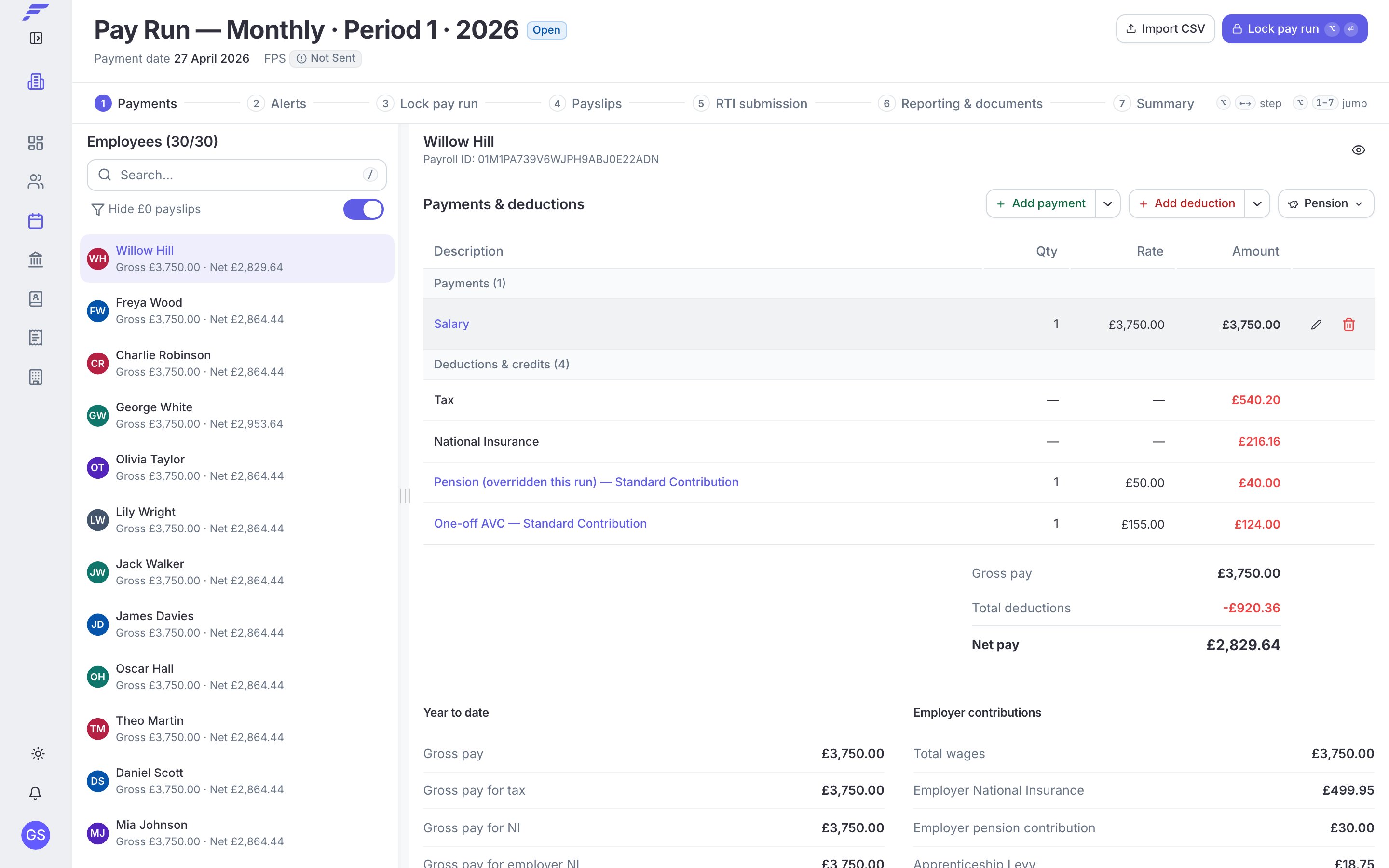
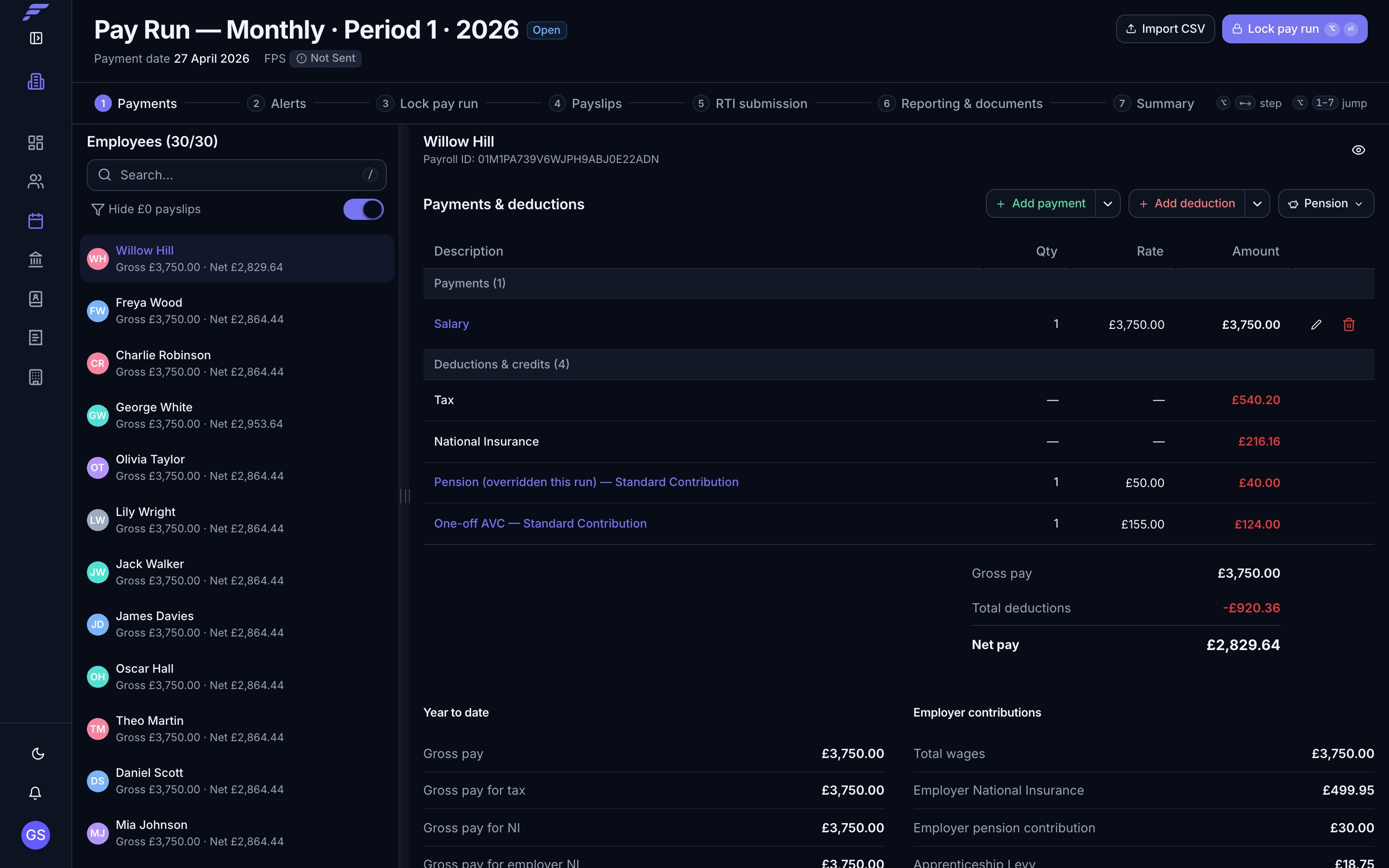
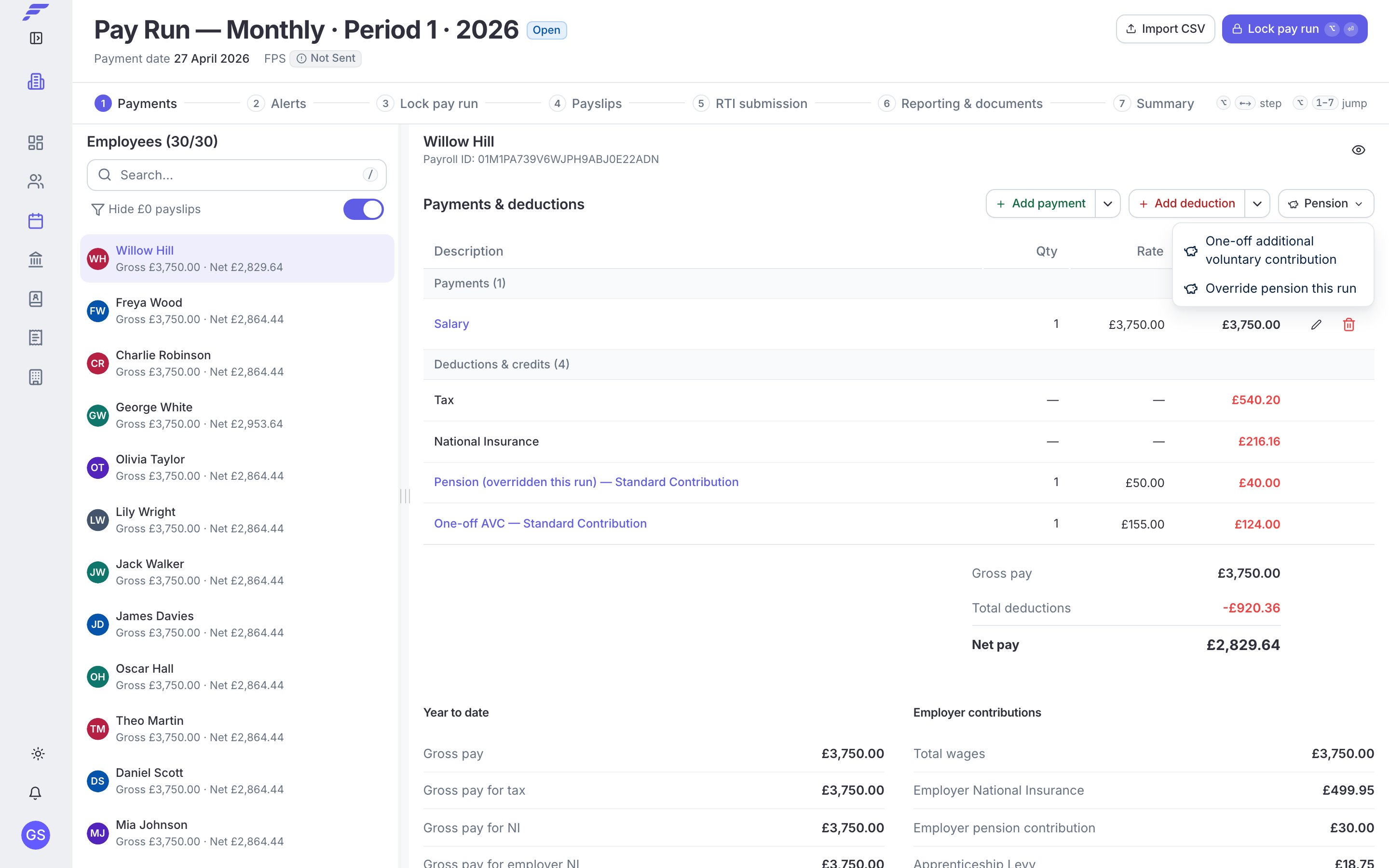
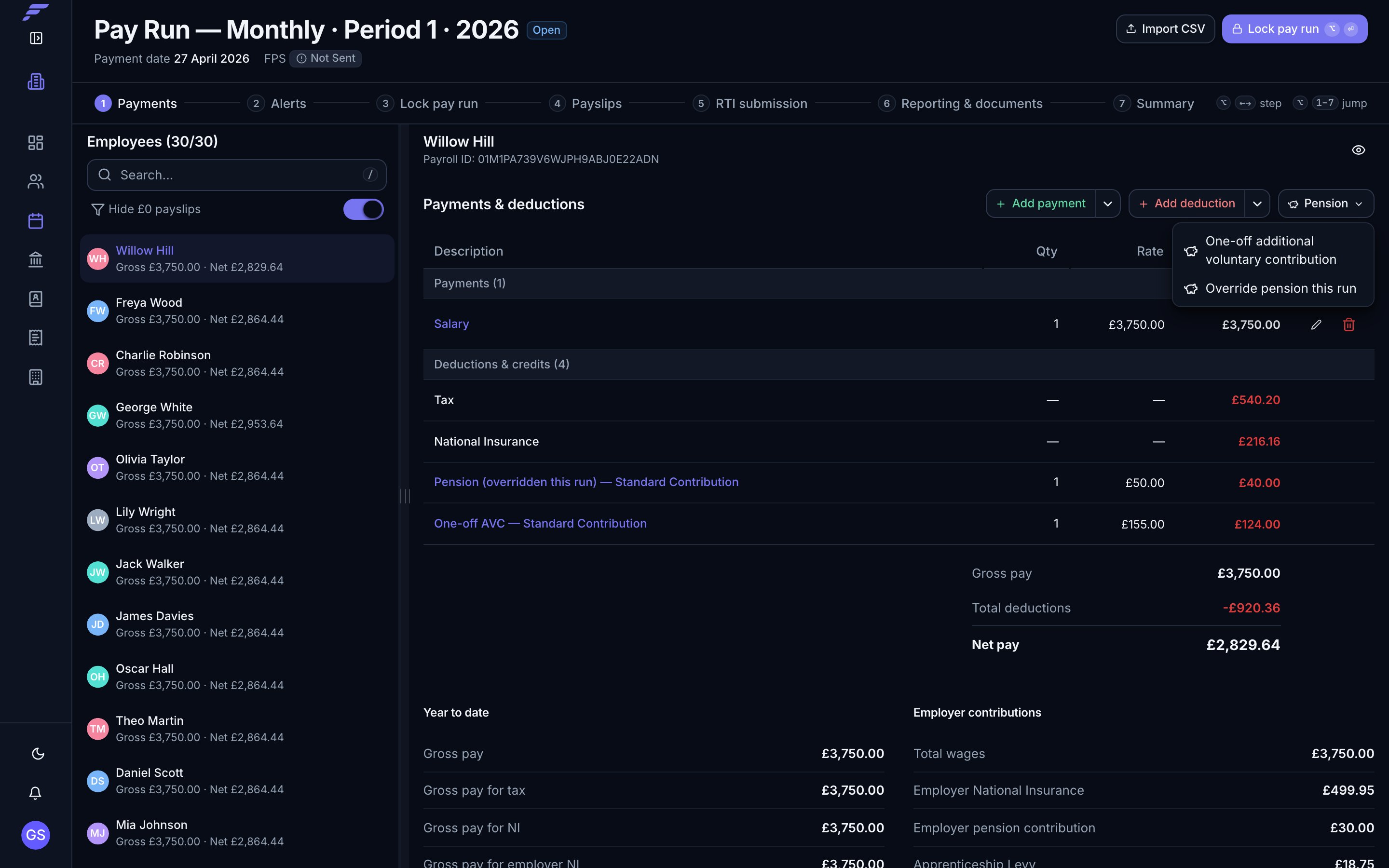
Pension and a one-off additional voluntary contribution as separate lines on a payslip
On a relief at source scheme the amount deducted from pay is 80% of the contribution, because the provider claims the basic-rate tax relief and adds it to the pot. A £50.00 contribution shows as £40.00 coming off the payslip, and a £155.00 additional voluntary contribution as £124.00.On a salary sacrifice scheme the sacrificed pay is the employer’s contribution, so it shows as the employer’s cost rather than an employee deduction. That is unchanged.
Regular contributions and additional voluntary contributions
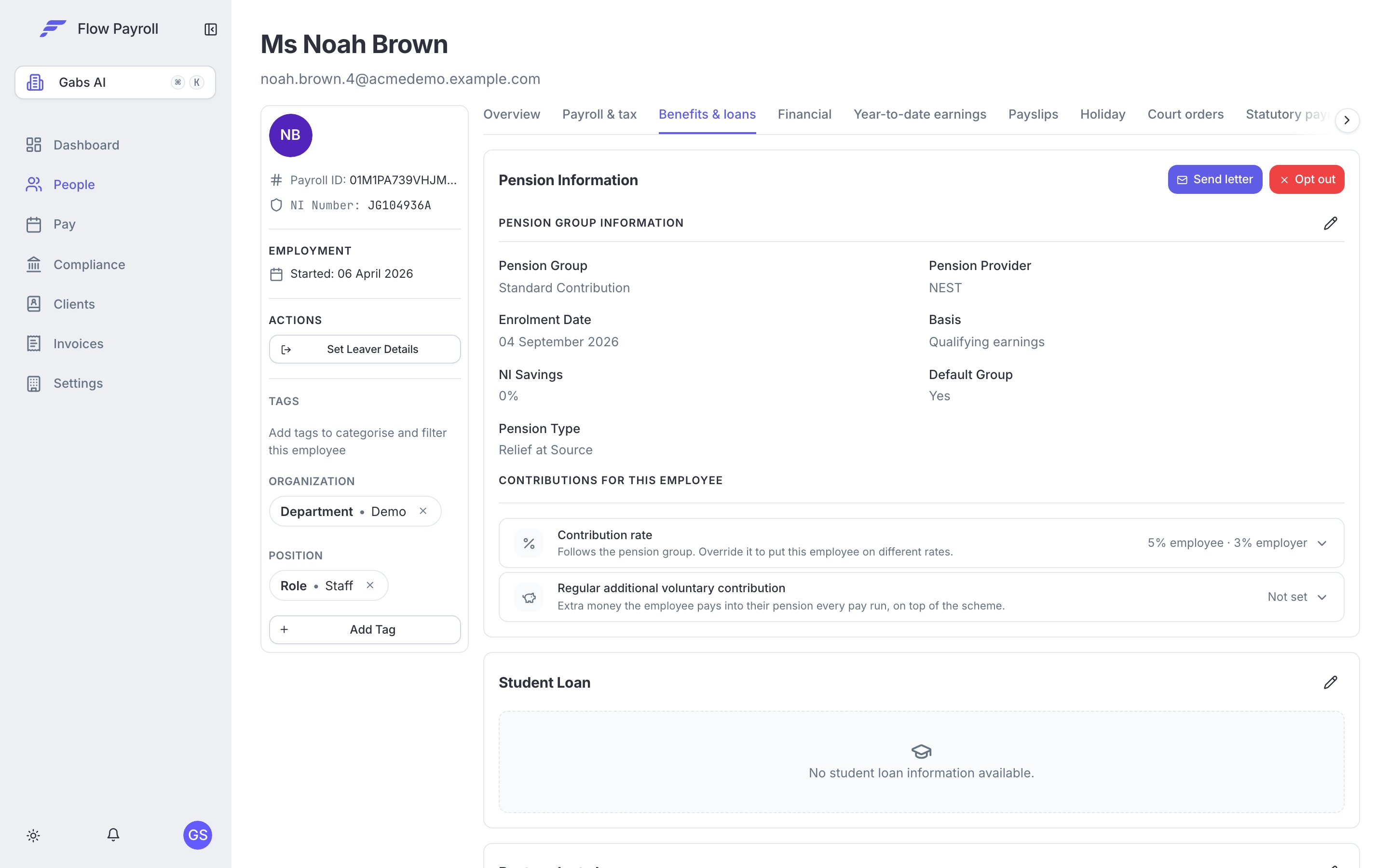
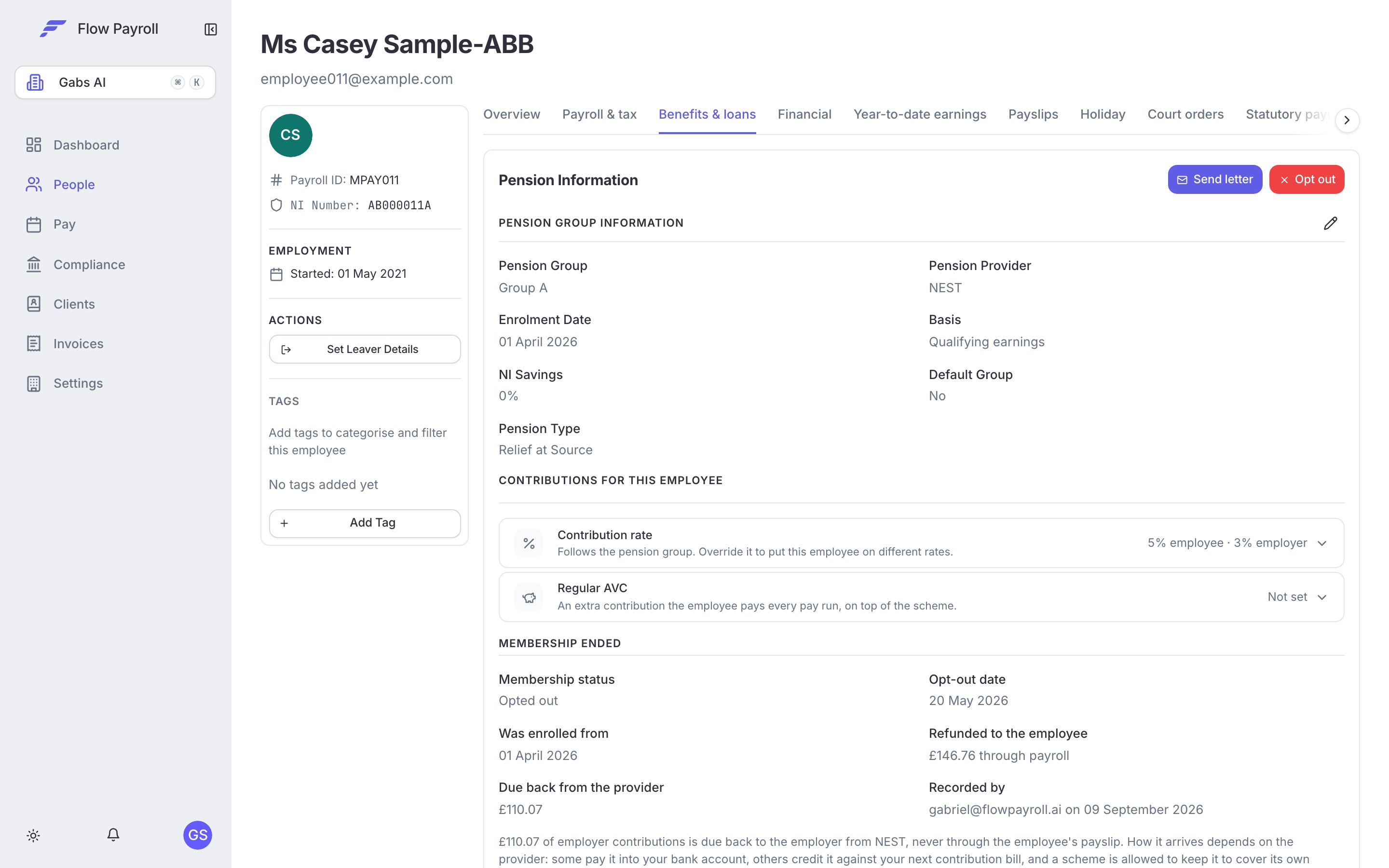
Both are set on the employee’s record. Open People, choose the employee, and go to the Benefits & loans tab.
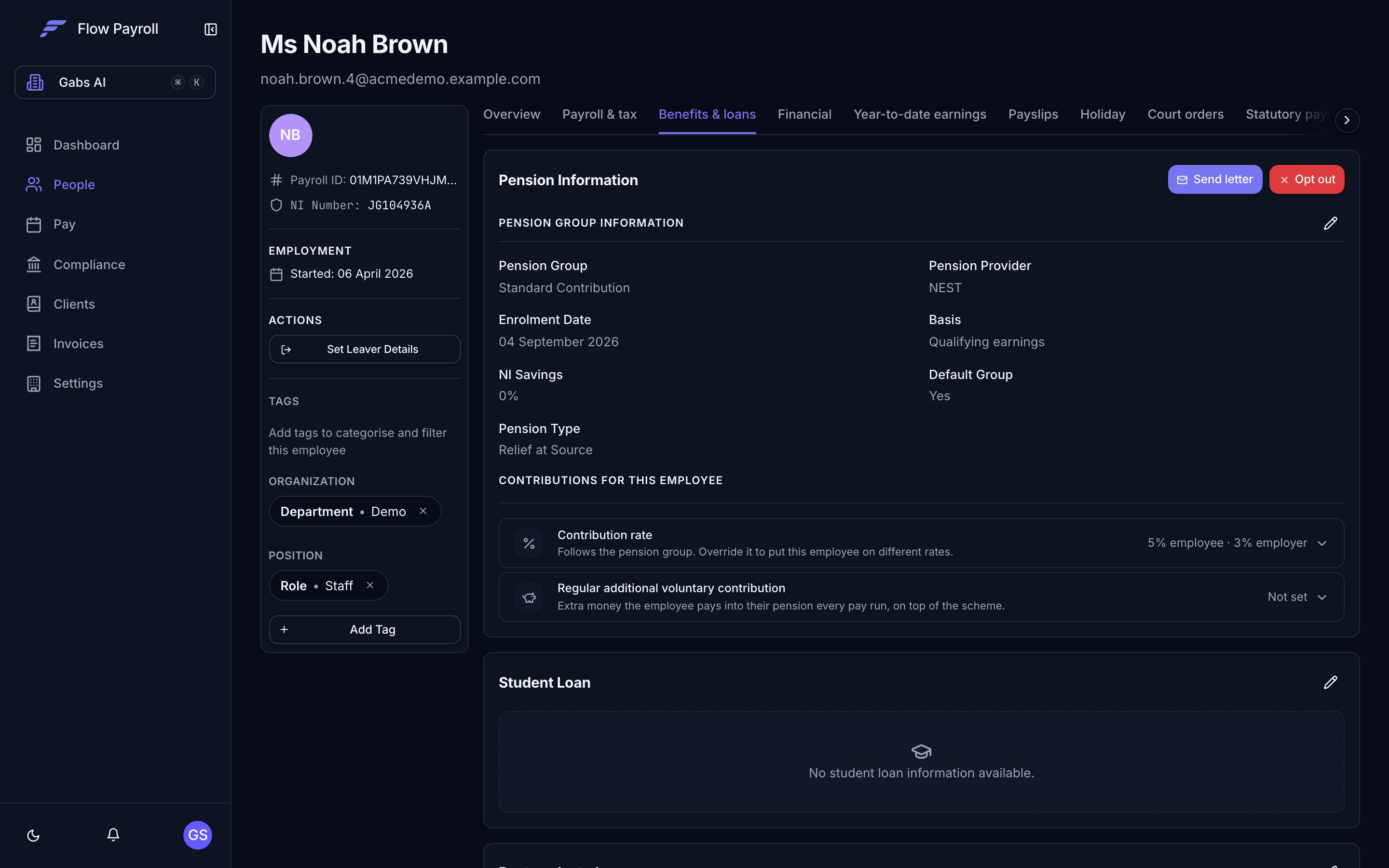
An employee's pension details on the Benefits & loans tab
Contribution settings normally follow the employee’s pension group. Change them here when one person pays a different rate from the rest of their group, and it applies every pay run until you change it back.
Regular additional voluntary contribution is an extra employee contribution, as a percentage or a fixed amount, paid every pay run on top of the scheme contribution. Choose No additional voluntary contribution to stop one.
Set a rate on the employee only when it genuinely differs from the group. Anything that applies to several people belongs on the pension group, where it stays consistent and is easier to audit.
Some changes should only affect the run in front of you. Both of these live in the pay run itself. Open the pay run, select the employee on the Payments step, then click Pension above their payments and deductions.
The Pension menu on a pay run
1
One-off additional voluntary contribution
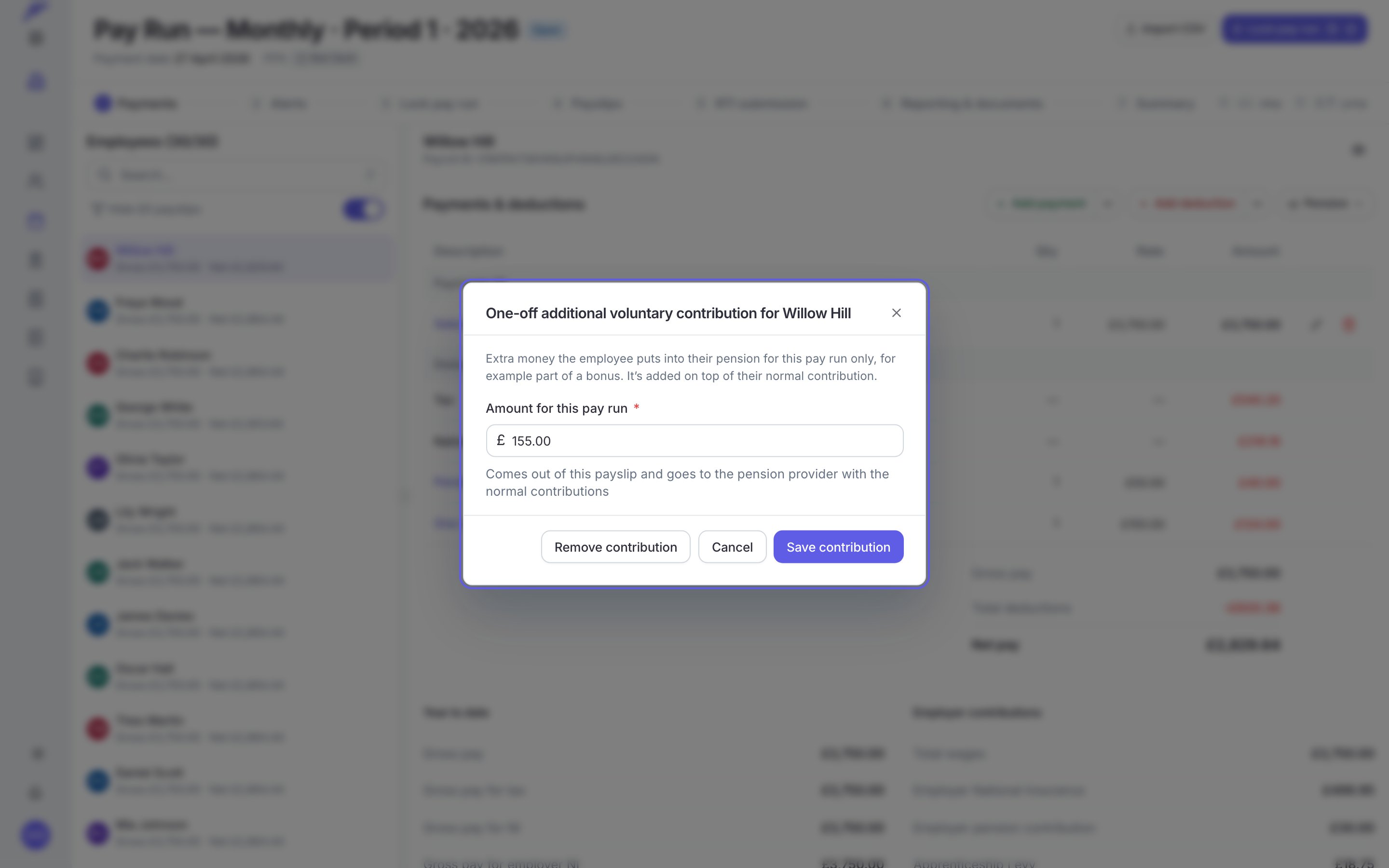
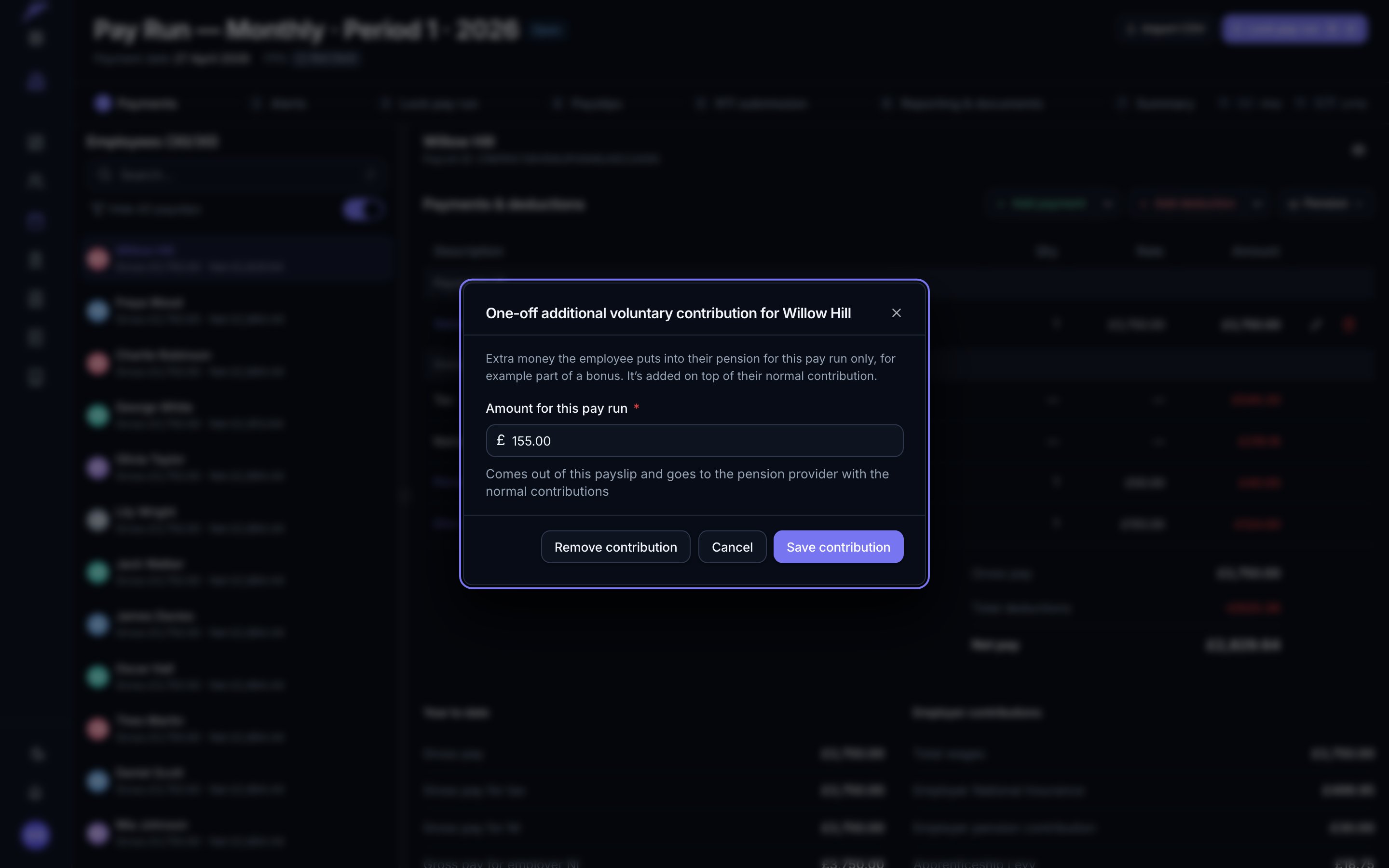
Choose One-off additional voluntary contribution and enter the amount for this pay run. It is added on top of the employee’s normal contribution and goes to the provider with the rest of the contributions. Next pay run, nothing carries over.
Adding a one-off additional voluntary contribution
2
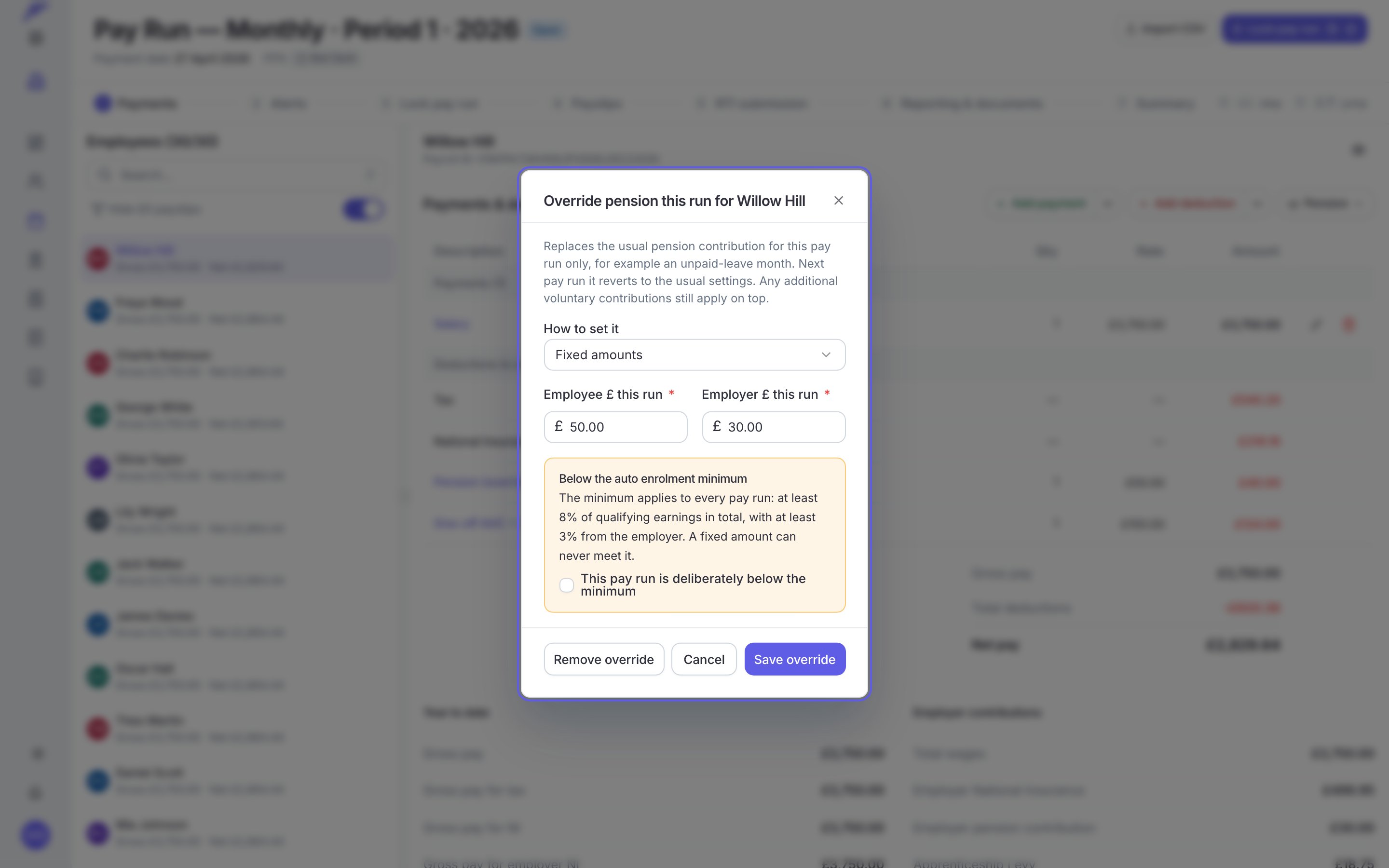
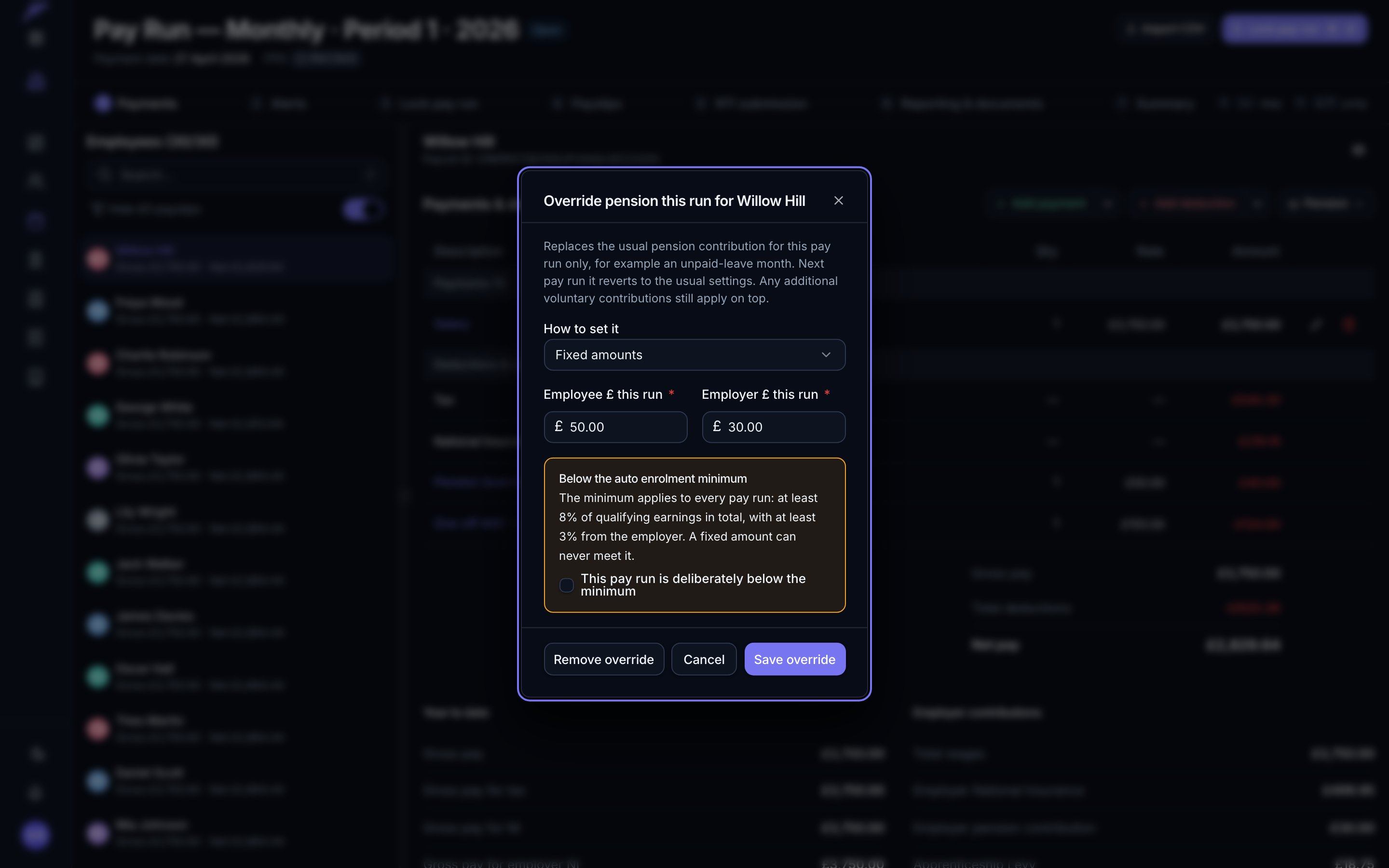
Override pension this run
Choose Override pension this run to replace the usual contribution for this run only, for example during an unpaid-leave month. Pick whether you are setting Percentages or Fixed amounts, then enter the employee and employer figures. Next pay run reverts to the usual settings, and any additional voluntary contributions still apply on top.
Overriding the contribution for a single pay run
The payslip is recalculated as soon as you save, so the new figures show without you having to reprocess anything. Both adjustments apply to open pay runs only: once a run is locked, its figures are fixed.
Automatic enrolment minimum contributions apply to each pay reference period, not to the year as a whole. If an override would take an enrolled member below the minimum, Flow Payroll asks you to confirm that is what you intend before saving it.
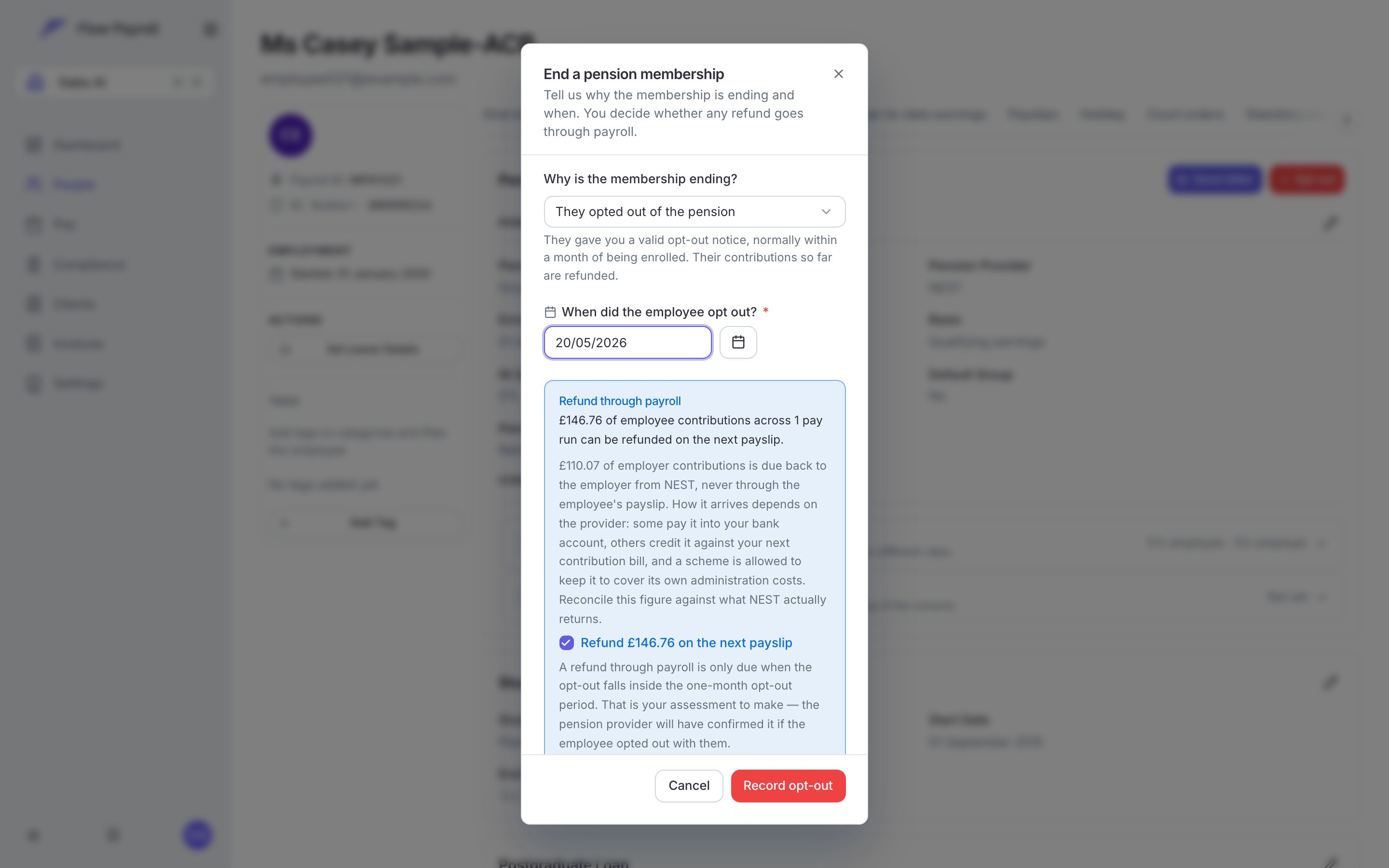
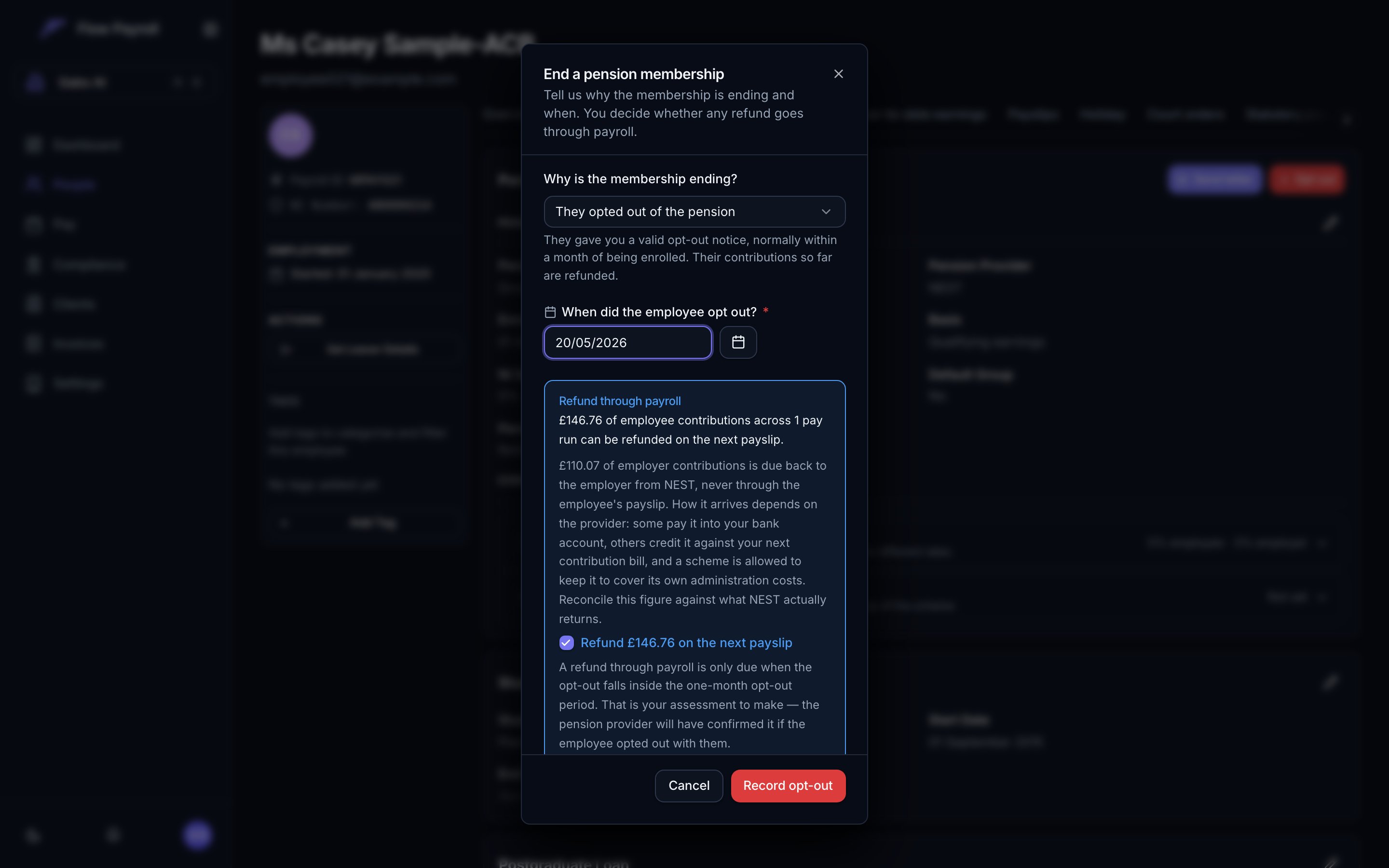
Open the employee’s Benefits & loans tab and end the membership from their pension details. The End a pension membership dialog asks three things, and each one matters.
1
Why the membership is ending
Pick the one that happened:
They opted out of the pension is the member exercising their right to leave and be put back as if they had never joined. Their record afterwards reads Opted out.
They asked to leave the pension later on is active membership ceasing after the opt-out period. Their record reads Membership ended.
They were enrolled by mistake is you correcting a data-entry error, such as the wrong person being enrolled. Their record reads Removed from scheme.
The reason is not just wording. It is what stops a later opt-out being presented as an administrative correction, and it is what a Pensions Regulator audit asks you to evidence, so record what actually happened.
2
When it ended
For an opt-out this is the date the member opted out. It cannot be earlier than their enrolment date.
3
Whether the refund goes through payroll
Flow Payroll shows you what would be paid back before you commit: every settled contribution from enrolment to that date, per pay period. If you choose to refund through payroll, that amount appears as a Pension refund payment on the employee’s next payslip.A timeline above the figures shows when they were enrolled, when their opt-out period ends, and when they are leaving, so you can see which side of the line the date falls. The refund box starts ticked only when the leaving date is certainly inside the period. Outside it you can still refund, and Flow Payroll asks you to say why and keeps that note on the leaver record.Treat the period as advice. Where Flow Payroll has no record of when the enrolment letter reached someone, it counts from the enrolment date, which is the earliest the period can close, so in practice it may run later. Your provider states the exact dates in their own letter, and the final call is yours.
The refund is worked out before you commit, with the employer's share shown separately
Who is entitled to what depends on how they joined. A jobholder who was automatically enrolled, or who opted in, has a statutory right to opt out, and you must refund the contributions deducted from their pay. Somebody enrolled through their contract rather than by assessment, and an entitled worker who asked to join, have no statutory opt-out right at all: they cease membership under the scheme rules, and a refund is due only if they leave within 30 days of active membership starting and the scheme’s rules provide for one. Flow Payroll checks the one-month statutory period against the dates it holds, but it does not know which of these routes somebody joined by, so the period it shows assumes the statutory right applies. For a contractually enrolled worker or an entitled worker who asked to join, that period is not the test: theirs is 30 days from active membership and only if the scheme’s rules provide a refund. Check the route before you tick the refund.
The refund deadline is yours to meet. The Pensions Regulator gives you one month from being given a valid opt-out notice to refund the member, or, if the payroll had already closed, until the last day of the second pay reference period after it. Flow Payroll puts the refund on the employee’s next payslip, which for a monthly payroll is normally inside that month, but not always: a notice that arrives just after you lock a run, or a quarterly pay frequency, can push the next payslip past the deadline. When that happens, refund the member outside payroll and untick the payroll refund so it is not paid twice.
A refund through payroll covers the member’s contributions only. The employer’s contributions are repaid by the scheme to the employer directly, so they never appear on a payslip. Both figures are recorded, which is what lets you reconcile against what the provider actually returns.
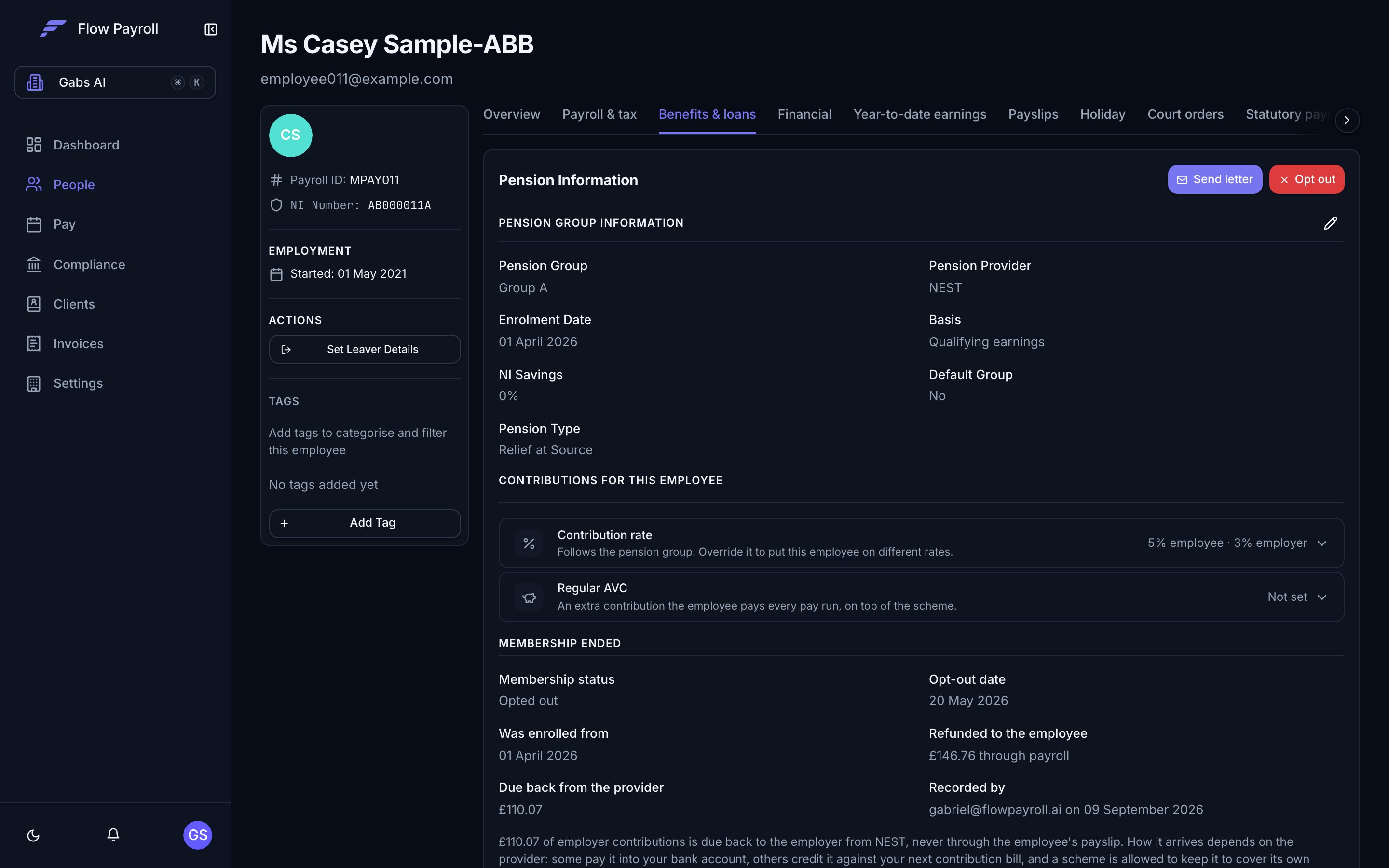
Ended memberships stay readable after the enrolment itself is gone, so “what did we refund, and when?” is answerable months later.On the employee’s Benefits & loans tab, a Membership ended section shows their Membership status, the opt-out or end date, what they were enrolled from, the amount refunded to the employee, the amount due back from the provider, and who recorded it.
The record of an ended membership, kept after the enrolment itself is gone
The two figures are deliberately separate. The employee’s refund is money you pay back through payroll; the employer’s is money the scheme owes back to you, so it never appears on a payslip and there is nothing else in payroll that records it.For a whole organisation at once, the endings are available over the API as a refunds report across a date range, which is the list to reconcile against your provider’s statements. There is no screen for it yet, so see ending a membership for the endpoint.
Pension amounts appear on a payslip in two places, and they describe the same money: the itemised pension lines, and the period’s pension total. Read one or the other, never both, or you will double count every contribution. See reading pension on a payslip for the field to branch on, and the Pensions API overview for additional voluntary contributions, per-period overrides, refund previews and the membership-end records.