

How it works in one paragraph
You connect the employer’s NEST account once and link a pension scheme to it. From then on, when you complete a pay run, opening a report in the Pension reports card shows the steps that scheme goes through with NEST: enrol any new members, send the contribution schedule, then approve the payment. Each step is its own button with its own status, and each asks you to confirm before anything leaves. NEST’s answer, including the schedule reference, shows against the step it belongs to. Separately, Flow Payroll reads opt-outs and stopped contributions back from NEST and puts them in a queue for you to decide on. Nothing is fully automated. Nothing goes to NEST until you send it, no payment is approved unless you approve it, and nothing NEST reports changes anybody’s pay until you apply it.Before you start
You need three things from NEST:- A NEST sign-in. The username and password of the employer’s own NEST account, or of a delegate account that NEST has given access to the employer.
- The employer reference. It starts
EMPand is on the employer’s NEST welcome pack. - The payment source name, as NEST calls it. Once connected, Flow Payroll reads the employer’s payment sources from NEST, so you pick one rather than type it.
- A pension scheme whose provider is NEST, with its contribution groups. See pension defaults.
- The scheme’s Employee identifier set to the field NEST knows your members by. NEST matches members on it, so it has to be the same reference you used when you enrolled them with NEST, whether that is the payroll ID, the employee code or the NI number.
Connect NEST and link the scheme
Open the scheme
Connect the employer's NEST account
Link the scheme and pick the payment source
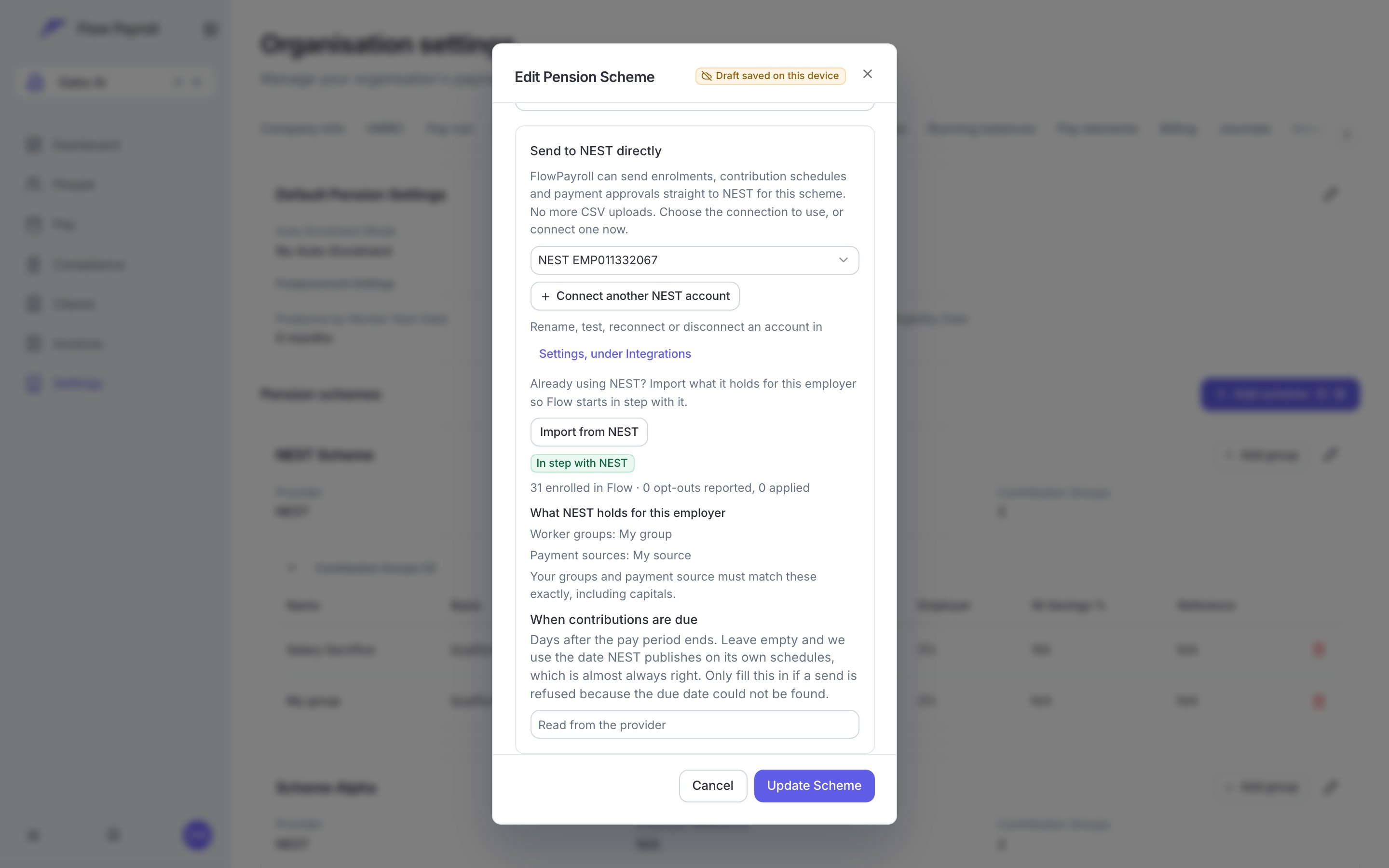

A scheme linked to the NEST connection, showing what NEST holds for the employer so you can check your names against it
Import what NEST already holds
Check your names match NEST's
Set a contribution due date, only if you need to
Send a pay run to NEST
Complete the pay run
Open the report
Work down the steps in order
- Enrol new members. Introduces people NEST has not seen before. They cannot appear on a schedule until it knows them, so this goes first.
- Send the contribution schedule. What each member pays this period, and what you owe NEST.
- Approve the payment. Covered below.
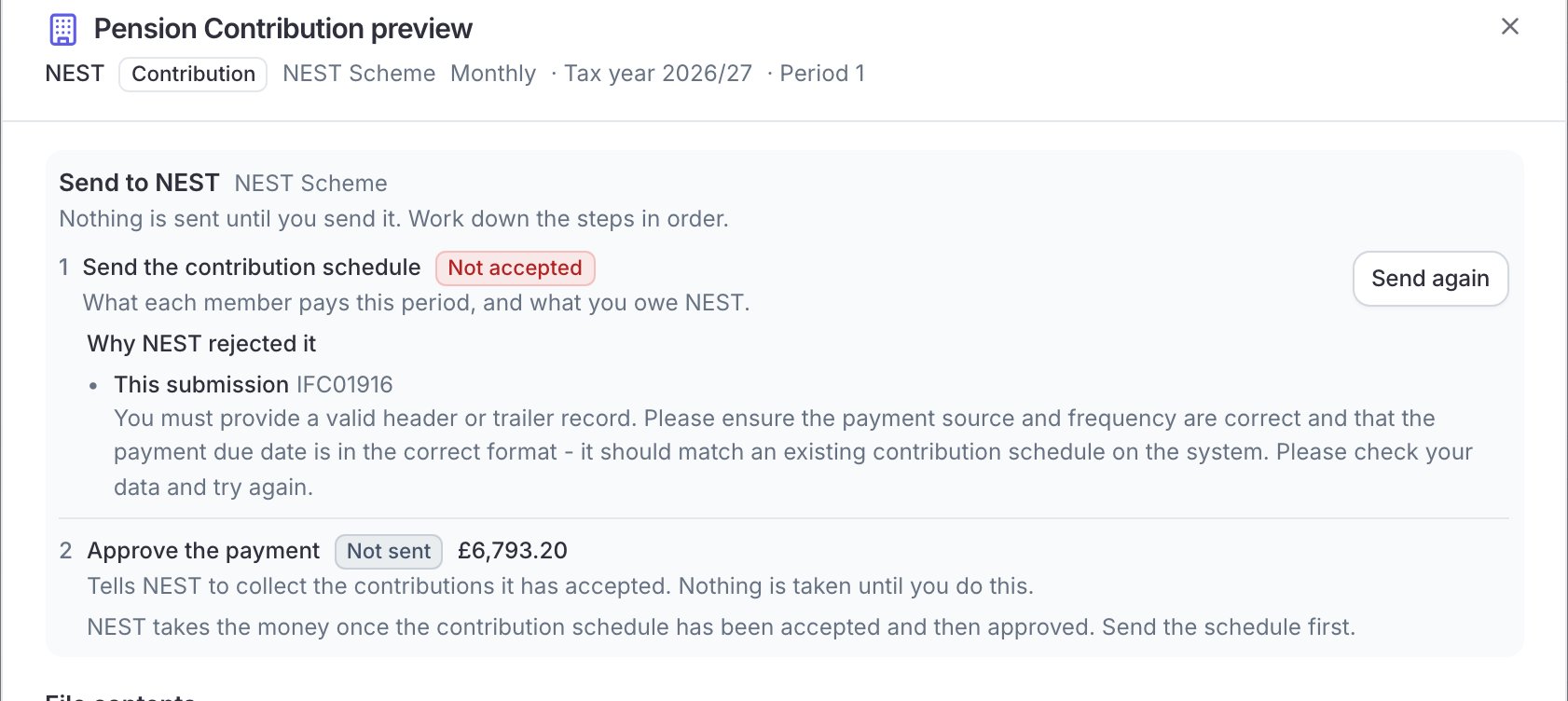
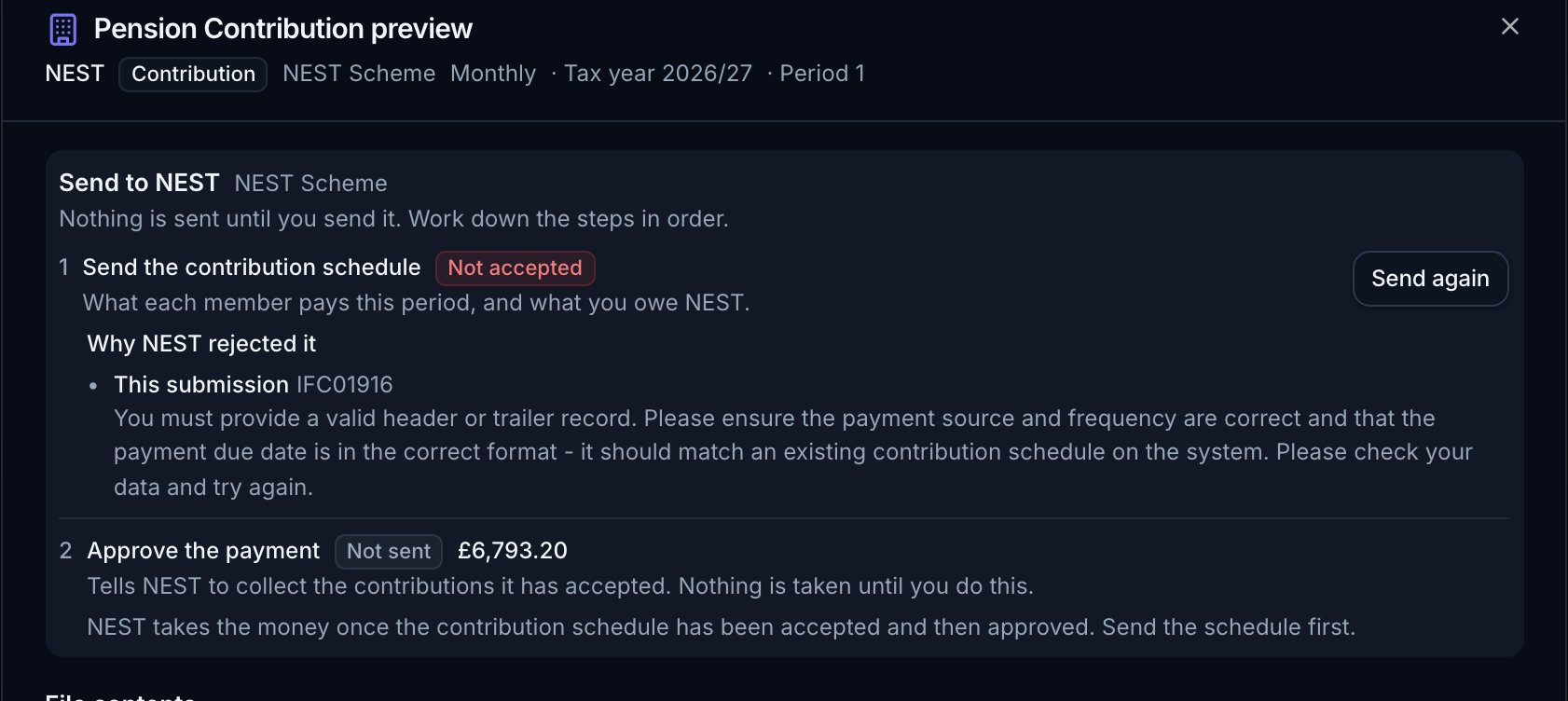
The steps a report goes through with NEST, each with its own status and button
Approve the payment
When NEST refuses somebody rather than the file
A refusal about a person is usually a detail that has since been corrected on their record, such as a National Insurance number added after the pay run was locked. You do not have to re-run payroll for that. The refusal names who it refused, and offers to re-read those members from their records. It re-reads only the people NEST named, writes their corrected details onto this pay run, and leaves the step ready to send again. Every amount stays exactly as the locked run calculated it: this corrects who somebody is, never what they were paid. If the refusal is about the file rather than a person, for example the payment source or the contribution due date not matching a schedule NEST holds, fix it on the scheme and send again. Every scheme sends separately, and each has its own status, so a scheme that fails does not hold back one that succeeded.Keeping up with NEST
Some things happen at NEST, not in payroll: a member opts out, or asks NEST to stop their contributions. Flow Payroll reads these from NEST and puts them in front of you. It never applies them on its own, because an opt-out changes what somebody is paid and carries a refund duty, so a person decides.- When a pay run is opened, Flow Payroll makes sure the opt-outs and stopped contributions it holds are no more than six hours old.
- At the moment a pay run is locked, it reads them again, so the queue is current at the point the run is finalised.
- Every day, whether or not there is a pay run, and after every submission for schedules and refunds.
- Whenever you ask. Open the connection under Settings, Integrations and click Refresh now in the Provider data section, which also shows when each kind of data was last read and the date it is up to date to.
Deciding what payroll does about them
Anything NEST reports waits under Settings, Integrations, Changes, with a count on the tab. You will also see the total on a pay run’s Alerts step, so nobody has to remember to go looking: until a change is applied, that pay run deducts as normal. Each one offers four choices: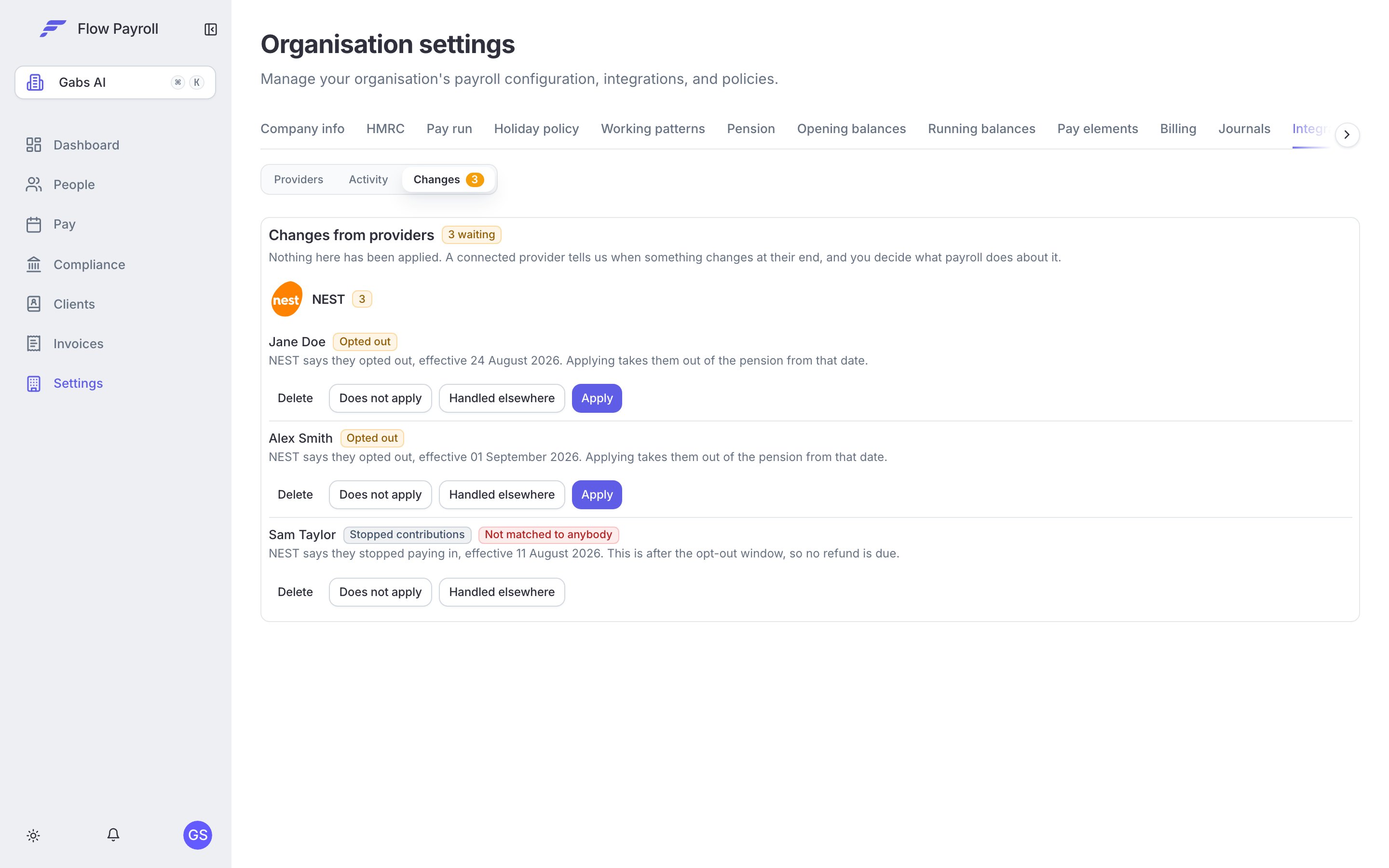
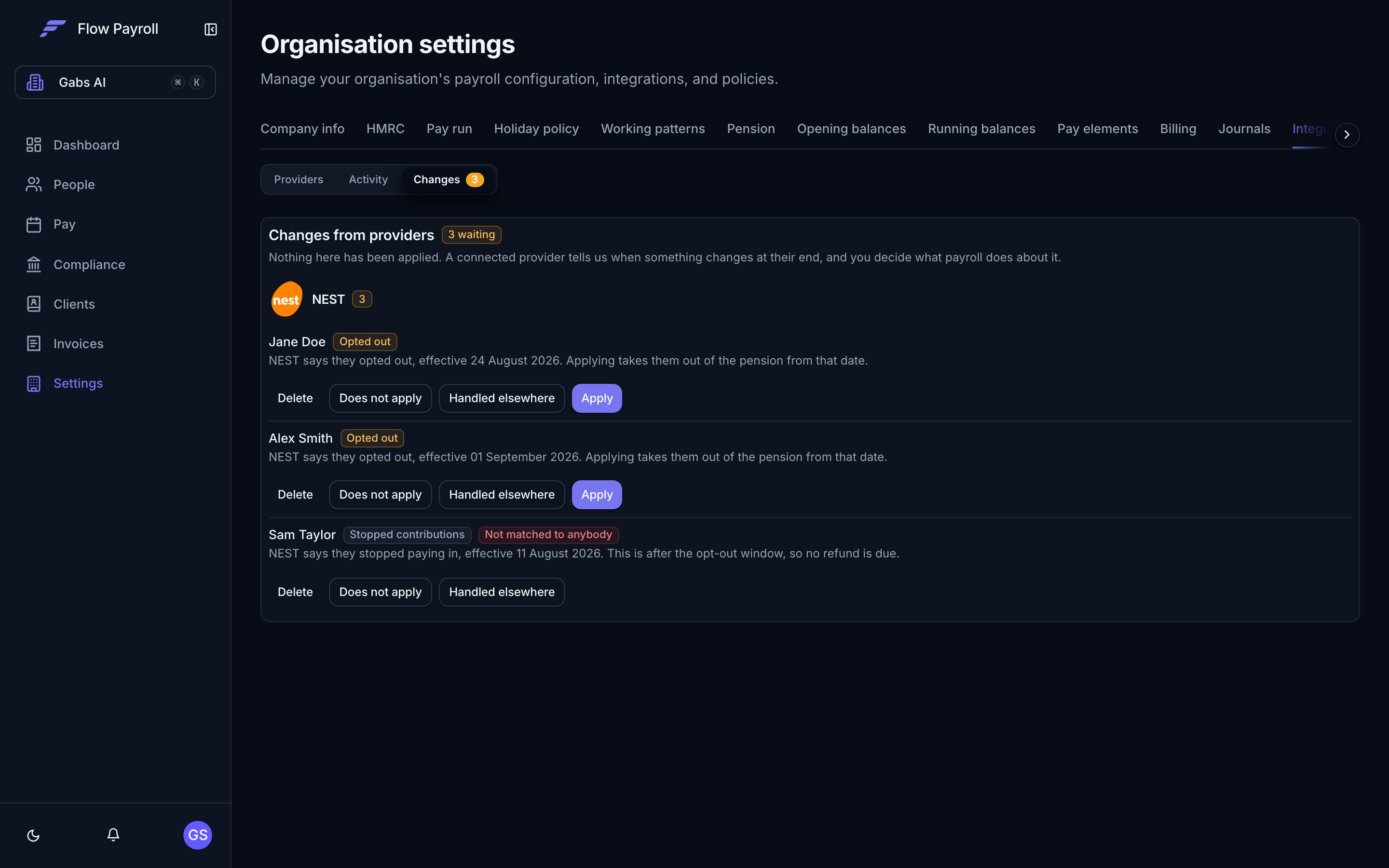
Changes NEST has reported, waiting for a decision
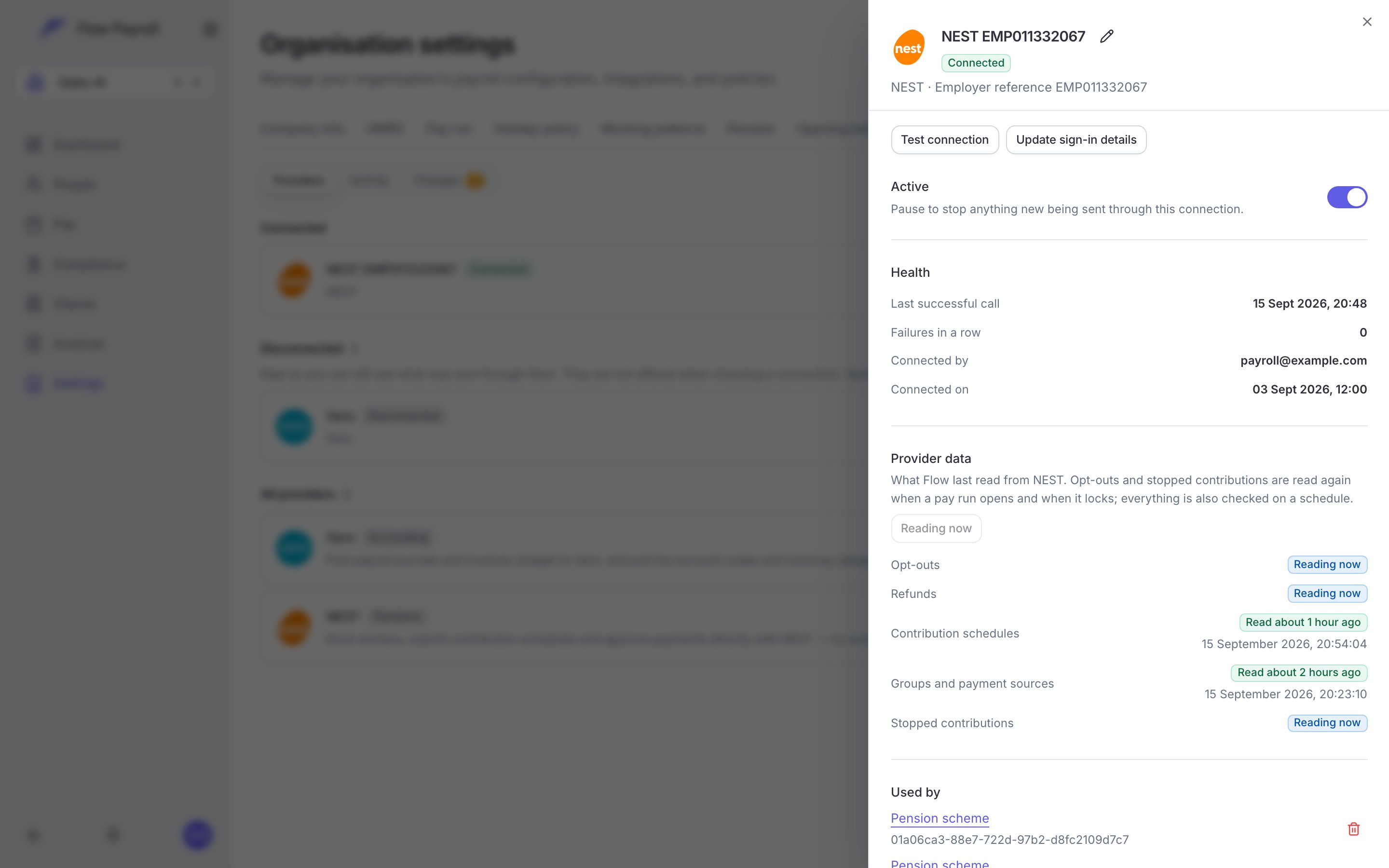
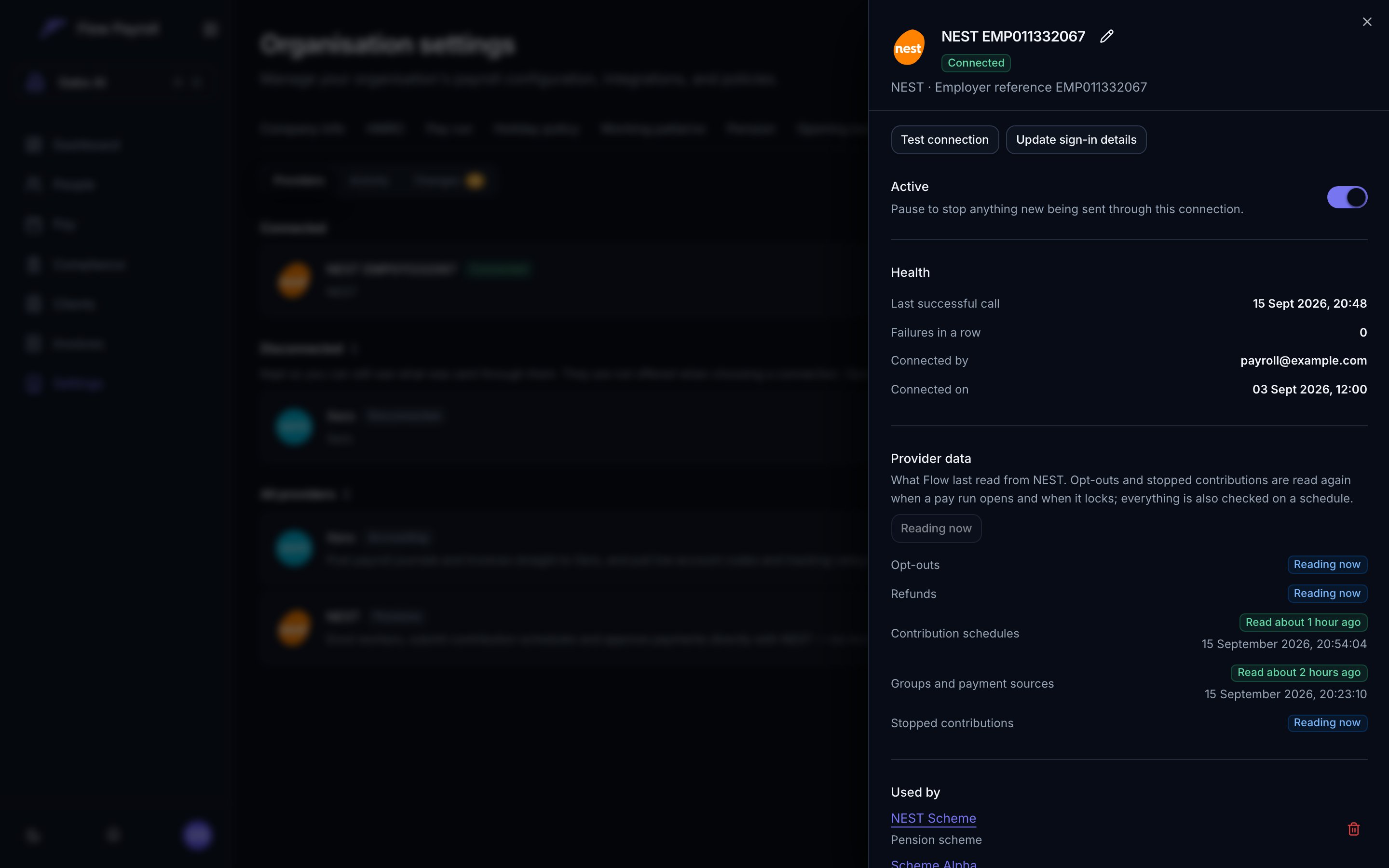
The connection's health and the Provider data section, where you can see how fresh each kind of data is and refresh it
When something goes wrong
Flow Payroll is built on the assumption that a provider will sometimes be slow, down, or say no, and it keeps going without losing anything.- NEST is slow or unavailable. The submission is retried automatically, five times over roughly eight hours, with the gap between attempts growing each time. The card shows Sending to NEST… throughout. Only if the last attempt fails is it marked Not accepted, with a Send again button.
- NEST rejects the details. Some failures are not retried, because retrying cannot help: the sign-in details were rejected, NEST locked the account, or NEST found something wrong in the submission itself. These show as Not accepted straight away, with the reason, and Send again once the cause is fixed.
- NEST accepts some workers and not others. The submission is flagged, never shown as done, so a partially accepted schedule cannot slip through.
- Repeated failures. After several failures in a row, sending through the connection pauses for ten minutes and then resumes on its own. If NEST is down for everyone, sending pauses for all connections until it recovers.
- NEST goes quiet. If NEST acknowledged a submission but has not returned a result within two days, it is flagged for you to check with NEST, then retry or cancel. Until then it is checked on a widening schedule — seconds apart at first, then minutes — so a fast answer shows up immediately without NEST being hammered on a slow one.
- Something on our side. We are alerted whenever a provider stops answering or a submission ends up somewhere only we can fix. Anything you can resolve yourself — a rejected sign-in, a detail NEST would not accept — shows on the screen with what to do about it, and does not page anyone.
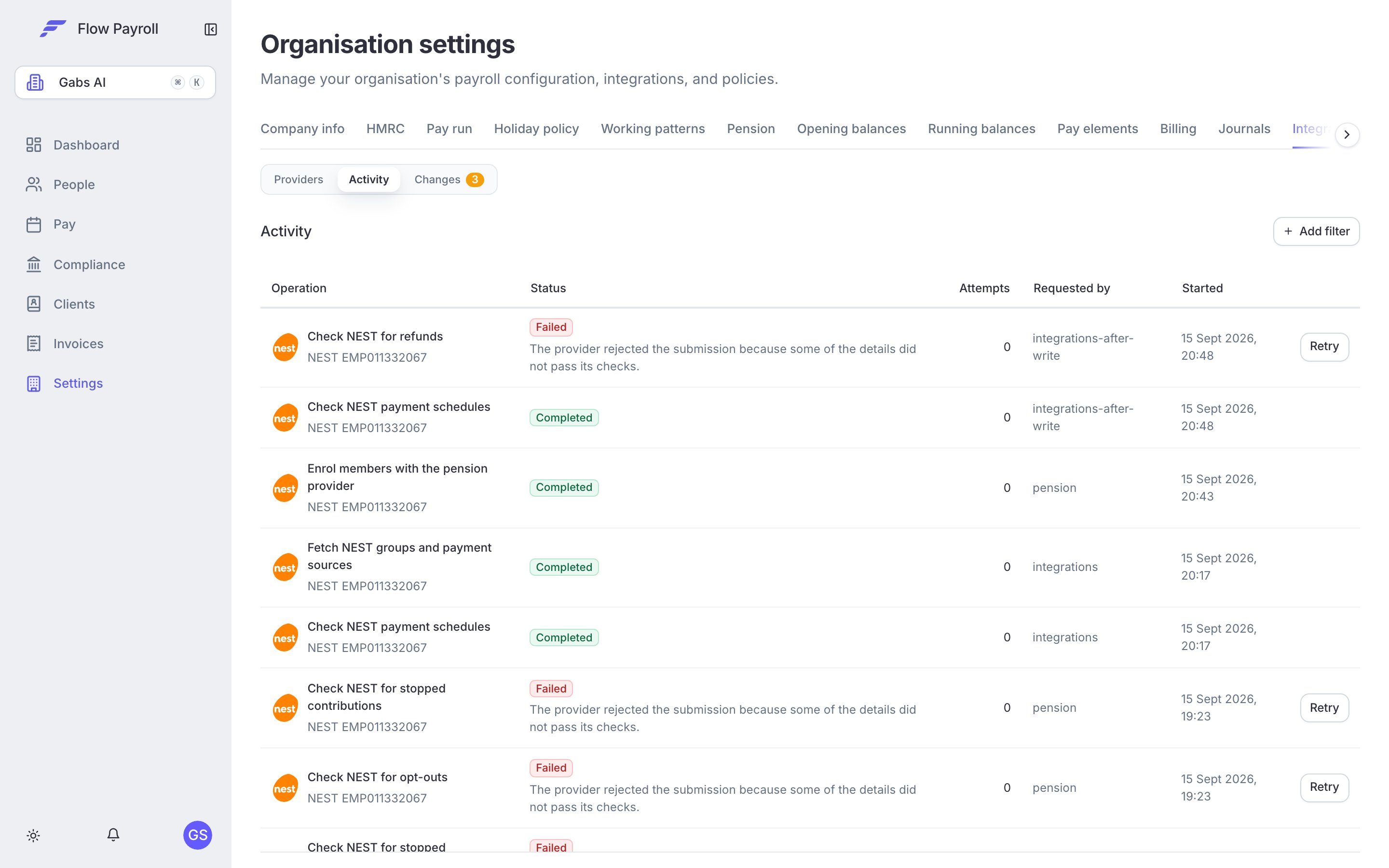
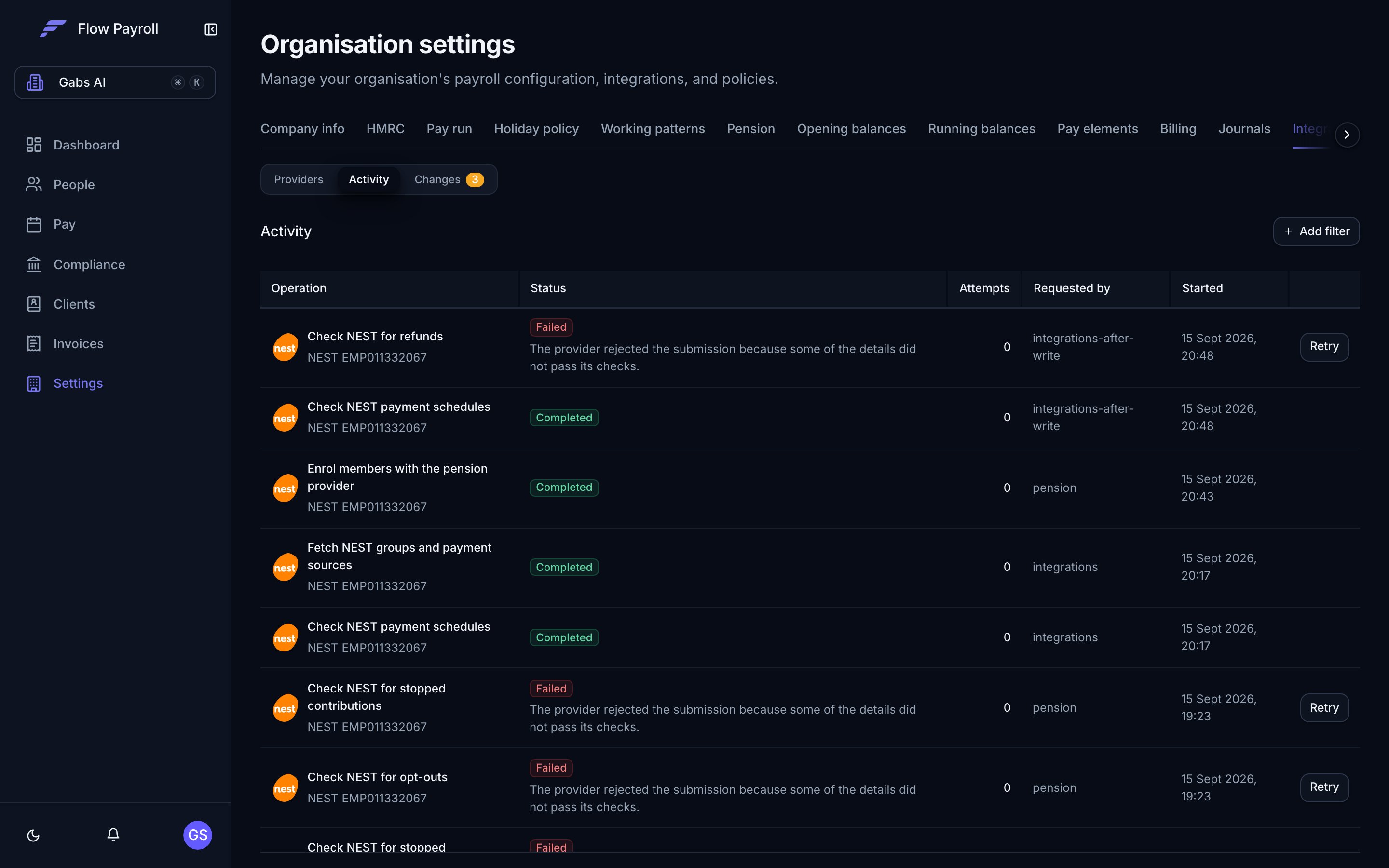
Activity lists every submission and every check of NEST, with its status
Manage the connection
Go to Settings, open the Integrations tab, and click Manage on the NEST connection.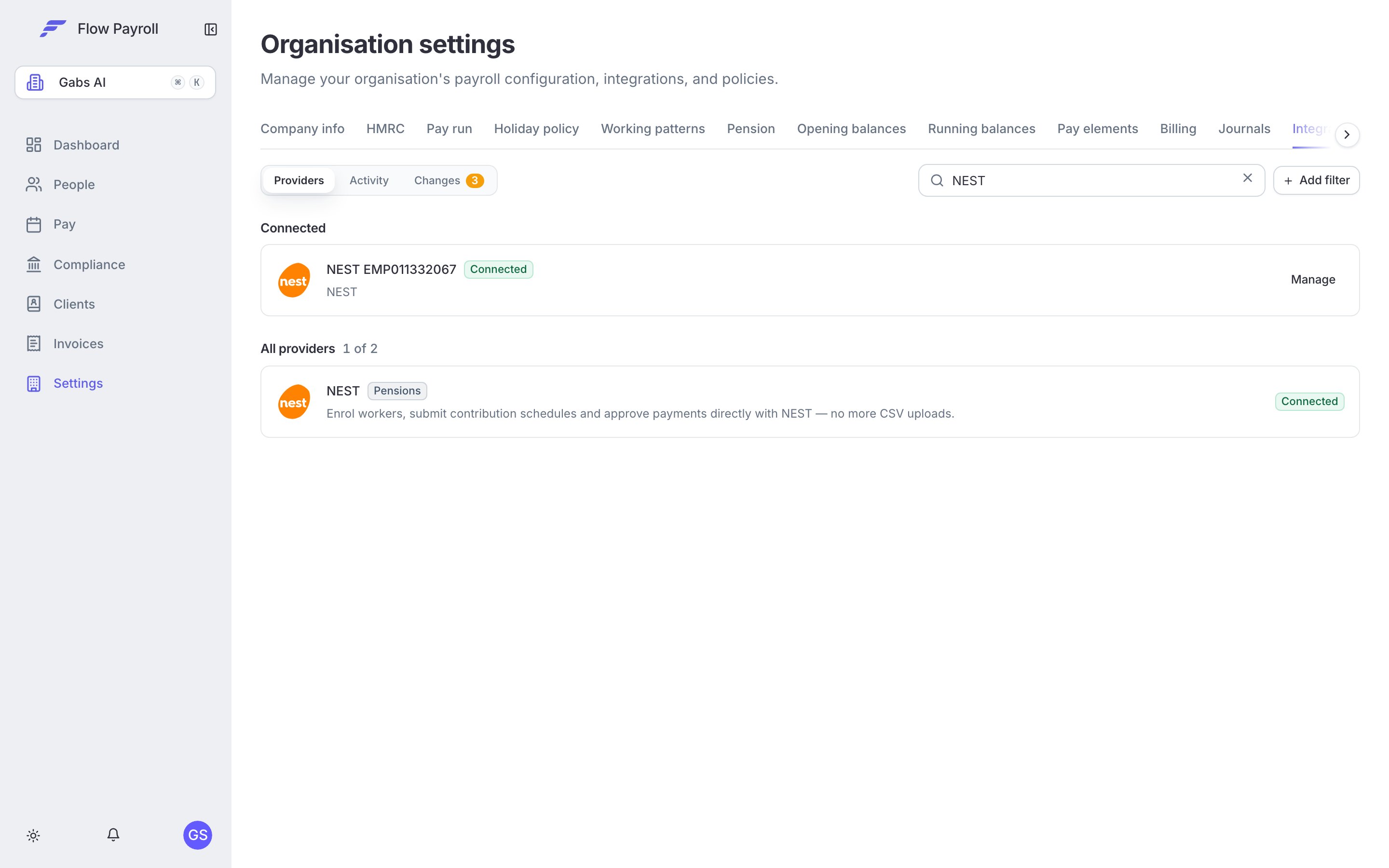
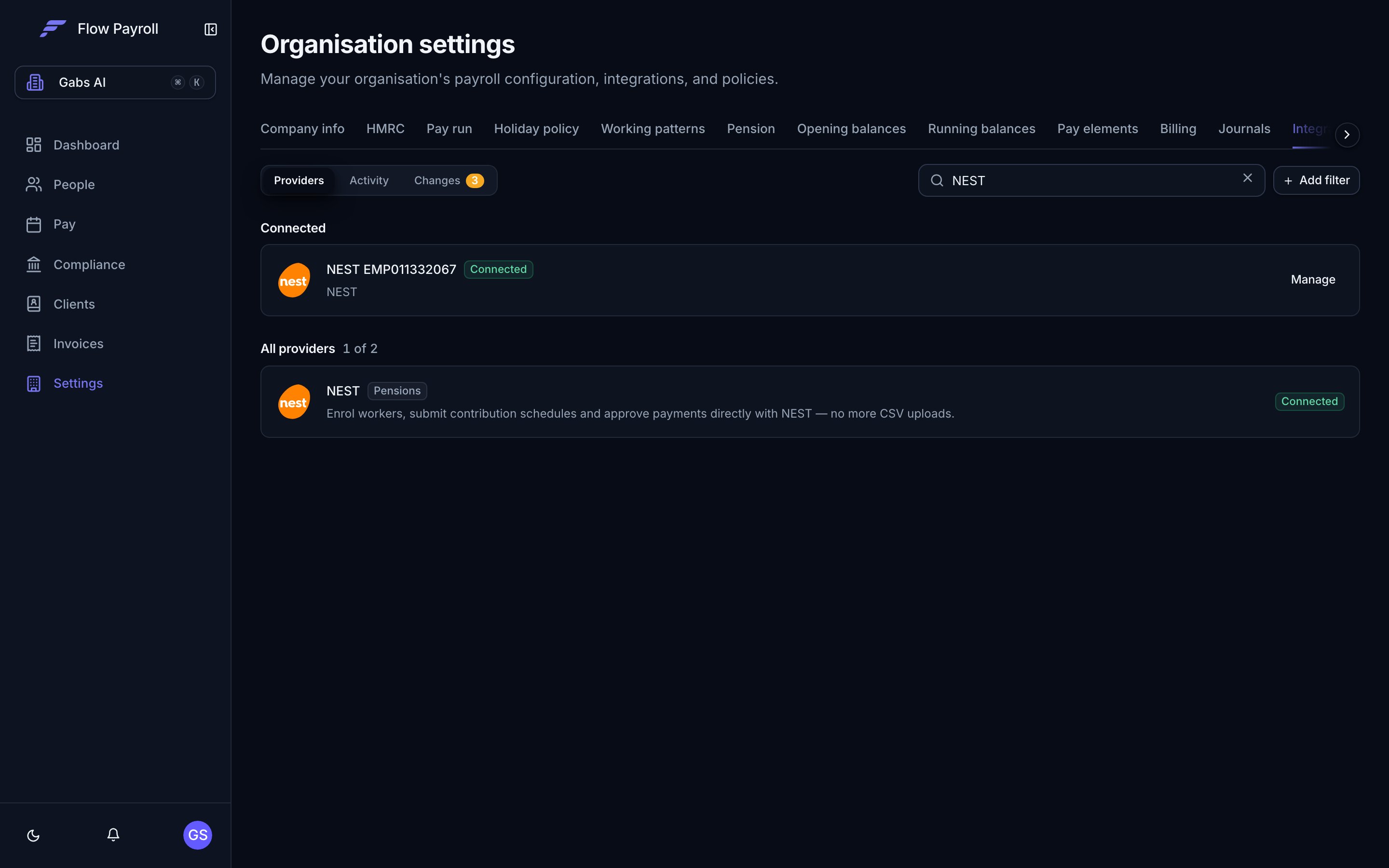
Connected providers under Settings, Integrations
- Test connection makes one real call to NEST with the stored sign-in and tells you whether it still works.
- Update sign-in details replaces the stored username, password or employer reference, and checks them again. Use it when the NEST password changes.
- Active is a pause switch. Paused, nothing new is sent through the connection, but it keeps its sign-in and its history, and everything already sent stays where it is.
- Health shows the last time NEST answered successfully and any failures in a row.
- Used by lists the schemes linked to the connection.
- Disconnect removes the stored sign-in and stops everything that sends through the connection, but keeps it listed so what it sent stays readable. You can reconnect later. Remove deletes it for good. Both require you to unlink every scheme first, which is deliberate: a scheme is never left pointing at nothing.