

What a pay element defines
Every element has a code (a short unique identifier likeOVERTIME — this is what CSV imports and the API reference it by) and a description (what employees see on their payslips). The rest falls into three groups:
Treatment
Defaults
Optional values that pre-fill a line when someone picks the element in a pay run: Default Unit (Hour, Day, Week, Month, Year, Fixed, Informational, or Percentage), Default Pay Rate, Default Unit Value, and Default Charge Rate (used when on-charging clients).Court order eligibility
Seven flags control whether deductions for each court order type can attach to earnings from this element: CMS DEO (Child Maintenance Service), DEA (Direct Earnings Attachment), AEO Priority and AEO Non-Priority (Attachment of Earnings), CTAEO (Council Tax), EA (Earnings Attachment), and MCAEO (Maintenance Calculation). All default to eligible. See court orders for how attachable earnings are calculated.Managing pay elements
Go to Settings → Pay elements.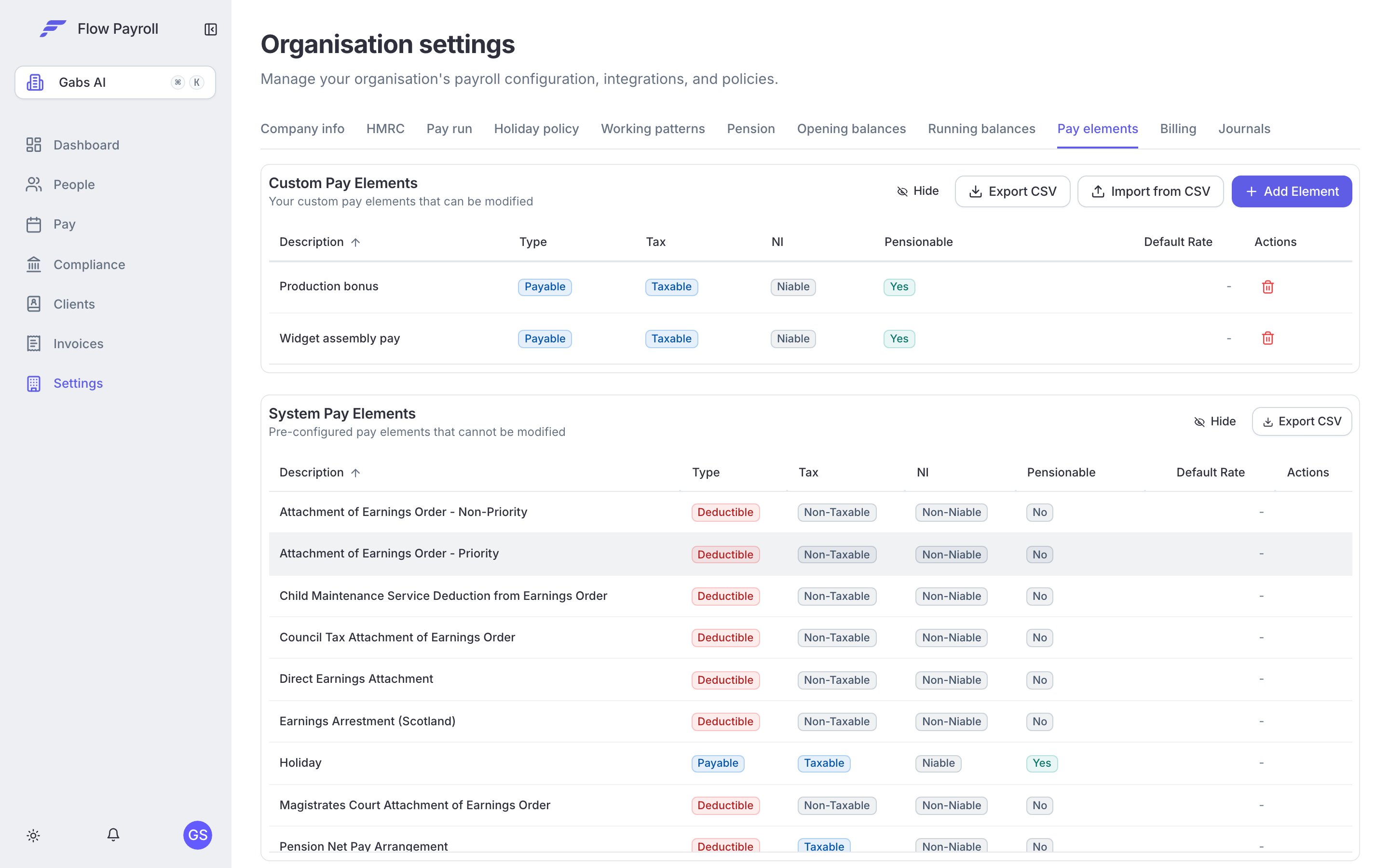
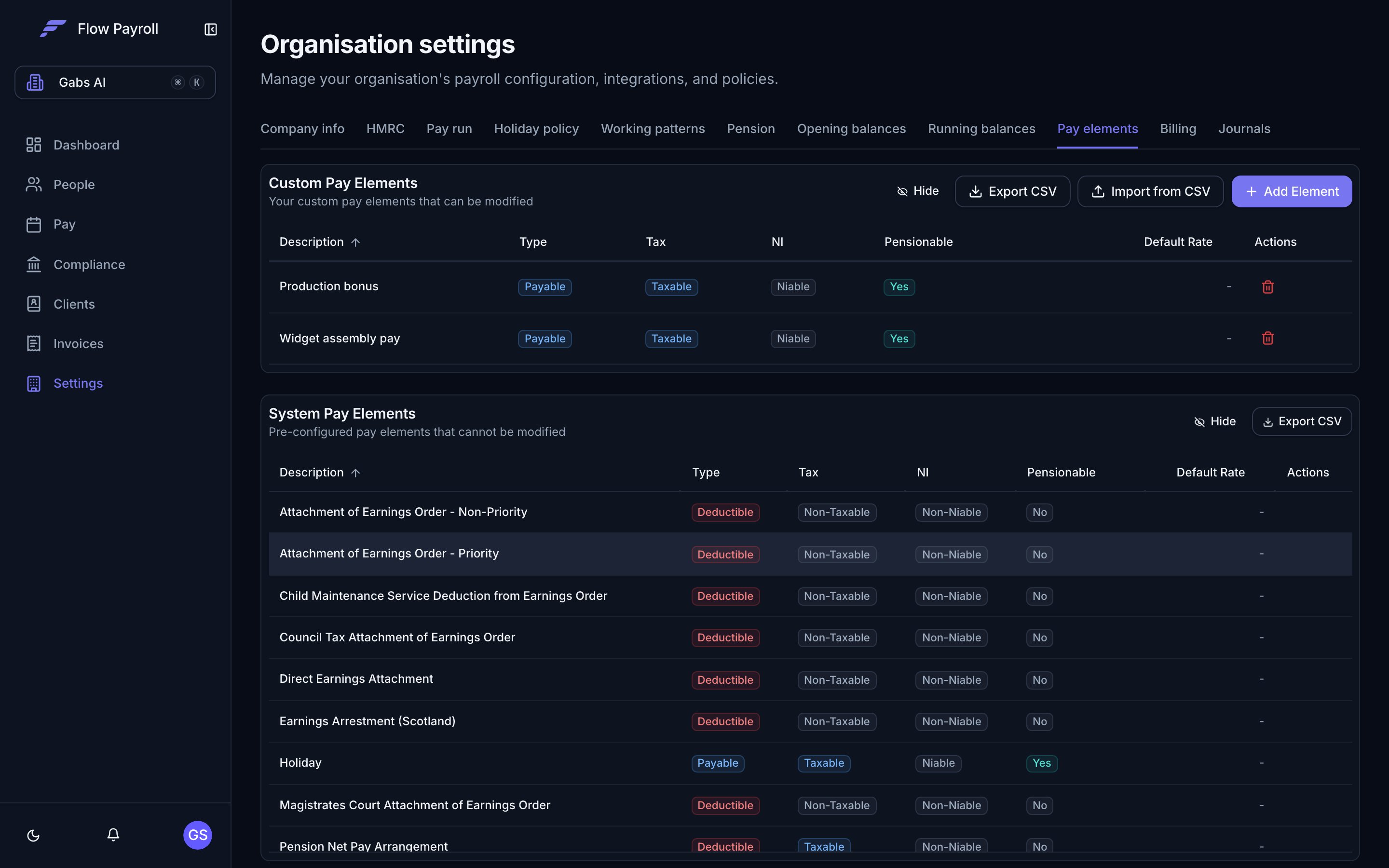
Pay elements in Workspace settings
- System Pay Elements — pre-configured elements that ship with Flow Payroll and cannot be modified. These cover the standard cases, so most organisations only add elements on top.
- Custom Pay Elements — your organisation’s own elements. Click Add Element to create one, or the pencil and bin icons to edit or delete. Export CSV downloads your custom elements — useful as a backup, or for importing into another organisation.
Importing pay elements from CSV
If your pay elements already exist in another system — or in another Flow organisation, via Export CSV — import them in bulk with Import from CSV. The importer runs on Flow Payroll’s shared import wizard: upload a CSV or Excel file, map the columns once, and save the mapping for next time. See importing data from CSV for how the wizard works.Mandatory columns
Optional columns
Yes/No columns accept Yes/No, True/False, or 1/0.
Template (
pay_element_import_template.csv — identical to the wizard’s Download template):
Where pay elements show up
Running a pay run
Every payment or deduction line — added by hand or imported from CSV — references a pay element by its code.
Payroll Journals
Journal templates map each pay element to a nominal code in your chart of accounts.
Holiday & leave
Percentage-of-time accrual counts hours from elements with holiday accrual switched on.
Invoices & billing
Billing maps pay elements to account codes when payroll syncs to invoices.